What should you look for?
First, check the keyboard layout and the shortcuts you use every day. Assess the sound where you work: claims from Logitech and BakkerElkhuizen are made by the manufacturers and aren’t based on comparative measurements.
| What to consider |
What should you check? |
Who is this important for? |
| Office noise |
Assess how the keys feel at your intended workstation and check the exact model variant. |
If colleagues work nearby, I want a typing feel that’s as unobtrusive as possible. Around 33% of consumers put sound first. |
| Shortcuts and layout |
Check the physical layout and test your most important shortcuts in your diagram software. |
When I select and edit lots of elements, I want my familiar key combinations to work. Around 27% of consumers prioritise shortcuts and layout. |
| Mouse space and posture |
Compare the width and positioning of the keyboard and mouse; check whether integrated numeric input is enough for you. |
For precise drawing work, I want to keep the mouse close without reaching any further than necessary. Around 27% of consumers say mouse space and posture matter most. |
| Connection and switching between devices |
Check the ports, Bluetooth support and IT policies for the computers you use. |
If I switch between work computers, I want a connection or pairing method that works with them. Around 13% of consumers prioritise connection and switching. |
Keyboards at Joybuy
This selection includes wired and wireless keyboards, with both compact layouts and models featuring a numeric keypad.
 No image available
Wired QWERTY keyboard with numeric keypad
A wired, plug-and-play model with a full-size layout and numeric keypad. Worth considering if you enter figures and want a wired connection.
Check that the QWERTY layout suits your software and work computer.
View at Joybuy
 No image available
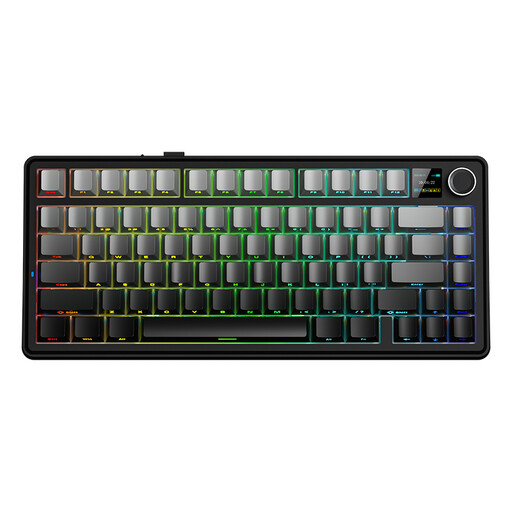
AULA F75 MAX, 75%, QWERTY US, Gradient Grey, Reaper Switches
The 75% layout is a compact option to compare if desk space is important to you.
The product name specifies a QWERTY US layout and three connection options: wired, Bluetooth and 2.4 GHz. Check that the layout suits your shortcuts.
View at Joybuy
 No image available
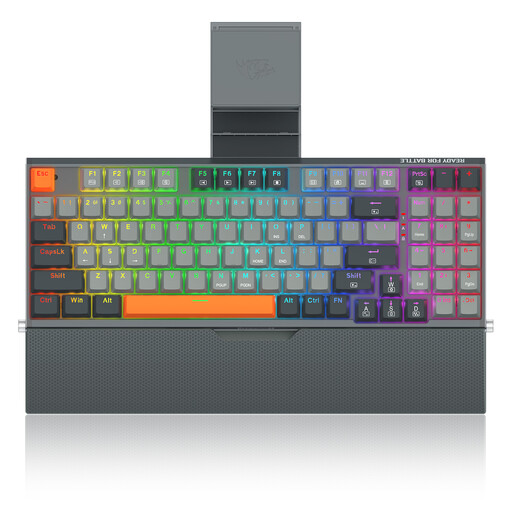
REDRAGON wired mechanical keyboard, 94 keys, with phone stand and detachable wrist rest
The product description lists a wired layout with 94 keys. Compare its dimensions and key layout with the space you need for your mouse.
The title mentions a phone stand and a detachable wrist rest; check whether these features suit your workstation.
View at Joybuy
 No image available
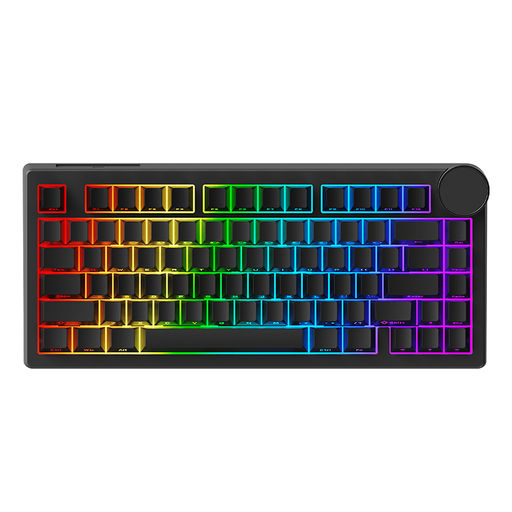
AJAZZ AK820 V2, wired, 75%
This wired 75% model is a compact option to compare if you want to free up desk space.
The product description lists arrow keys, a metal rotary knob and settings via a Windows web driver. Check whether this setup method is allowed on your work computer.
View at Joybuy
 No image available
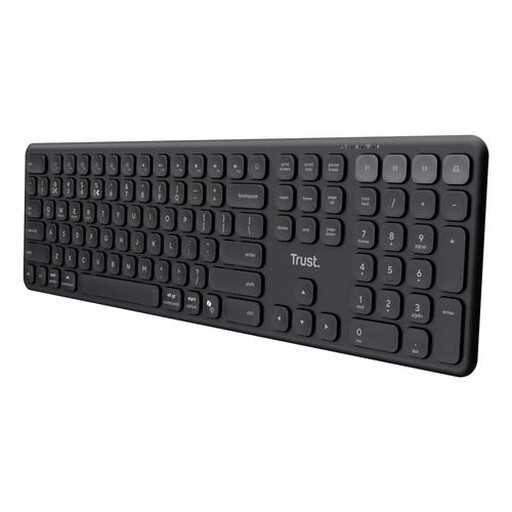
Trust Vaiya, full-size, numeric keypad, scissor keys, QWERTY US
The product information lists a numeric keypad and scissor keys described as quiet; this isn’t a comparative sound measurement.
According to the product description, you can connect via a USB receiver or one of three Bluetooth channels, and switch between up to four devices. Check that QWERTY US suits your work software.
View at Joybuy
Frequently asked questions
Do I need a separate numeric keypad for diagram work?
Not necessarily. Inkscape notes that, for many of the keys listed, numeric keys can perform the same function as their corresponding regular keys. However, that doesn’t tell you how comfortable you’ll find entering lots of figures. Choose a separate keypad if your work involves enough data entry to justify one, and check the shortcuts in your own version of the software.
Can you set up your own keyboard shortcuts on a work computer?
That depends on the software and your organisation’s rules. Inkscape lets you customise shortcuts, while Logitech offers Logi Options+ for supported devices. If you use a managed computer, check whether you’re allowed to use that software and change those settings.
How should you set up your keyboard for prolonged screen work?
Set up your workstation to suit your body, and break up screen work with other tasks or breaks. Arboportaal also recommends taking microbreaks and paying extra attention when doing work that involves precise mouse use. This doesn’t guarantee that a particular keyboard will prevent discomfort.
What warranty applies when you buy a keyboard as a consumer in the Netherlands?
When you buy as a consumer, the product should meet the standard you can reasonably expect when it’s used normally. According to ACM ConsuWijzer, the seller is your point of contact for an appropriate free remedy if a product breaks too soon. This consumer guidance doesn’t necessarily apply to purchases made on behalf of a business.
Do you have to use a separate keyboard with a work laptop?
For employees who work at a screen for more than two hours a day, Arboportaal describes the requirement that the screen and keyboard must not be attached to each other. When using a laptop, it must be possible to use a separate screen or keyboard. The employer is responsible for providing a safe workplace; this isn’t a general purchasing rule for every home user.


