
Route planner who wants plenty of mouse space
You often click and drag route points, and want to position your keyboard so your mouse stays close by. Komoot describes the map as a workspace for adding points.


Start by considering how much space you need to use your mouse: pointing to and dragging route points still relies on the map interface. If you often use the same planner actions, first check which keyboard shortcuts it supports. In a shared workspace, typing noise and space for a full-size keyboard may also be important.
You often click and drag route points, and want to position your keyboard so your mouse stays close by. Komoot describes the map as a workspace for adding points.
You regularly switch between map views or editing actions, and want to check which keyboard shortcuts your planner supports. Ride with GPS documents, among other things, shortcuts used with a click on the map.
You type destinations or notes while others work in the same room, so you pay attention to how noisy the keys are.
Choose the size and connection to suit how you use the map, what you need to type and your workspace. Shortcuts are only useful if they work with your planner.
| What to consider | What to look for | Who might find this especially important? |
|---|---|---|
| Mouse space | Compare the keyboard’s width and layout with your desk, and consider whether you use a number pad. | If I often point to or drag route points, I want enough space to use my mouse beside the keyboard. Around 31% of consumers put mouse space first. |
| Keyboard shortcuts | Check your planner’s shortcuts and make sure any configuration software works with your computer. | If I often make the same route edits, I want to know which actions my planner supports with keyboard shortcuts. Around 31% of consumers prioritise repetitive tasks. |
| Typing noise | Check the exact model and key mechanism, and try the typing feel if possible. | If other people are working nearby while I type destinations or notes, noise matters more to me. Around 23% of consumers put quiet typing first. |
| Connection and layout | Check the operating system, connection or wireless option, and the exact keyboard layout. | If I want to connect the keyboard to my computer without any surprises, I focus on the connection, system requirements and key positions. Around 15% of consumers prioritise these practical details. |
Customisable keys won’t automatically replace map controls: you may still need to click or drag route points.
First, check your planner’s keyboard shortcuts. Then decide whether extra customisation options would help with actions you repeat regularly.
Pointing remains important when editing a map, and a large keyboard can limit the space available for moving your mouse.
Measure your workspace and weigh up the usefulness of a number pad against how much room you want to leave for your mouse.
The connection, operating system and exact key positions can vary between versions.
Before buying, check the full layout variant, the connection required and whether the exact model is compatible with your computer.
The Compact Break is worth considering if you’re looking for a compact layout alongside plenty of map and mouse use.
The MX Keys S may suit you if its customisable keys and shortcuts work with your route planner.
The Ody II is a full-size wireless model for anyone looking for a number pad and considering typing noise.
The KC 6000 SLIM is a wired, full-size option for a permanent workspace.
This selection focuses mainly on compact keyboards that leave more room for your mouse. It also includes models with customisable features or a foldable design.
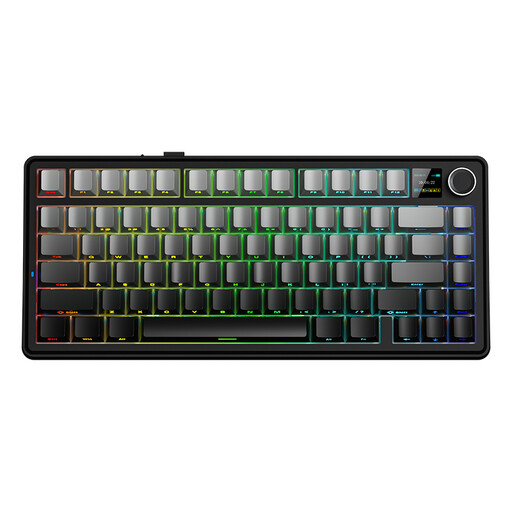 No image available
The 75% layout may suit you if you want to leave space beside the keyboard for using your mouse.
Specifications: 75% layout, mechanical, wired/Bluetooth/2.4G and US QWERTY.
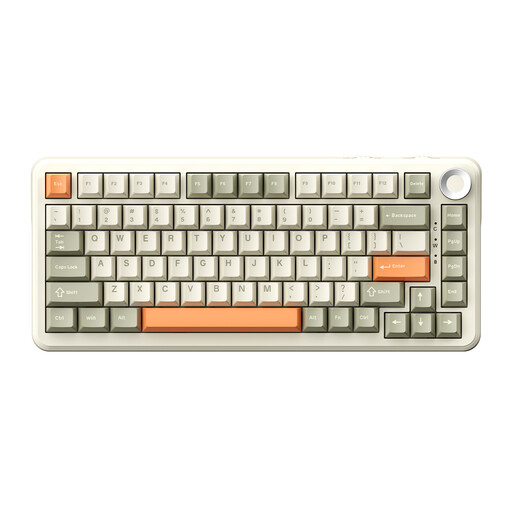 No image available
The compact layout is an option if you want to leave desk space for your mouse when using a map.
Specifications: 75% layout, mechanical, Tri-Mode and US QWERTY; the title mentions Flying Fish switches.
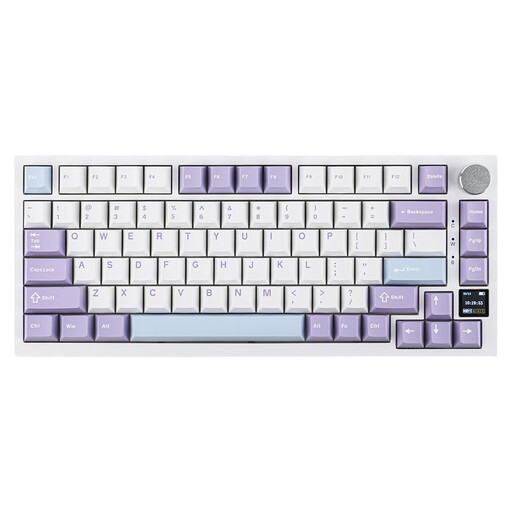 No image available
The 75% layout may suit a workspace where you want to keep room for your mouse.
Specifications: mechanical, 75% layout, wired/Bluetooth/2.4G and US QWERTY.
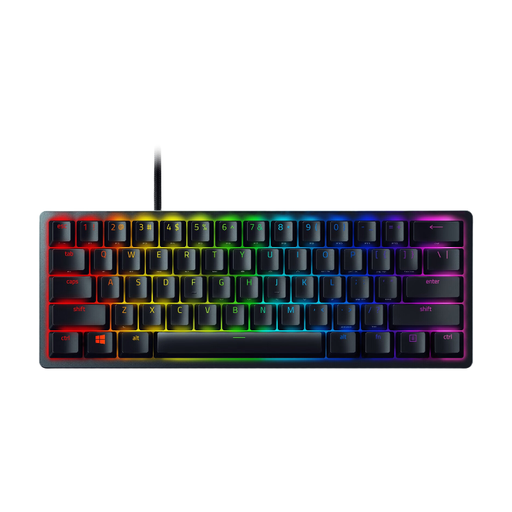 No image available
This model may suit you if you’re looking for a compact keyboard for a desk where mouse space matters.
Specifications: Purple Switch and US QWERTY layout.
 No image available
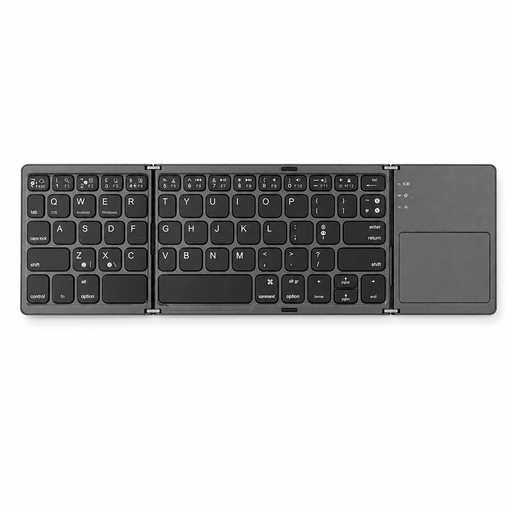
The foldable design and built-in touchpad may suit a small workspace or if you want to put the keyboard away when you’re not using it.
Specifications: tri-fold, Bluetooth and built-in touchpad.
Not for every task: Komoot describes clicking points on the map, and Ride with GPS lists shortcuts that also require a click. So check both how your planner works and how much room you have for your pointer.
Start with your planner’s list of shortcuts. Komoot points to the shortcuts menu in its route planner; then check whether any customisable keys can perform actions you actually use there.
Consider more than just your keyboard: think about your setup and how much intensive screen, keyboard and mouse work you do. Arboportaal advises limiting this intensive use to a maximum of six hours a day; this isn’t a guarantee that a particular keyboard will prevent discomfort.
For eligible distance purchases, you generally have a 14-day cooling-off period in many cases. Faulty products are covered by statutory guarantees; the Dutch government says the seller must provide a solution if there’s a problem. Check which terms apply to your purchase.
According to Arboportaal, when an employee works at a screen for more than two hours a day, the screen and keyboard must not be attached to each other. If they use a laptop, they must be able to use a separate screen or keyboard. The employer is responsible for a safe home-working space, subject to the conditions described by Arboportaal; this isn’t a general product requirement for everyone planning routes for personal use.