
For those who do a lot of coding
If you build pages yourself, you’ll want programming characters, navigation keys and any shortcuts to be easy to reach. Microsoft Support explains how to manage input layouts in Windows.


When building a responsive school reunion website, first choose a physical and software keyboard layout that makes it comfortable to enter both programming characters and Dutch text. Then let your workspace, need to switch between devices or preference for quiet typing guide your choice. A compact keyboard can save desk space, but may take some getting used to; a split model may need more room and adjustment. A keyboard does not determine whether a website is responsive.
If you build pages yourself, you’ll want programming characters, navigation keys and any shortcuts to be easy to reach. Microsoft Support explains how to manage input layouts in Windows.
If you spend long periods building or updating the site, you’ll want to position your keyboard and mouse to suit your workspace. Arboportaal describes the repeated finger and hand movements involved in working at a screen.
If you update the site and reunion texts on different devices, you’ll want to check the connection and switching options without losing sight of your preferred keyboard layout. Logitech explains how to switch devices with the MX Keys S.
| What to consider | What to look for when buying | Who is this important for? |
|---|---|---|
| Entering code and Dutch text | Check whether the physical keyboard is ANSI or ISO, the key legends, and the position of the navigation and function keys. Test your operating system’s input layout with the characters you use. | If I use code and Dutch text side by side, I want programming characters and navigation keys to be easy to reach. Around 31% of this group prioritise coding. |
| Posture during long sessions | Compare the width, space for your mouse and any split or adjustable design. Also check that the keyboard suits your hands and workspace. | If I work for long periods, I want to position my keyboard and mouse to suit my hands. Around 25% of this group prioritise posture. |
| Switching between devices | Check the connections available, supported devices and compatibility with your operating system for the specific version. | If I update the site on more than one device, I want to know how to switch between them. Around 25% of this group prioritise switching between devices. |
| Quiet, everyday typing | Check the layout, connection and key type of the exact version. Don’t treat a description such as ‘quiet’ as a comparative sound measurement. | If I write a lot of reunion texts or share a workspace, I want comfortable typing without unnecessary features. Around 19% of this group prioritise quiet, everyday typing. |
The physical keyboard layout and your operating system’s input layout are separate settings. This means the key legends may not match the characters you type.
Check the exact version and key legends, then test the input layout with your programming characters and Dutch text.
A different input layout may take time to learn or set up.
For the Keychron K3 Max we looked at, hot-swap is available only on the version designed for it; features may differ between variants.
Check the full variant name and the features of the exact version before choosing.
Arboportaal describes several aspects of working at a screen, while a keyboard alone cannot determine your entire workstation setup or how often you vary your activities.
Consider the setup, variety of tasks and how well it suits you, too. Don’t take a manufacturer’s claim as a promise that discomfort will be prevented.
According to the Dutch government, there is no fixed term for the statutory guarantee in the Netherlands. Any additional manufacturer’s warranty is on top of the rights you already have.
Check what an additional warranty offer covers. If a product is faulty, contact the retailer.
Worth comparing if you’re looking for a compact, configurable mechanical keyboard; the product range mentioned includes the K3 Max.
Worth comparing for everyday typing and use across multiple devices; the version we looked at is the MX Keys S.
Worth comparing if a more compact keyboard and mouse setup and reminders to take breaks are priorities; the model we looked at is the Compact Break.
Worth comparing for conventional everyday typing, with separate wired and wireless versions of the STREAM KEYBOARD.
Worth comparing if you’re looking for a split design and adjustable tilt; the version we looked at is the Pro Fit Ergo Wireless Keyboard.
This Joybuy selection includes compact mechanical keyboards, keyboards for everyday work across multiple devices, and a Dutch version for certain Mac models.
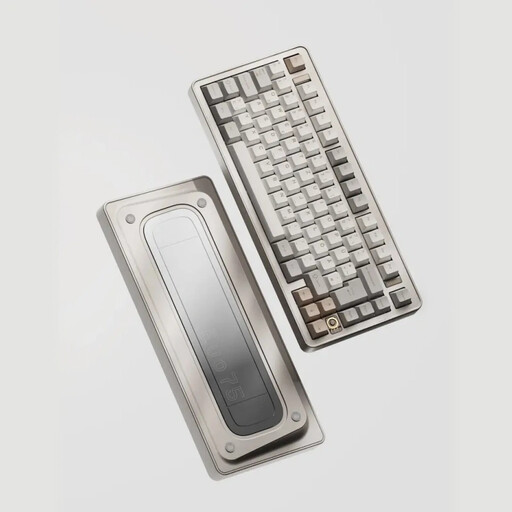 No image available
Worth comparing if you’re entering code and text at a compact workstation. The product name specifies a US layout, so check that the physical key legends suit your input layout.
The product name describes a mechanical keyboard with tri-mode wireless connectivity, hot-swappable switches and VIA compatibility.
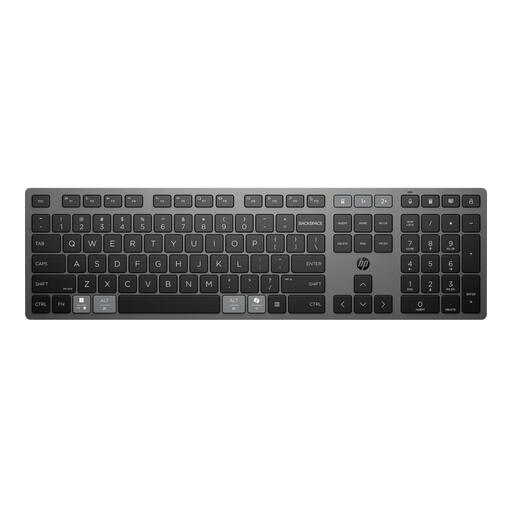 No image available
Worth comparing if you want to switch between devices while updating the site. Check which connections and devices are supported by the version you choose.
The product name describes a wireless keyboard with a rechargeable battery and support for multiple devices.
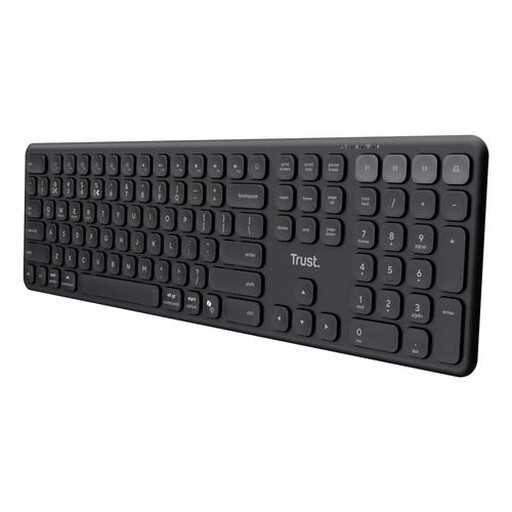 No image available
Worth comparing if you update text on multiple devices and want a full-size US QWERTY layout; bear the physical key legends in mind.
The product name describes a full-size wireless keyboard with scissor-style keys and a US QWERTY layout.
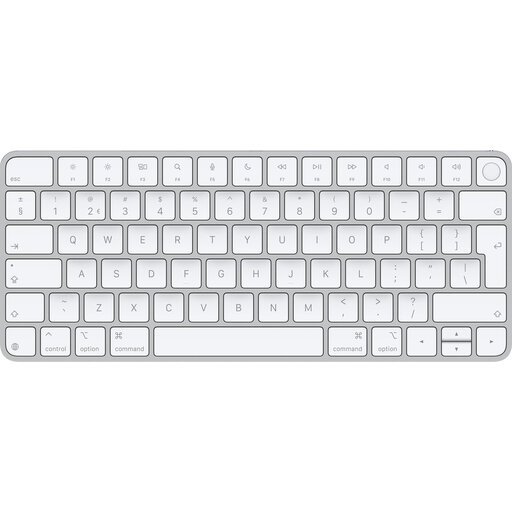 No image available
Worth comparing if you type in Dutch on a Mac model with Apple Silicon; check that your Mac and operating system meet the stated requirements.
The product name specifies a Dutch version for Mac models with Apple Silicon. The description lists macOS 11.4 or later as a requirement.
 No image available
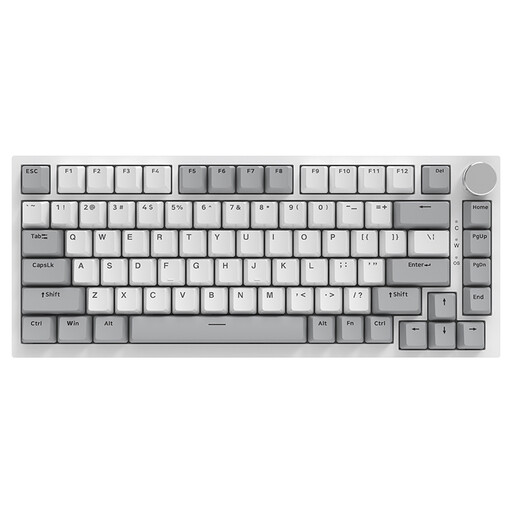
Worth comparing if you’re looking for a compact mechanical keyboard for coding and typing; check that the US key legends suit your input layout.
The product name specifies a wired 75% layout, hot-swappable linear switches and a volume knob.
No. Choose a keyboard that suits the way you enter code, your preferred layout and your workspace. A keyboard doesn’t determine a website’s responsive layout, though programmable keys can support shortcuts if the version you choose has that feature.
Check both the physical keyboard layout and your operating system’s input layout. Microsoft Support explains how to add and change keyboard layouts in Windows; this doesn’t alter the physical key legends.
No. An indicator is no substitute for varying your screen-based activities. R-Go Tools says the LED indicator on the Compact Break works with the accompanying Break software; Arboportaal also describes the role employers play in organising variety in employees’ work.
For employees who work at a screen for more than two hours a day, Arboportaal says the screen and keyboard must not be attached to one another. With a laptop, it must be possible to use a separate screen or keyboard; these employer requirements aren’t general buying conditions for every individual shopper.
For a typical online consumer purchase from a business, you usually have 14 days to change your mind, although exceptions depend on the purchase. According to the Dutch government, there is no fixed term for the statutory guarantee in the Netherlands: you’re entitled to a product that works properly, and you can contact the retailer if it’s faulty.