Start by choosing a layout that gives you easy access to the symbols, arrow keys, function keys and, if needed, number keys you use in your coding and testing workflow. A programmable keyboard suits recurring shortcuts, a split model lets you adjust hand position, and a low-profile keyboard offers a more conventional typing experience. Always check the exact version and software compatibility. A keyboard won’t run automated tests by itself: you’ll also need a computer and suitable software.
Who is this keyboard advice for?
The coder who navigates frequently
When editing code and log files, you want easy access to symbols, arrow keys and frequently used test commands. RTINGS.com highlights access to the arrow keys, function row and number pad as points to consider when choosing a keyboard for programming.
The coder with a regular testing workflow
You may want to assign recurring editing shortcuts or test commands to keys that are easier to reach. Check that the customisation options on the specific keyboard version and the software on your computer suit your needs.
The coder with long or varied working sessions
You may prioritise an adjustable hand position, a typing feel suited to a shared workspace, or a keyboard you can carry between workstations. Choosing a keyboard doesn’t replace setting up the rest of your workspace appropriately.
What should you look for in a keyboard for coding and testing?
Compact mechanical keyboard with programmable keys
Suitable for: anyone who regularly uses the same shortcuts and wants to customise them. Keychron describes the V1 as a wired 75% model with an ANSI layout and reprogrammable keys.
Bear in mind: a more compact layout may not have a separate number pad. Also check that your chosen action works with your computer and software.
Split and adjustable
Suitable for: anyone who wants to adjust the distance between the keyboard halves to suit their setup. Kinesis describes the Freestyle2 as having adjustable split halves.
Bear in mind: it takes up space and may take some getting used to. Check that you’ve chosen the right PC or Mac version, and whether any tenting accessories are included.
Low-profile, conventional work keyboard
Suitable for: anyone looking for a low-profile keyboard or scissor mechanism. CHERRY describes the KC 6000 SLIM as a wired full-size model; Logitech lists programmable keys for the MX Keys S.
Bear in mind: a full-size model takes up more desk space than a compact keyboard. Check the layout and any software requirements for the model you want.
Compact keyboard to take with you
Suitable for: anyone who moves between workstations and wants a slim, compact keyboard. R-Go Tools lists wired and wireless versions of the Compact Break.
Bear in mind: check the connection and layout of the version you choose. The break indicator on this model is controlled by R-Go Break software.
Start with the keys you actually use when working with code and logs. Then compare customisation, typing feel and connectivity. In its review dated 2 October 2026, RTINGS.com highlights access to the arrow keys, function row and number pad. Microsoft Support explains how to manage your keyboard and input layout in Windows.
| What to consider |
What should you check? |
Who is this important for? |
| Layout and key access |
Check whether the layout is ANSI or ISO, the position of your symbols, arrow keys and function row, and the input layout set on your computer. |
If I often use symbols and arrow keys when working with code and logs, I want them close to hand; around 28% of consumers give layout and key access their highest priority. |
| Customisable shortcuts |
Check which keys or layers you can customise, what software you’ll need and whether your chosen command works on your computer. |
Customisation is crucial for consumers who want frequently repeated editing or testing actions on easy-to-reach keys; this applies to around 22%. |
| Hand position during long typing sessions |
Assess your entire workspace setup. For a split model, check which width, angle and accessories are included with that version. |
Anyone who mainly wants to adjust their hand and arm position during long typing sessions will want to focus on this; around 22% of consumers prioritise hand position. |
| Typing feel and noise |
Check the exact switch type or scissor mechanism, and try out the typing feel and noise of that version if possible. |
In a shared workspace, I want the typing feel to suit my surroundings; around 17% of consumers rank this as their first consideration. |
| Portability and switching between devices |
Check the dimensions, connection and supported operating systems, and consider whether you need a separate number pad. |
If I move between workstations or devices, portability and connectivity matter a lot; around 11% of consumers prioritise portability. |
What to watch out for when choosing a keyboard
-
Choosing a compact model without checking the keys you use every day
Compact layouts vary in how easily you can access navigation keys and number keys. You may end up using key combinations more often than you expect.
Before choosing a size, check the symbols, arrow keys, function keys and number input you use.
If you enter numbers frequently, a compact keyboard may also mean you need a separate number pad.
-
Assuming programmable keys will run tests automatically
Assigning keys or setting up a macro isn’t the same as running a test; the action needs to work with the software on your computer.
First choose the shortcut you want to use, then check that the exact keyboard version and its software support it.
-
Treating an ergonomic claim as a guarantee against discomfort
An adjustable layout gives you the option of a different setup, but it can’t guarantee a particular result for an individual user. Check whether tenting accessories for the Freestyle2 are sold separately.
Choose a keyboard based on adjustability and personal fit, check what’s included with that version, and set up the rest of your workspace appropriately too.
Separate accessories may be needed to achieve the tenting angle you want.
-
Confusing a product range name with a specific version
Layout, connection, switches and included accessories can vary between versions in the same product range.
Before buying, compare the full model name, physical layout, connection and accessories of the version you’re choosing.
Brands to consider
Keychron
The V1 range may suit you if you’re looking for a compact mechanical keyboard with customisable keys.
- For the V1 version, Keychron lists a wired 75% ANSI layout, hot-swappable switches and reprogramming via Keychron Launcher.
- These features don’t necessarily apply to every V1 variant. Check the exact version and whether you’re choosing a fully assembled model.
Logitech
The MX Keys S and MX Mechanical offer different keyboard styles: a low-profile work keyboard and a mechanical model with a choice of switch variants.
- Logitech lists programmable keys for the MX Keys S, and three switch variants and device switching for the MX Mechanical.
- Check the features of the exact model. A manufacturer’s description of a switch isn’t an independent comparison of its noise level.
Kinesis
The Freestyle2 range is worth considering if you want to adjust the distance between the keyboard halves.
- Kinesis describes a split design, PC and Mac versions, and optional tenting accessories.
- Check your chosen version and accessories. Ergonomic features can’t guarantee a particular result for an individual user.
CHERRY
The KC 6000 SLIM is a wired, low-profile full-size option with a scissor mechanism.
- CHERRY lists a number pad, USB-A connection and a choice of country-specific layouts.
- A full-size case takes up more space than a compact keyboard. Check the country layout of the exact product.
R-Go Tools
The Compact Break is designed for anyone looking for a slim, compact keyboard to carry between workstations.
- R-Go Tools lists wired and wireless versions, with a break indicator controlled by R-Go Break software.
- Check the connection and physical layout of the version you choose. An indicator doesn’t replace taking breaks or setting up your workspace appropriately.
Keyboards at Joybuy for coding and working with logs
This selection includes compact mechanical keyboards and models for anyone who prefers wireless connectivity, direct number input or a conventional layout. For each version, check that its keys and features suit your coding and testing workflow.
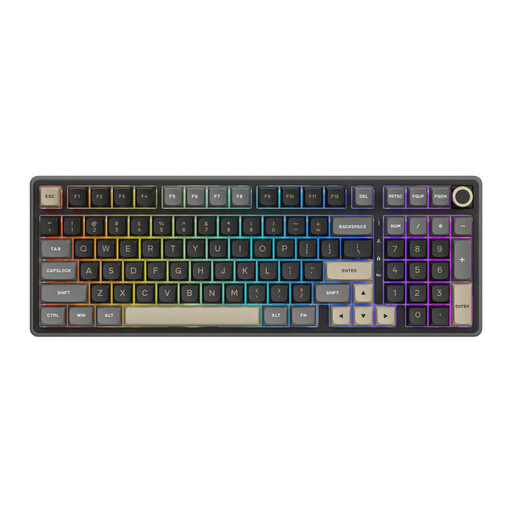 Image unavailable
RK ROYAL KLUDGE R98 Pro wired mechanical keyboard with number pad and volume knob, Phantom Color, Beige Switch
May suit you if recurring shortcuts and direct number input are important. Check that the features on this version work with your editor and testing software.
Wired mechanical keyboard with a number pad, volume knob, hot-swappable switches and PBT keycaps; this variant is listed as Phantom Color, Beige Switch.
View at Joybuy
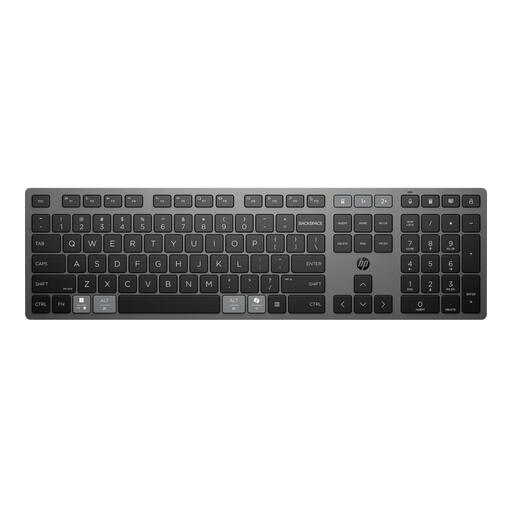 Image unavailable
HP 725 Multi-Device Rechargeable Wireless Keyboard
May suit you if you want to work wirelessly or switch between devices. Before buying, check that the layout and customisation options you need suit your workflow.
Rechargeable wireless keyboard for multiple devices.
View at Joybuy
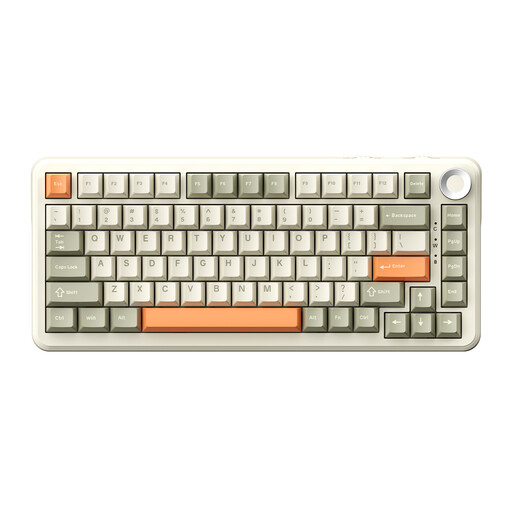 Image unavailable
AJAZZ AK820 MAX 75% wireless mechanical keyboard, US QWERTY
May suit you if you’re looking for a compact layout with arrow keys and a function row. Check that the US QWERTY layout works for the coding characters you use.
75% layout, tri-mode connection, Flying Fish Switches, volume knob and hot-swappable switches. The product name lists an 8000mAh battery.
View at Joybuy
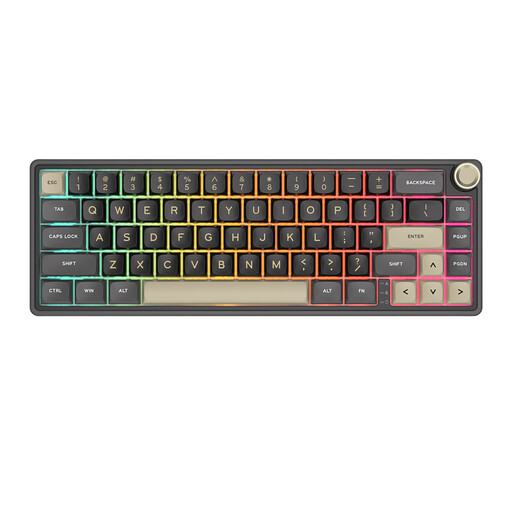 Image unavailable
RK ROYAL KLUDGE R65 wired mechanical keyboard, 66 keys
May suit you if you want to customise recurring editor or testing commands. Bear in mind that a compact layout may require you to use more key combinations.
Wired mechanical keyboard with volume knob and QMK/VIA. The 66-key layout uses Fn-layer shortcuts; some functions may require a key combination.
View at Joybuy
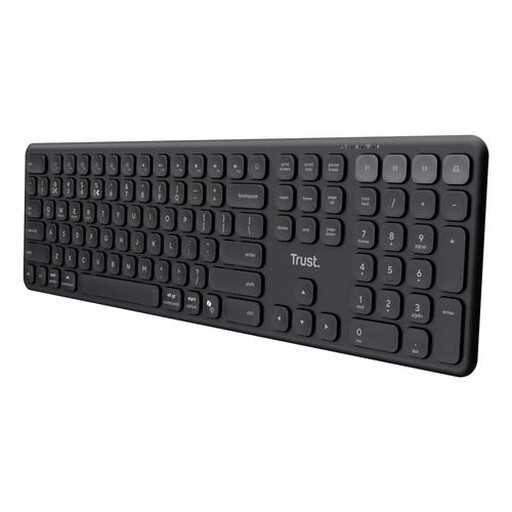 Image unavailable
Trust Vaiya wireless full-size keyboard with number pad, scissor mechanism, US QWERTY
May suit you if direct number input and wireless connectivity are important. The product description states that the keys aren’t programmable, so bear this in mind if you want to customise shortcuts.
Full-size layout with number pad, scissor mechanism and US QWERTY layout.
View at Joybuy
Frequently asked questions about keyboards for coding and testing
Should an employee who codes on a laptop for long periods be able to use a separate keyboard?
According to Arboportaal, for an employee who works at a screen for more than two hours a day, the screen and keyboard must not be attached to each other. If they use a laptop, they must therefore be able to use a separate screen or keyboard. This is a conditional workplace requirement and doesn’t mean that every buyer needs a particular type of keyboard.
How can I make sure coding symbols appear in the right place?
Check both the keyboard’s physical layout and the keyboard or input layout set on your computer. Microsoft Support explains how to manage the layout in Windows; Apple Support explains how to select an input source on a Mac. Then test the characters you use frequently in your own editor.
Do the Kinesis Freestyle2 shortcuts work on both Windows and Mac?
According to the Kinesis manual, the specific shortcuts aren’t interchangeable between the PC and Mac versions. Check which model you’re choosing and whether its features suit your computer’s operating system.
What rights apply if a product is faulty or I buy online in the Netherlands?
When you buy from a business as a consumer, the seller is your point of contact for your statutory guarantee rights. According to the Dutch government, the Netherlands doesn’t have a fixed statutory guarantee period of two years. For distance purchases, you’ll generally have a 14-day cooling-off period, although there are exceptions. Check the terms that apply to your particular purchase.


