Start with the code symbols and keys you use every day, then check both the keyboard’s physical layout and your computer’s input layout. Keychron describes several ISO versions, while Microsoft Support explains how to manage input layouts. Then choose between customisable keys, a conventional keystroke or a split layout, depending on your workspace and preferences.
Who is this relevant to?
Programmers who type lots of symbols
If you switch frequently between an editor, terminal and test output, a layout with symbols, arrow keys and shortcuts in familiar places can be helpful. Keychron and Microsoft Support highlight points to consider about the physical layout and the selected input layout.
People who work at a screen for long periods
If you spend long hours at a screen, consider the position of your hands and forearms, and assess the keyboard as part of your overall workspace. Kinesis, R-Go Tools and Arboportaal offer relevant information.
Programmers working in a shared space
If you want to avoid disturbing others, you may want to consider how noisy the keys are. If you often repeat the same actions, customisable shortcuts may be a priority. Logitech and CHERRY describe the features and keystrokes of specific models.
What should you look for when choosing?
Compact, customisable mechanical keyboard
Choose this if: you want to customise key functions and are looking for a compact keyboard, such as the Keychron K3 Max ISO.
Bear in mind: a 75% layout omits the separate number pad; check the exact ISO version too.
Conventional keyboard with app-controlled actions
Choose this if: a familiar key layout and software-based shortcut actions are important to you, as with the Logitech MX Keys S.
Bear in mind: Smart Actions works through Logi Options+; check that the software is available and permitted on your work computer.
Split keyboard
Choose this if: you want to set the distance between the two keyboard halves yourself, as with the Kinesis Freestyle2 or R-Go Split Break.
Bear in mind: your desk needs enough room for the setup; check the connection and any accessories for the specific version.
Wired scissor-switch keyboard
Choose this if: you want a conventional low-profile keyboard for a shared space, such as the CHERRY STREAM KEYBOARD.
Bear in mind: CHERRY’s description of its quiet keystroke is not an independent sound comparison, and this is not a mechanical hot-swappable keyboard.
| What to consider |
What to look for |
Who should pay particular attention? |
| Layout and code symbols |
Compare the physical ANSI or ISO version with the selected input layout, and try the symbols you use often. |
If I switch between an editor, terminal and tests, I want to find symbols and arrow keys in familiar places. Around 33% of consumers prioritise layout above all else. |
| Adjustable working position |
Check the space on your desk, the position of the halves and whether the version you choose requires accessories. |
If I want to adjust the position of my hands and forearms, the setup also needs to work with my desk. Around 27% of consumers prioritise working position above all else. |
| Key noise |
Check the specific mechanism or switch type; a manufacturer’s description such as ‘quiet’ is not a measured sound level. |
If I work in a shared space, I want to know how the version I choose feels and sounds to type on. Around 20% of consumers prioritise low key noise above all else. |
| Keys and connectivity |
Check which software, configuration method and connection modes are available with the exact version. |
If I want to set up my own key functions or switch between devices, I want to know in advance what my work computer supports. Around 20% of consumers prioritise customisable keys or connectivity above all else. |
Common buying mistakes
-
Assuming ‘ISO’ or ‘QWERTY’ guarantees the code symbols you need
The physical keys and your computer’s selected input layout may not match, which can mean a key produces a different character from the one you expect.
Before buying, check the exact version, the key images and your computer’s input layout.
-
Assuming ‘quiet mechanical’ describes every mechanical keyboard
The Logitech MX Mechanical Mini is available with different switch types: Tactile Quiet, Clicky and Linear. The version you choose therefore matters.
Check which switch type you’re choosing, and treat descriptions of noise as manufacturer claims rather than measured results.
-
Choosing a split keyboard without considering your whole workspace
With some versions, tenting depends on accessories. The space on your desk and the position of the rest of your workspace matter too.
Check the dimensions and version, and find out whether you need any accessories for your preferred setup.
-
Assuming similar model names mean the same version
Models with similar names may differ in layout, switches or other features.
Before buying, check the full model name and the specifications of the version you’ve chosen.
Brands to consider
Keychron
The K3 Max ISO is a compact mechanical keyboard with customisable functions and multiple connection modes.
- Keychron describes the K3 Max as having a 75% layout and QMK/Launcher support.
- Check the exact ISO layout and version; ISO does not automatically mean Dutch key legends.
Logitech
The MX Keys S is a conventional option with app-controlled actions, while the MX Mechanical Mini is for anyone looking for a mechanical keystroke.
- Logitech says the MX Keys S offers Smart Actions through Logi Options+.
- The MX Mechanical Mini is available with different switch types; don’t assume its features are the same as those of the MX Keys S.
Kinesis
The Freestyle2 is designed for anyone who wants to adjust the distance between the two keyboard halves.
- Kinesis describes it as having separate halves and optional tenting.
- The Freestyle2 has membrane switches; check the version and which accessories suit your setup.
CHERRY
The STREAM KEYBOARD is a conventional, wired, low-profile option.
- CHERRY describes the keyboard as having an SX scissor mechanism.
- The description of its keystroke as quiet is a manufacturer claim, not an independent sound comparison.
R-Go Tools
The Split Break has movable keyboard halves and a break indicator.
- The manual describes wired and wireless versions.
- Check which version you’re choosing and whether its connection suits your devices; a break indicator is no guarantee against discomfort.
Keyboards on Joybuy
Joybuy keyboard picks for coding and automated testing, from compact programmable keyboards to full-size models.
 No image available
Full-size wired keyboard with number pad
Suited to anyone who enters lots of numbers and wants a full-size layout.
QWERTY layout, number pad and plug-and-play; black.
Joybuy
 No image available
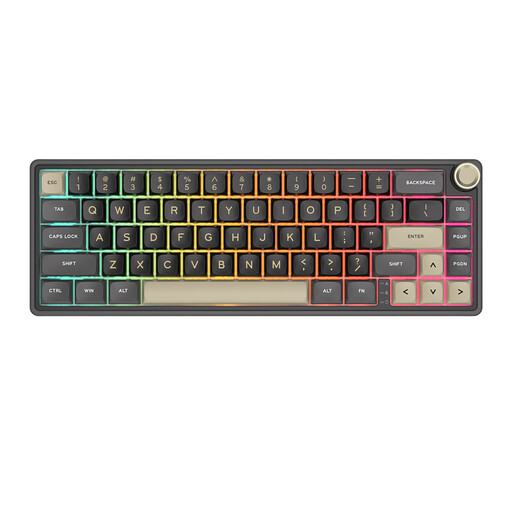
RK ROYAL KLUDGE R65
Suited to anyone looking for a compact setup who wants to customise key functions or macros.
Wired mechanical keyboard with 66 keys and Chartreuse Switch.
Joybuy
 No image available
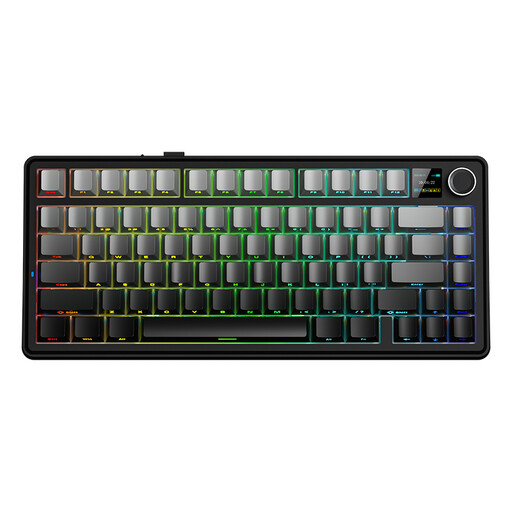
AULA F75 MAX
Suited to anyone looking for a compact layout with a function row and arrow keys.
75% layout with US QWERTY, Reaper Switch, and wired, Bluetooth and 2.4GHz connectivity.
Joybuy
 No image available
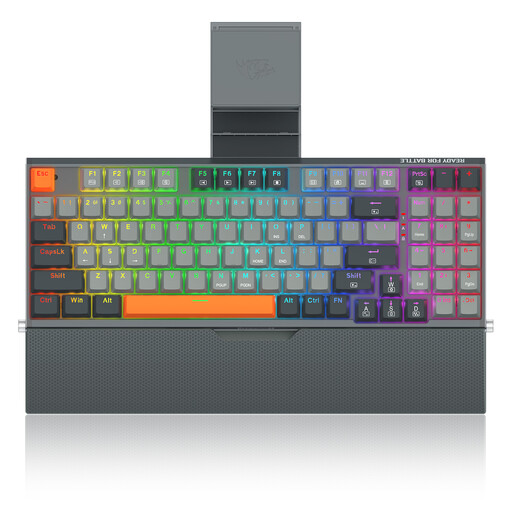
REDRAGON 94-key wired mechanical keyboard
Suited to anyone looking for a wired mechanical keyboard with a wrist rest.
94 keys, metal casing, phone holder and wrist rest.
Joybuy
 No image available
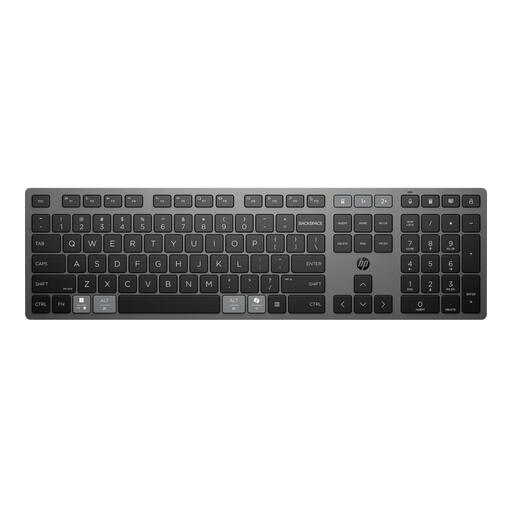
HP 725 Multi-Device Rechargeable Wireless Keyboard
Suited to anyone who wants to switch between several work devices.
Rechargeable wireless keyboard for multiple devices.
Joybuy
Frequently asked questions
How can I check whether the symbols on a new keyboard are correct?
Check the physical version, then go to Time & language > Language & region in Windows to see which keyboard or input layout is selected. The software input layout may differ from the symbols printed on the keys; Microsoft Support explains how to manage input layouts.
How should I set up a split keyboard?
Place the halves at a distance that suits your preferred workspace and check that the version you’ve chosen supports that setup. Also find out whether you need any tilting accessories, and assess the keyboard alongside the rest of your workspace; a split keyboard won’t automatically prevent discomfort.
What can I do if a keyboard I bought online isn’t right for me or breaks too soon?
For online consumer purchases from a business, you generally have a 14-day cooling-off period; check which terms and exceptions apply. Separately, Dutch statutory warranty applies if a product used normally doesn’t meet what you could reasonably expect. ACM ConsuWijzer explains that the seller must resolve the issue under the applicable terms.
Does Dutch law require a particular keyboard for programming?
There is no prescribed brand or mechanism for programming. However, Arboportaal states that for employees who work at a screen for more than 2 hours a day, the screen and keyboard must not be attached to each other. This is a conditional workplace requirement, not a general specification for every individual buyer.


