
People who write code and teaching materials
You switch between code and explanations, and want frequently used symbols, arrow keys and function keys to be in familiar places.


Start with a layout that makes it comfortable to type both code symbols and Dutch lesson-planning text; offline documentation doesn’t require a special keyboard in itself. Then choose between a straightforward wired connection, extra customisation options or an adjustable setup. A compact TKL model has no numeric keypad, and custom key functions may require software.
You switch between code and explanations, and want frequently used symbols, arrow keys and function keys to be in familiar places.
You want to be able to type while consulting locally stored documentation, without assuming that new keyboard settings will also be available without configuration software.
You switch between programming and writing teaching materials, and want to position your keyboard and workspace to suit you.
First, check that the physical layout and your configured keyboard layout work for the characters you use. Then compare the connection options and available space with your workspace.
| What to consider | What should you check? | Who is this important for? |
|---|---|---|
| Layout for code and text | Compare the key legends with your system layout, and try important characters in your own editor. | If I often switch between code and Dutch lesson-planning text, I want to type symbols exactly where I expect them to be. Around 31% of consumers prioritise the layout for code and text. |
| Typing offline | Check that your computer supports your chosen connection, and find out what software is needed to configure custom keys. | When I consult documentation offline, I want to keep typing as usual without relying on a new online configuration. Around 25% of consumers prioritise offline usability. |
| Posture during long sessions | Compare a flat and split layout on your desk, and see whether you can position the halves to suit you. | If I spend long periods writing code and teaching materials, I want to adjust my keyboard and workspace to suit my posture. Around 25% of consumers prioritise adjustability. |
| Noise and desk space | Consider how often you need a numeric keypad, and check how noisy the specific model is. | If I work close to other people and rarely use the numeric keypad, a quieter or more compact setup may be a better fit for my workspace. Around 19% of consumers give noise and space the highest priority. |
The keys on the board and your system’s keyboard layout aren’t the same thing. As a result, a character may appear differently from what you expect based on the key legend.
Compare both layouts and try the characters you use most often in code and Dutch text.
A different layout can cost you extra time while you adjust the settings or get used to different key positions.
The Bluetooth version of the R-Go Split Break reviewed here is designed for wireless use only; connecting it with a cable does not provide a wired connection on that version.
Check the connection options for the exact version before buying.
Configuration features may require an app or web app, even if the keyboard itself lets you type as usual.
Check how to configure your preferred keys or macros, and whether you can still use them in your offline setup.
The ranges mentioned differ in connection options, layouts and customisation features. Always check the specifications of the version you’re considering.
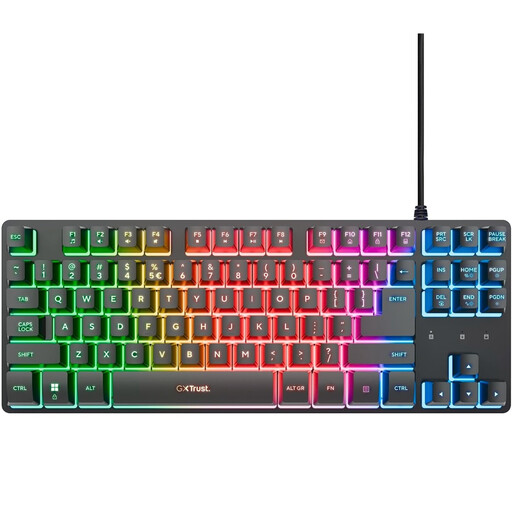
The STREAM KEYBOARD TKL is a compact wired option for people who rarely use a numeric keypad.
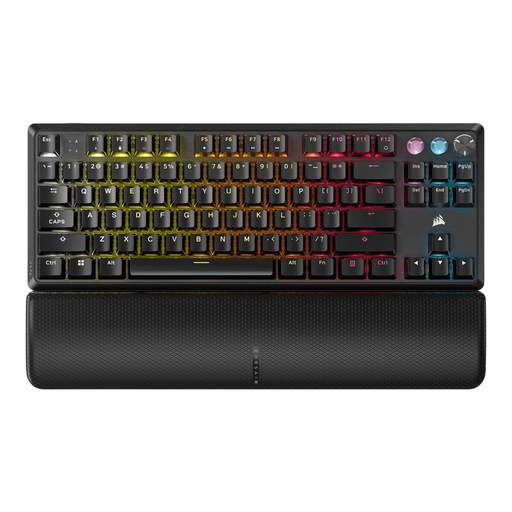
The K8 Max ISO range is aimed at people looking for a mechanical TKL layout with customisable keys.
The MX Keys S is designed for people who want a low-profile keyboard and regularly switch between devices.
The Freestyle2 International is a wired option with two keyboard halves, for people who want to adjust their positioning.
The Split Break range includes split keyboards with movable halves.
This selection includes keyboards for coding and typing teaching materials, from compact wired models to versions designed for use with multiple devices.
 No image available
The product name specifies a TKL layout and US QWERTY; check that the key legends match the characters you use on your system.
 No image available
This wired mechanical TKL version may suit you if you’re looking for custom settings and can do without a numeric keypad.
The layout is US QWERTY. The description mentions onboard profiles and Corsair iCUE for customising keys and macros.
 No image available
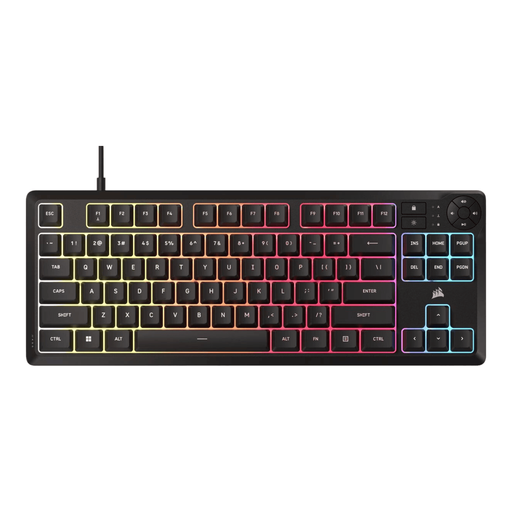
The wired USB connection and basic plug-and-play functionality are useful if you work at a single computer.
The description mentions quiet membrane keys, dedicated media keys and an adjustable stand. The physical layout is US QWERTY.
 No image available
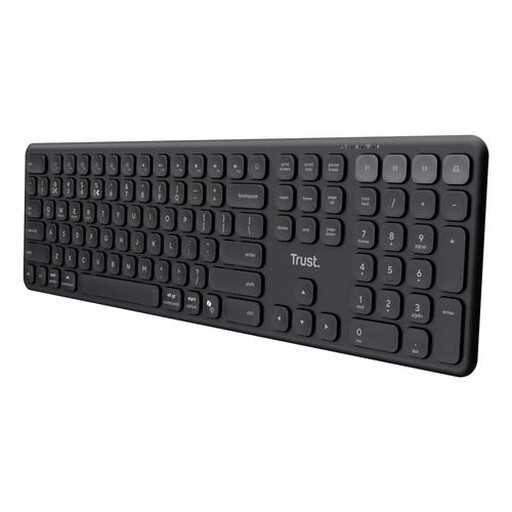
This model may suit you if you want a full-size keyboard with a numeric keypad and need to switch between devices.
Trust lists quiet scissor-mechanism keys and switching between up to four devices. The connection options described are Bluetooth and a USB receiver; the physical layout is US QWERTY.
 No image available
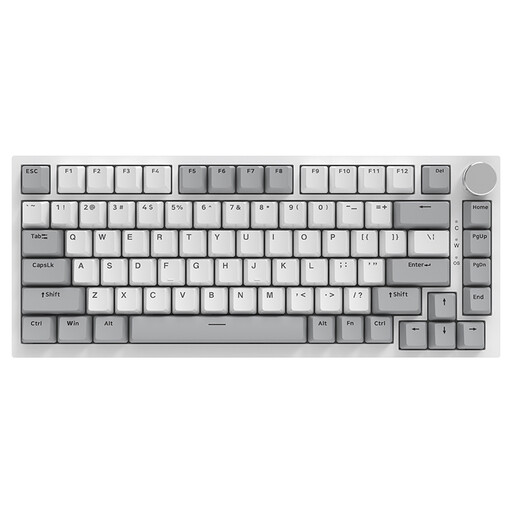
This wired mechanical version has a 75% layout; check that the available keys suit the way you work.
The description mentions hot-swappable switches and a volume knob. The physical layout is US QWERTY.
No. Locally stored documentation doesn’t determine which physical keyboard layout you need. Typing as usual is different from configuring new features: Keychron describes configuration through a web app, while Logitech links Smart Actions to Logi Options+. Check whether these features depend on software if you want to change settings for use without an internet connection.
Position the two halves within the available desk space and adjust the distance and angle between them to suit your workspace. Set up the rest of your workspace too, and take breaks from screen work; Arboportaal recommends changing your working posture regularly and taking microbreaks.
Online consumer purchases generally come with a cooling-off period; ACM ConsuWijzer specifies 14 days after delivery, subject to legal exceptions. This is separate from your statutory rights if a product doesn’t perform as you could reasonably expect under normal use. ACM ConsuWijzer explains that the seller must put this right free of charge, for example by repairing or replacing the product.
For employees who work at a screen for more than 2 hours a day, Arboportaal explains that the screen and keyboard must not be attached to each other. When working on a laptop, it must therefore be possible to use a separate screen or keyboard. This requirement applies to the relevant workplace and isn’t a general rule for every private buyer.