
Programmers who enlarge on-screen text
You want to make the code and preview in your puzzle generator easy to read. Microsoft Support explains how to adjust text size in Windows; this setting is separate from your keyboard.


You can think of screen magnification and the readability of physical keys as two separate things: a large-print keyboard won’t make the code on your screen any bigger. Next, work out which layout, key customisation or hand position suits the way you code. Above all, check the position of symbols and editor shortcuts on the exact keyboard variant.
You want to make the code and preview in your puzzle generator easy to read. Microsoft Support explains how to adjust text size in Windows; this setting is separate from your keyboard.
You’re looking for easy-to-identify letters and programming symbols on the physical keys, so you compare the labels, contrast, backlighting and layout.
You also take key positioning and your workstation setup into account. Arboportaal recommends varying your activities and taking microbreaks during screen-based work; choosing a keyboard doesn’t replace these steps.
A good fit if: you also find the letters, numbers or symbols on physical keys difficult to read. Optelec describes large key labels and ZoomText/Fusion shortcuts for its ZoomText model.
Bear in mind: larger key labels won’t enlarge the code on your screen. Check the layout and the programming characters you need, too.
A good fit if: you want to customise keys or functions to suit your editor. Keychron describes key customisation and hot-swappable switches for its V6 ISO collection.
Bear in mind: choose the correct national ISO variant and check where the symbols are; standard key labels aren’t the same as large-print labels.
A good fit if: hand position is the deciding factor for you during long typing sessions. Logitech describes this design for the ERGO K860.
Bear in mind: a different key position may take some getting used to, and doesn’t automatically mean larger key labels.
A good fit if: you’re mainly looking for backlighting or customisable functions. Logitech describes backlighting and programmable functions for the MX Keys S.
Bear in mind: backlighting isn’t the same as larger key labels; check the layout of the version you choose.
| What to consider | What to look for | Who is this important to? |
|---|---|---|
| Readable code on screen | First adjust the text size, scaling or magnification in your operating system, then check how it looks in your editor and puzzle preview. | If I mainly want to see the code and preview at a larger size, I start with the screen settings. Around 31% of consumers prioritise readable on-screen text. |
| Programming characters and shortcuts | Compare the exact keyboard variant with your selected input layout, and test the symbols and shortcuts you use in your editor. | If I want quick access to symbols and editor shortcuts while coding, I check the physical layout. Around 31% of consumers put the programming layout first. |
| Readability of physical keys | Check both the letters and symbols on the version you’re considering, and compare the size of the labels, contrast and backlighting. | If I find the labels on my keys hard to distinguish, I look for a version with clearer characters. Around 23% of consumers prioritise the readability of physical keys. |
| Hand position during long typing sessions | Try out the key shape and consider the position of your mouse and your workstation setup, too. | If I type for long periods, I want to know whether the key position suits my workstation, and I bear in mind that it may take some getting used to. Around 15% of consumers prioritise hand position. |
The labels on physical keys and the text size in your editor are two different settings. A large-print keyboard won’t enlarge the code on screen by itself.
Adjust your on-screen text separately first, then decide whether the labels on your physical keys also need to be easier to read.
The ISO variant and your selected input layout together determine where characters appear. If they don’t match, the symbols you type may not be the ones you expect.
Check the exact variant and test the symbols and navigation keys you use for your code.
Changing the layout can take time to set up again or get used to.
Clevy describes version 3 separately and says that version 2 is no longer supported. Features of one version don’t automatically apply to the other.
Check the full version number and whether the available keys suit the way you code.
A curved or split keyboard changes the position of the keys, but it doesn’t remove the need for a suitable workstation setup and regular changes of activity.
Try out the shape, while also paying attention to your screen and mouse positions and taking opportunities to vary your working posture.
An option for combining large, high-contrast labels with features for ZoomText users.
The PERIBOARD-317 combines large key labels with backlighting.
The V6 ISO collection is designed for anyone looking for a wired, customisable mechanical keyboard.
The MX Keys S and ERGO K860 offer different features specific to each model.
The Contrast Keyboard 3 is an option if high-contrast physical keys matter to you.
This selection includes mechanical keyboards with a range of layouts and connection options. Before buying, check that the exact layout matches the input settings and programming characters you use.
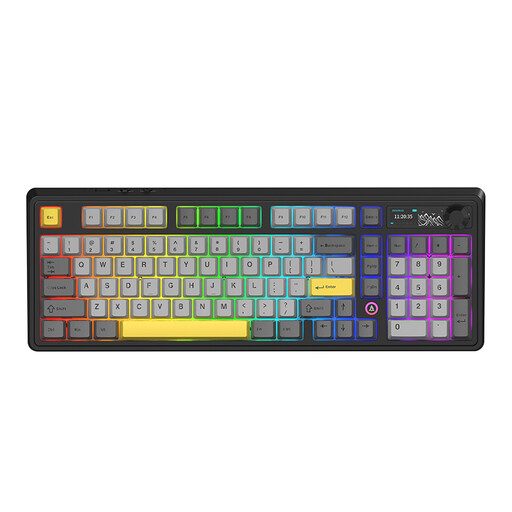 No image available
The 98% layout may suit you if you’re looking for a more compact design; compare the key positions with your own input layout.
98% QWERTY layout; wired, Bluetooth and 2.4 G; hot-swappable switches and RGB backlighting.
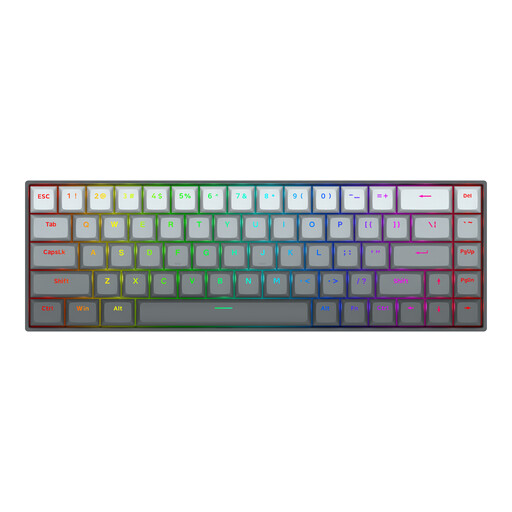 No image available
The compact US layout may be worth considering if you want fewer keys on your desk; check the position of the symbols and which keys you need.
68 keys; US layout.
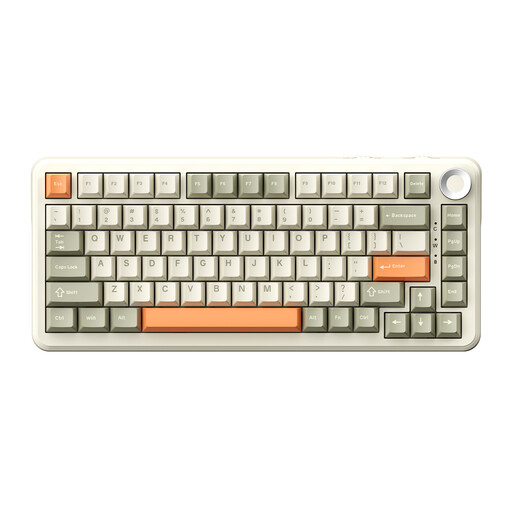 No image available
This model may suit you if you’re looking for a 75% layout and customisable key functions; first check that the US layout works with your computer.
Wired, Bluetooth and 2.4 G; hot-swappable switches; RGB backlighting and software-adjustable key functions and macros.
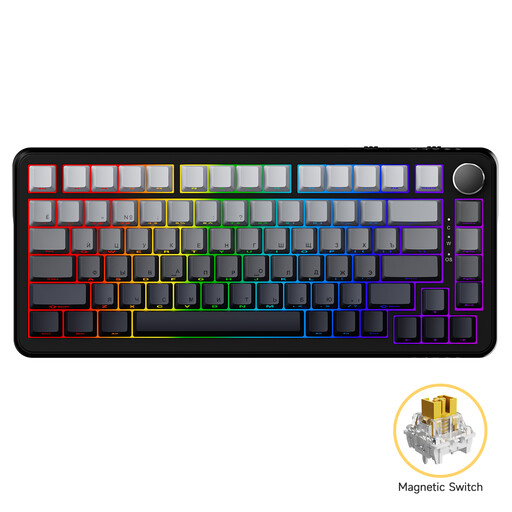 No image available
A wired version may suit you if you don’t need a wireless connection; check whether the 82-key layout works for the way you code.
75% layout with 82 keys; wired connection.
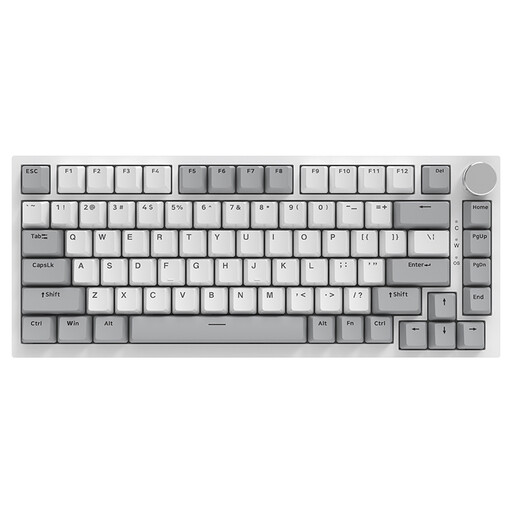 No image available
This wired version may suit you if you’re looking for a 75% layout; compare the US QWERTY key positions with your selected input layout.
83 keys; US QWERTY; white backlighting; PBT keycaps; hot-swappable linear switches.
No, the key labels won’t enlarge the code on your screen. Microsoft Support explains the text size, scaling and Magnifier settings in Windows; also check how your own editor displays the code.
Compare the labels and physical layout of the exact version with your computer’s input layout. Microsoft Support explains how to check and change the Windows layout; also test the symbols and shortcuts in your editor.
First check the connection. If you’re using ZoomText shortcuts, make sure the functions work with the software and Windows version you have. Follow the instructions for the exact model when cleaning and maintaining it.
According to Arboportaal, if an employee spends more than 2 hours a day working at a screen, the screen and keyboard must not be attached to one another. When using a laptop, it must be possible to use a separate screen or keyboard; this isn’t a general purchase requirement for every personal buyer.