
Welcome pack editor
If you work with lots of continuous text and make frequent edits, you’ll want a familiar layout, with punctuation and navigation keys that are easy to find.


Choose a keyboard that feels comfortable for writing, navigating and editing, taking into account the space you need for your mouse and the numbers you enter. Then compare the layout, key feel and connection with your workspace and devices. A keyboard doesn’t keep a version history itself: you’ll need to set up storage and access permissions in your document service for that.
If you work with lots of continuous text and make frequent edits, you’ll want a familiar layout, with punctuation and navigation keys that are easy to find.
You’ll want to position your keyboard, hands and mouse comfortably in relation to one another at your workstation. Arboportaal points out that screen work involves repetitive hand movements and static strain.
Consider the key feel and connection if you type alongside others or use multiple devices. Logitech’s descriptions of key noise and switching between devices are manufacturer claims, not a guarantee that every user will have the same experience.
Start with the keys you use most and the space you need on your desk. Then consider whether extra features, such as switching between devices, really suit the way you work.
| What to consider | What should you check? | Who should prioritise this? |
|---|---|---|
| Writing and editing | Check the physical language layout and try the punctuation, arrow keys and shortcuts you use in your document editor. | If I edit a lot of text, I want to find keys quickly without losing focus. Around 36% of consumers put fast writing and editing first. |
| Workspace and mouse space | Compare the keyboard’s width and shape with the space available for your mouse; don’t assume a product claim guarantees personal comfort. | For long writing sessions, I want to be able to position my hands, keyboard and mouse comfortably in relation to one another. Around 29% of consumers give posture and workstation set-up top priority. |
| Key noise | If possible, try the exact version in a similar environment; manufacturers’ descriptions aren’t independent sound measurements. | If I write in a shared space, I want to consider how noisy my keys are. Low key noise is the top priority for around 21% of consumers. |
| Connection and devices | Check the connection, supported devices and power supply for the exact version. | If I switch between devices while working, the connection needs to suit them. Around 14% of consumers prioritise device compatibility and switching; version history must be set up separately in the document service. |
A keyboard feature won’t save previous document versions. Microsoft Support explains that version history in Word for Microsoft 365 applies to files saved in OneDrive or SharePoint in Microsoft 365. Google Docs Editors Help says you need editing permissions to view earlier versions.
First, check where the club document is saved and who can edit it. Then choose shortcuts to suit your editing work.
Without access to earlier versions, it may be harder to retrieve a previous draft.
An integrated number pad accessed using NumLock isn’t the same as a separate number pad that’s ready to use straight away.
Think about whether you mainly write continuous text or regularly enter membership numbers, dates and amounts. Check the layout of the exact version.
Connections, wireless features and physical layouts can vary between versions. A general model name doesn’t tell you exactly which variant you’re looking at.
Before buying, check the full model name, version, physical layout and connection.
The S-board 840 and UltraBoard versions are worth comparing if desk space and mouse positioning are important to you.
MX Keys S and Wave Keys offer different shapes and features for typing and working with devices.
The KC 6000 SLIM is a full-size keyboard with a separate number pad, for anyone who enters lots of numbers.
Type Mini and Type Midi differ in size and whether they have a number pad, among other things.
Compact Break is a compact option with a break indicator.
This selection includes keyboards for editing text with a number pad, compact layouts and use with multiple devices. For the version you choose, check the physical key layout and the connection you need.
 No image available
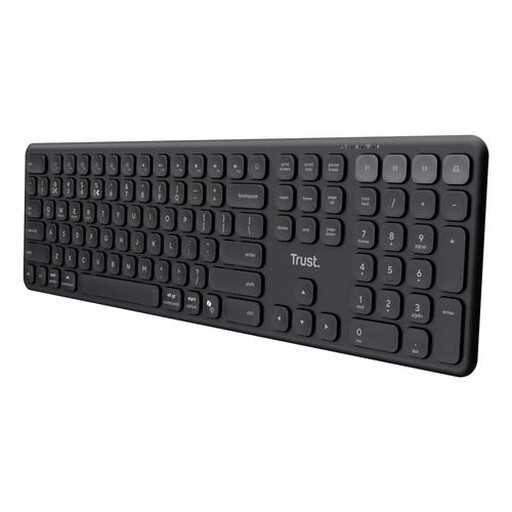
An option if you’d like a separate number pad for writing and editing.
Wired, plug-and-play and full-size. Check that the physical QWERTY layout suits the characters you use.
 No image available
An option if you’re looking for a full-size keyboard with a number pad and want to switch between devices while working.
The product name lists a wireless connection, scissor keys and US QWERTY. Check that this physical layout suits the way you work.
 No image available
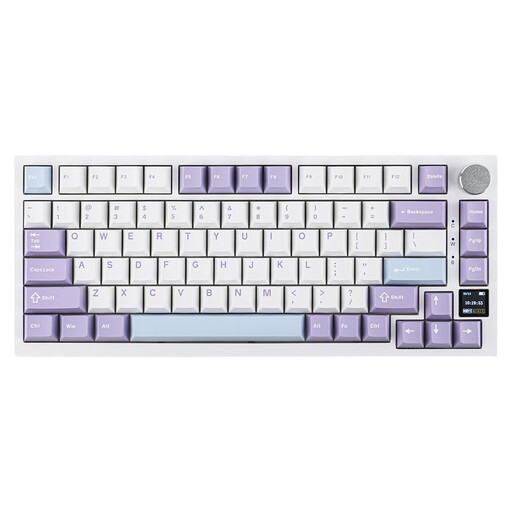
A compact layout to consider if you want to make the most of your desk space while editing text.
The product name lists a 75% layout, tri-mode and US QWERTY. The connections listed are wired, Bluetooth and 2.4 GHz.
 No image available
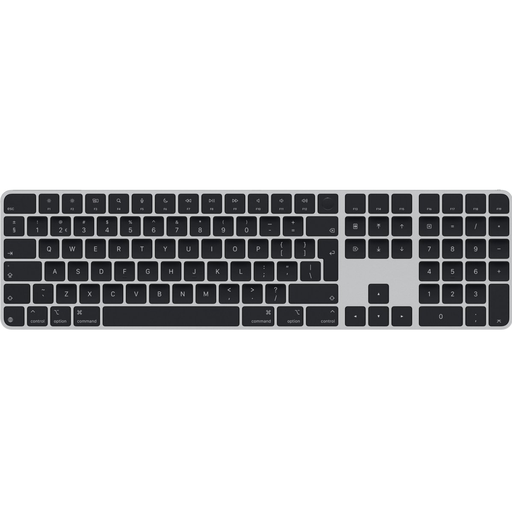
An option if you’re looking for a Dutch QWERTY layout and want to compare both USB and Bluetooth connections.
The product name lists USB, Bluetooth, a Dutch QWERTY layout and a black finish.
 No image available
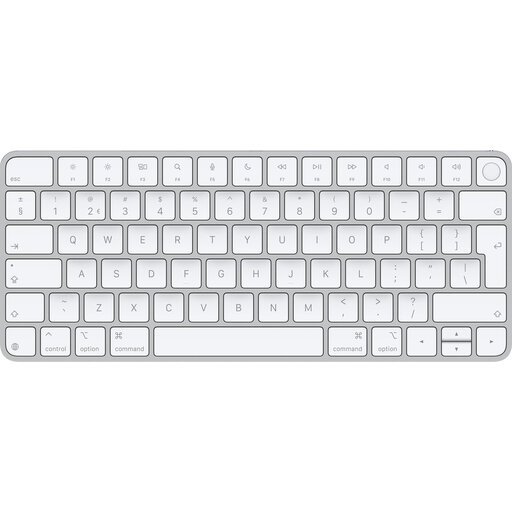
An option to compare if you’re looking for a Dutch version for a Mac model with Apple Silicon.
The product name specifies that this version is for Mac models with Apple Silicon. Check that it’s compatible with your exact Mac model.
No. A keyboard feature won’t make previous document versions available. Microsoft Support says version history in Word for Microsoft 365 works with files saved in OneDrive or SharePoint in Microsoft 365. Google Docs offers earlier versions; according to Google, you need editing permissions to view them. So check your storage and access settings separately.
Check where the document is saved and who can edit it. Google Docs Editors Help explains that you can name important versions in Google Docs; Microsoft Support explains how to view or restore an earlier saved version in Word using Version History.
This doesn’t automatically apply to every club writer or volunteer. Arboportaal describes the requirement for employees who do screen work for more than two hours a day: the screen and keyboard must not be attached to each other. Don’t automatically apply this requirement for employees to volunteers.
According to the Dutch government, the seller—not the manufacturer—must provide a solution if a product is faulty. The Netherlands doesn’t have a fixed statutory guarantee period for all products; what you can expect depends, among other things, on the product and the information provided at the time of purchase.