First decide what needs to be larger: the text in the budgeting app on screen, or the labels on the physical keys. To enlarge on-screen text, adjust your computer or app settings; a large-print keyboard won’t make the app text bigger. If you mainly enter amounts, consider whether a number pad is worth the desk space it takes up. For shortcut keys, check that the required software works on your computer.
Who is this for?
Developer who finds keys hard to read
Wants to distinguish letters, numbers and symbols on the keyboard more easily while building a budgeting app. If the on-screen text is too small, you may need to adjust your display settings. Microsoft Support explains how to change the text size in Windows.
Frequent data entry user
Regularly enters budget items and amounts, and wants to decide whether a separate number pad is worth the desk space. Check the layout of the version you choose, and remember to leave room for your mouse.
Developer with repetitive tasks
Switches between coding, data entry and checking the app, and is considering backlighting or programmable actions. If a feature requires software, check that it works on the computer you use.
What should you look for?
High-contrast large-print keyboard
Choose this if: you find the labels on the physical keys hard to read.
Bear in mind: larger key labels won’t change the text size on screen; check the layout and connection too.
Standard keyboard with a number pad
Choose this if: you can read the keys easily and often enter amounts.
Bear in mind: a full-size keyboard takes up space and won’t necessarily have large, high-contrast labels.
Backlit keyboard with programmable features
Choose this if: you type in changing light or want to assign repeated actions.
Bear in mind: backlighting won’t make the labels larger; features such as Smart Actions require the relevant software.
Start by comparing the level of readability you need and the key layout. Then check that the connection, software and available desk space suit your computer and workspace.
| What to consider |
What should you check? |
Who is this for? |
| Keys or on-screen text |
Compare the labels and contrast on the exact version. To change the text size in Windows, adjust the Text size setting. |
If I struggle to read the key labels, I want to distinguish them more easily; around 36% of consumers prioritise the readability of physical keys. |
| Entering amounts |
Check whether the version has a number pad and whether there’s room for your mouse beside the keyboard. |
If I often enter amounts, I want to type numbers quickly on a separate group of keys; around 29% of consumers prioritise number entry. |
| Coding and repetitive tasks |
Check the physical key layout and that the required software and operating system are compatible. |
If I repeat tasks while building an app, I want to use keys or shortcuts that work with my software; around 21% of consumers prioritise coding tasks. |
| Connection, lighting and desk space |
Check the USB ports available or Bluetooth, the dimensions, and whether a wireless version needs charging. |
If my choice mainly depends on the connection, available space or typing in low light, I want to make sure these practical requirements suit my workspace; around 14% of consumers prioritise these practical considerations. |
Common mistakes
-
Assuming large key labels mean larger app text
Key labels and on-screen display are two different things. A large-print keyboard won’t make the text in your budgeting app bigger.
If you’re having trouble reading text on screen, adjust your computer’s display settings first and check how the app responds. Microsoft Support explains the Text size setting in Windows.
-
Assuming “slim” means a keyboard without a number pad
CHERRY describes the KC 6000 SLIM as a full-size keyboard.
Check the layout of the exact version and measure the space available, rather than relying on the product name alone.
-
Assuming shortcut keys work with every app
The dedicated shortcut keys on the Optelec model are linked to ZoomText or Fusion. Logitech describes Smart Actions for the MX Keys S as a feature of Logi Options+.
Check whether you can and want to use the required software on your computer.
Brands to consider
Optelec
The ZoomText version we looked at is designed with large key labels and a number pad.
- Optelec lists shortcut keys for ZoomText and Fusion.
- These shortcut keys won’t enlarge the text in your budgeting app on their own; check that you use the software mentioned.
Low Vision Design
The white-on-black version we looked at is designed for workspaces where clearly visible key labels are important.
- The product description mentions a USB connection and high-contrast labels.
- Check the exact key layout; physical key labels won’t change the text on screen.
Logickeyboard
The TITAN version we looked at combines large labels with adjustable backlighting, and offers a choice of wired or wireless connection.
- Logickeyboard says the backlighting has five dimming levels.
- These features apply to the TITAN version we looked at; check the layout and remember that wireless models need charging.
Logitech
The K120 we looked at is a wired keyboard with a number pad; the MX Keys S adds backlighting and programmable actions.
- Logitech describes the K120 as USB plug-and-play, and Smart Actions on the MX Keys S as a feature of Logi Options+.
- The models we looked at aren’t specified as large-print keyboards; for Smart Actions, check that the software works with your computer.
CHERRY
The KC 6000 SLIM we looked at is a full-size keyboard for a Windows workspace with USB-A.
- CHERRY specifies a scissor mechanism and full-size layout for this version.
- CHERRY doesn’t list backlighting for this version. Check which model you’re buying: the KC 6000 SLIM FOR MAC has a different key layout.
Keyboards at Joybuy
This selection includes options for number entry, different connection types and programmable keyboard features. Adjust the on-screen text size separately on your computer or in the app.
 Image unavailable
Wired QWERTY keyboard with number pad
Suited to anyone who enters amounts and wants a wired connection.
QWERTY layout, number pad and USB plug-and-play connection.
Joybuy
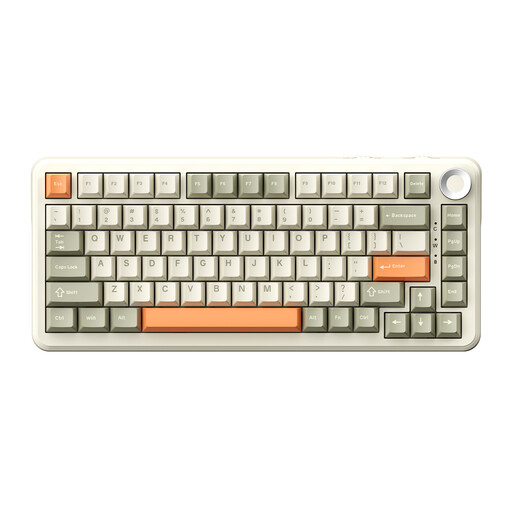 Image unavailable
AJAZZ AK820 MAX 75% wireless mechanical keyboard
Could suit you if you want several connection options and programmable features; check that the layout works for the way you type.
82 keys, US QWERTY layout, RGB backlighting and hot-swappable keys. The product description lists Bluetooth, 2.4G and USB-C, plus macros with built-in profile memory.
Joybuy
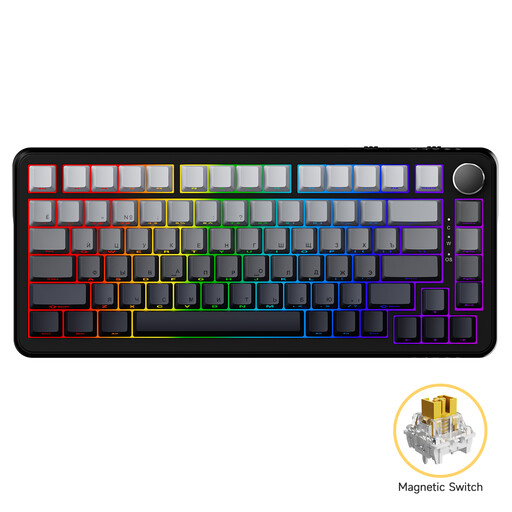 Image unavailable
AJAZZ AK820 MAX magnetic wired mechanical keyboard
Suited to anyone looking for a wired model with adjustable key actuation.
The product description lists an 82-key layout, USB-C and adjustable actuation points.
Joybuy
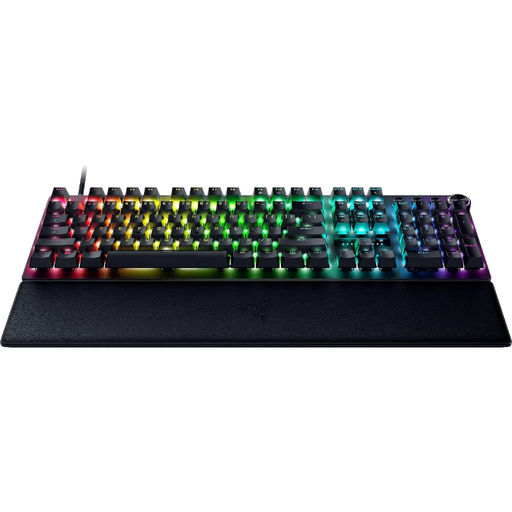 Image unavailable
Razer Huntsman V3 Pro US QWERTY keyboard
Could suit you if you want a wired, backlit model; note the US QWERTY layout and stated Windows compatibility.
The product description lists a full-size layout and USB-A connection.
Joybuy
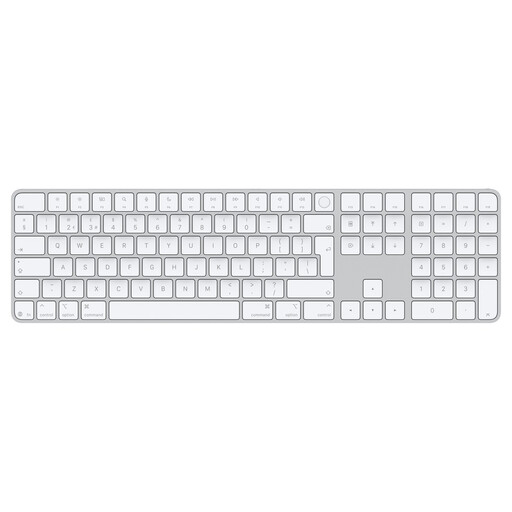 Image unavailable
Apple Magic Keyboard with Touch ID and number pad, Dutch
Suited to anyone looking for a number pad and Dutch QWERTY layout for a compatible Mac.
The product listing mentions Touch ID and compatibility with Mac models featuring Apple Silicon.
Joybuy
Frequently asked questions
Does a large-print keyboard make the text in your budgeting app bigger?
No. A large-print keyboard makes the labels on the physical keys easier to see, but doesn’t change the text on screen. In Windows, you can adjust the text size, scale the display or use Magnifier. Check how your app responds to magnification too.
How do you connect a basic wired keyboard?
Logitech says the K120 connects via USB without requiring software installation. Before buying, check that your computer has the right port. For the CHERRY KC 6000 SLIM we looked at, CHERRY specifies USB-A and Windows.
Does a backlit or wireless keyboard need extra maintenance?
If you use the Logickeyboard TITAN we looked at wirelessly, you’ll need to charge its built-in battery. Logickeyboard lists five lighting levels; check the manual for your chosen version to find out how to adjust them.
What are your rights if you buy online or your keyboard is faulty in the Netherlands?
According to the Government of the Netherlands, when you buy from a business online you’ll often have 14 days to change your mind, although there are exceptions. If a product is faulty, you’re entitled to an appropriate solution from the seller. The Government of the Netherlands says there is no fixed statutory warranty period in the Netherlands. A manufacturer’s warranty doesn’t replace your statutory rights.


