
One applicant facing a panel
You’re the only person on camera and speaking to several interviewers remotely. A well-framed image and clear audio matter more than a camera that shows an entire room.


If you’re the only person on camera and the other participants are joining remotely, a personal webcam with a suitable frame is likely to be a better fit than a camera designed for an entire room. If several people on your side need to appear or share audio, check that the field of view and microphone setup suit their seating positions. A 4K specification alone doesn’t tell you what resolution the meeting service will stream during the call.
You’re the only person on camera and speaking to several interviewers remotely. A well-framed image and clear audio matter more than a camera that shows an entire room.
Two or more people are sharing one camera. Check the framing and microphone from the seats you’ll actually use during the interview.
You may need to account for changing light, a particular USB connection or your meeting software. Test the setup in advance on the computer and app you’ll use for the interview.
Start by thinking about who’ll be on your side of the camera. Then choose a suitable frame, check the audio and test that the webcam works with your computer and meeting app.
| What to consider | What should you look for? | Who is this important for? |
|---|---|---|
| Picture and lighting | Check the field of view, focus and light correction, and think about where the camera will go in your workspace. | If I’m sitting alone at my desk, I want a clear frame of my face that suits the lighting in my room. Around 36% of consumers prioritise picture and lighting. |
| Clear audio | Check which microphone the meeting app is using and test whether voices are clear from the seats you plan to use. | If I want to hear questions and answer clearly, the selected microphone needs to be active and suit my setup. Around 29% of consumers prioritise clear audio. |
| Several people in the frame | Test with the whole group from the planned camera distance; only compare fields of view if it’s clear how they were measured. | If several of us are sharing one camera, I want to check that everyone is in frame from their own seat. Around 21% of consumers prioritise group framing. |
| Connection and settings | Check the USB port, app permissions, and selected camera and microphone. Test everything on the same computer and in the same meeting app. | If my workspace requires specific connections or settings, I want to know in advance whether the camera will work there. Around 14% of consumers prioritise compatibility. |
A personal webcam and a camera for a shared room are designed for different framing and audio setups.
Before choosing, decide whether you’ll be the only person using the camera or whether several people on your side of the call will share it.
Logitech says the microphones on the C920e can be enabled through Logi Tune. Microsoft says the built-in microphone on the Microsoft Modern Webcam is off by default in Teams settings.
Select and test the microphone on the computer and in the meeting app you’ll use for the interview. Bear in mind that enabling the Microsoft webcam microphone may affect its Teams certification.
Allow time to select and test the right microphone; you may need a separate audio device.
The camera’s resolution alone doesn’t determine the picture quality the meeting service will stream during a group call.
Check the meeting service’s settings and requirements before choosing a camera based on its maximum specification.
A reference to MeetUp doesn’t automatically mean the same full model version as MeetUp 2.
Check the full model name and its specifications before comparing models.
The range includes both personal webcams and cameras for shared spaces. Compare the full model number and intended setup.
The Taxon QHD is worth comparing if several people sitting side by side will share one camera.
The Meet 2 is a compact personal webcam with adjustment and framing features; it’s a different type of device from a video bar designed for an entire room.
The Modern Webcam is worth considering if you want to check the audio settings on a Teams setup carefully.
This selection includes webcams for one-to-one video calls and for situations where several people share one camera. Match the field of view, audio and connection to your seating positions and equipment.
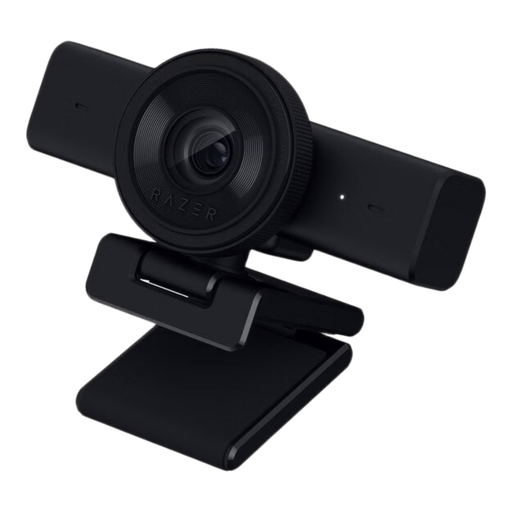 No image available
An option to compare if you want to adjust the field of view to suit your setup.
The product name lists 1440p and 1080p at 60 FPS; the description mentions an adjustable 80° field of view, autofocus and a built-in stereo microphone.
The description lists Windows 10 and Windows 11, and mentions Razer Synapse for picture settings.
 No image available
Compare the stated field of view and microphones with the distance and audio setup for your call.
The product name lists a Sony IMX363 sensor, PDAF autofocus, dual microphones, a lens cover and a 75° field of view.
The product name lists USB-A and USB-C connections.
 No image available
The stated field of view may be worth considering if several people are sharing one camera; check the frame from the seats you’ll actually use.
The product name lists 99°, a privacy cover and noise reduction. The description mentions 4K video, automatic light correction and a built-in microphone.
The description mentions mounting on a monitor, desk or tripod, and a USB-A-to-USB-C adapter.
 No image available
This webcam is designed for individual use; compare its fixed field of view with the distance between you and the camera.
The product description lists 1080p, a fixed 78° diagonal field of view, autofocus, automatic light correction and two integrated microphones.
According to Logitech, the microphones can be enabled through Logi Tune; test the audio settings before your call.
 No image available
Compare the stated autofocus and built-in audio with your meeting app’s settings and microphone selection.
The product name lists 4K UHD, autofocus, dual built-in microphones and a privacy cover.
The description mentions a universal clip for laptops, desktops and monitors.
No, not just because several interviewers are joining remotely. If you’re the only person in front of your camera, a frame for one person is what matters; group framing only becomes important if several people on your side are sharing the camera.
Select the camera and microphone in Teams, then make a test call in the desktop app. Microsoft says you can also use it to check the speaker; the test call feature mentioned isn’t available in Teams on the web.
Not on the basis of the camera specification alone. Zoom describes 720p HD video for the active speaker in a group call; 1080p has additional requirements relating to your account, activation, hardware and bandwidth.
The Dutch Data Protection Authority says that personal data is collected during job applications and that organisations need a UK GDPR legal basis to process it. A privacy shutter limits what the camera can show when it’s not in use, but doesn’t tell you whether recording an interview, if applicable, is lawful.
According to the Dutch Government, when you buy online from a business, you’ll often have 14 days to change your mind. Check the applicable terms and any exceptions with the seller.