Who is this choice relevant to?

Mac user who also sketches on the go

Wants to sketch ideas independently and perhaps use an iPad at home as an extra Mac screen. Apple Support describes Sidecar for compatible Macs and iPads; also check which Pencil works with your chosen iPad model.

Windows user with a dedicated drawing space

Wants to sketch on an extra drawing screen beside their computer monitor and work in computer software. Connections and any additional power supply are also worth considering; Samsung describes Second screen for certain tablet and computer combinations.

Designer who moves between workspaces

Wants to sketch without a computer connected, so may want to consider a standalone tablet. Check separately whether that tablet can also work as an extra computer screen.

What should you look for when buying?

Standalone tablet

Choose this option: if you want to sketch without a computer and can use a tablet app.

Keep in mind: using it as a second computer screen only works with compatible devices and under certain conditions.

Pen display connected to a computer

Choose this option: if you want to draw directly on a separate screen in computer software.

Keep in mind: the pen display depends on your computer and the right video and power connections.

Tablet as an extra computer screen

Choose this option: if you want to extend or mirror your computer’s desktop.

Keep in mind: check the system requirements for your specific tablet and computer combination.

What to consider What to check before buying Who is this important for?
Two-screen compatibility Check that your exact tablet and computer models are supported, and whether you want to extend or mirror your screen. If I want to see my sketch alongside my computer work, I need to know that the combination will work. Around 36% of shoppers put two-screen compatibility first.
Pen and sketching detail Check which pen works with the tablet and the screen size of the model. If I want to work on small outlines or design details, I focus on the pen and drawing area. Around 29% of shoppers prioritise pen control and sketching detail.
Drawing independently Check whether you can draw on the tablet itself without connecting it to a computer. If I want to sketch ideas in different places, I need a device that works without a computer. Drawing independently is the top priority for around 21% of shoppers.
What’s included in the box Check whether the right pen, cables and any power supply or stand are included with your chosen version. If I want to have all the necessary parts, I compare what’s in the box with the connections I’ll need. For around 14% of shoppers, getting everything they need is the top priority.

Common buying mistakes

  • Assuming a tablet with a pen will automatically work as a second computer screen

    Sidecar, Samsung Second screen and a pen display all have different device requirements. So, a tablet you can draw on won’t automatically work as an extra screen for every computer.

    First decide whether you want to extend your screen, mirror it or sketch independently. Then check that the exact tablet and computer support the way you want to use them.

  • Assuming every USB-C port supports video output

    The Wacom One 12 requires video output for the USB-C connection described by Wacom. Depending on your computer and connection, you may also need an additional power supply.

    Check your computer port’s specifications and the connection options for the exact pen display.

    Depending on the model and connection method, you may need a different cable, adapter or power solution.

  • Assuming the pen and accessories are always included

    What’s in the box varies by product and version. Apple lists a USB-C charging cable in the iPad Air specifications, but no Pencil; for the Huion Kamvas 13 (Gen 3), certain cables and the stand are listed separately or as optional.

    Compare the contents listed for the exact version with the pen and connection accessories you need.

    You may need to buy a compatible pen, cable, stand or power supply separately, depending on the version.

Brands to consider

Apple

The iPad Air with a compatible Apple Pencil is suitable for sketching independently; Sidecar lets you use a compatible iPad with a Mac.

  • Apple lists support for Apple Pencil Pro and Apple Pencil (USB-C) with the iPad Air.
  • Check compatibility for your specific model. The Pencil isn’t listed among the iPad Air contents specified by Apple.

Samsung

A Galaxy Tab with an S Pen is suitable for sketching independently; Second screen may be useful with specific Windows computer combinations.

  • Samsung explains how to extend a computer workspace with a Galaxy Tab.
  • Don’t assume every Galaxy Tab model is supported; check the tablet and computer against the feature requirements.

Wacom

The Wacom One 12 is a pen display for sketching on a computer.

  • Wacom lists an 11.6-inch active display.
  • USB-C requires video output. Depending on the connection method, an additional power connection may be needed.

Huion

The Kamvas 13 (Gen 3) is a pen display for use with a computer.

  • Huion lists a 13.3-inch screen and an included PW600L pen.
  • The manual describes a 3-in-1 cable; the full USB-C cable and stand are listed separately or as optional. Check the contents listed for your chosen version.

XPPen

The Artist 13.3 Pro V2 is a pen display for use with a computer.

  • XPPen lists a 13.3-inch screen and eight customisable shortcut keys.
  • The installation instructions require you to connect the device and install a driver.

Joybuy tablets for sketching

This selection focuses on tablets with a pen for sketching directly on the device. Check separately whether your chosen model can also work as a second computer screen.

Wacom MovinkPad 11 drawing tablet

Wacom MovinkPad 11, 11.45 inch, Android 14, 8 GB RAM, 128 GB storage, Wacom Pro Pen 3

Suitable if you want to sketch directly on a standalone drawing tablet.

The product name lists Android 14, 8 GB RAM, 128 GB storage and a Wacom Pro Pen 3.

Joybuy

Lenovo Idea Tab Plus WiFi with pen, pink finish

Lenovo Idea Tab Plus WiFi, 12.1 inch 2.5K, 8 GB RAM, 256 GB storage, with pen, Rose

A good fit if you’re looking for a tablet with a pen for sketching and drawing directly on the device.

The product name lists a 12.1-inch 2.5K screen; the product description mentions 8 GB RAM, 256 GB storage and an included Lenovo Pen.

Joybuy

iFLYTEK AINOTE Air 2 with stylus and protective case

iFLYTEK AINOTE Air 2, 8.2-inch E Ink tablet with stylus and protective case

Suitable if you want to make handwritten notes and annotations on PDF files as well as sketches.

The product name lists an 8.2-inch E Ink screen and a stylus; the product description mentions notes and annotations.

Joybuy

TECLAST ArtPad Pro with stylus

TECLAST ArtPad Pro, 12.7 inch 2K, 20 GB RAM (8 GB + 12 GB virtual), 256 GB storage, stylus

Suitable if you want to draw and sketch directly on a tablet with a stylus.

The product name lists a 12.7-inch 2K screen, 20 GB RAM (8 GB + 12 GB virtual), 256 GB storage and a stylus.

Joybuy
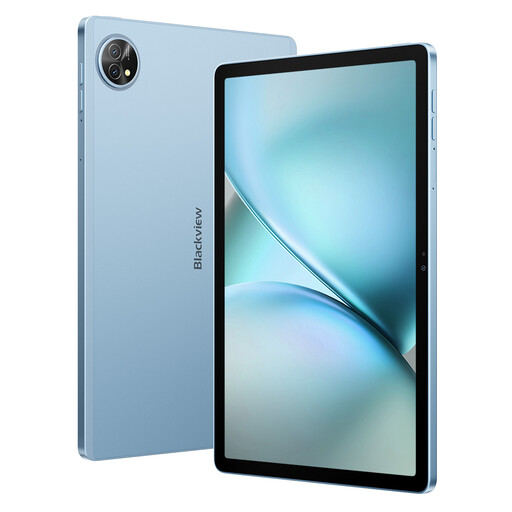
Blackview Zeno 10 tablet bundle with keyboard and stylus

Blackview Zeno 10, 11 inch 2K FHD 90 Hz, 24 GB RAM (8 + 16), 128 GB storage, keyboard and stylus

An option if you’re looking for a tablet with a stylus and keyboard; the product name also mentions PC Mode.

The product name lists an 11-inch 2K FHD screen, 90 Hz, 24 GB RAM (8 + 16) and 128 GB storage.

Joybuy

Frequently asked questions

Can I use an iPad as a second screen for a Windows PC?

No, not with Sidecar: Apple describes this feature for compatible Macs and iPads. Don’t base a Windows purchase on Sidecar; assess any alternative solution separately.

What connections do the Wacom One 12 and Huion Kamvas 13 (Gen 3) need?

According to Wacom, the Wacom One 12 can connect via USB-C with video output, or via HDMI and USB-A; additional power may sometimes be needed. For the Kamvas 13 (Gen 3), Huion describes a 3-in-1 connection or USB-C with compatible video output, and additional power may be required. Check the computer ports, what’s in the box and the driver for your chosen model.

Do I need to buy an Apple Pencil separately for an iPad Air?

Check the offer: in the iPad Air specifications consulted, Apple lists the tablet and USB-C charging cable as included, but not a Pencil. Choose a Pencil that Apple confirms is compatible with your exact iPad model.

What are my rights as a consumer in the Netherlands when buying online?

ACM ConsuWijzer explains that you will generally have a statutory cooling-off period of up to 14 days after delivery, with some exceptions. You are also covered by the legal guarantee if a product does not do what you could reasonably expect under normal use; the retailer is your point of contact. These rights do not confirm whether a specific tablet or connection is suitable.
