What should you look for?
Compact, USB-powered HDD
Choose this option: if the drive will mainly stay on your small desk and you want to keep local copies of your documents.
Bear in mind: an HDD is more susceptible to knocks than an SSD, so place it somewhere stable. The Dutch Consumers’ Association described this difference in 2022.
Portable external SSD
Choose this option: if you regularly move your backup drive or transfer large files too.
Bear in mind: quoted speeds don’t tell you how quickly your collection of invoices will be backed up. Don’t pay for speed you don’t need.
Drive with password protection
Choose this option: if restricting access to invoices containing personal data is a key concern.
Bear in mind: check that the exact drive and software work together, and store recovery details carefully. WD warns that data on a compatible drive will be lost if you forget your WD Security password.
| Consideration |
What should you check? |
Who is this important for? |
| Recovery and protection |
Test that you can restore your files and assess whether separate storage and access controls are needed. |
I want to be able to restore invoices and restrict access where necessary; around 33% of consumers say recovery and protection are their main concerns. |
| Space and cables |
Check the dimensions, USB power and included cable. |
I don’t want to make room for an unnecessary adapter or extra cable on a small desk; around 27% of consumers prioritise desk-friendly size and a simple setup. |
| Capacity |
Check the size of the files you want to copy and decide whether you want to back up files or an entire system. |
I want enough space for my own archive and the copies I want to keep; around 20% of consumers say capacity is their main consideration. |
| Connection and file system |
Check the port, cable and any computer requirements before saving files. |
I want to back up and restore files without connection or formatting problems; around 20% of consumers prioritise compatibility with their own computer. |
These points will help you choose a drive to suit your workspace; the capacity and compatibility you need depend on your archive and computer. For example, Toshiba says the Canvio Basics USB-C model tested comes pre-formatted as NTFS for Windows and needs to be reformatted for macOS.
Products for local invoice backups
This selection of Joybuy products includes portable HDDs and SSDs for local invoice backups. Compare the capacity and connection with your computer, and consider how often you’ll want to move the drive.
 No image available
SanDisk Portable SSD 1 TB
A portable SSD for anyone who regularly takes their backup drive with them.
Capacity: 1 TB.
View at Joybuy
 No image available
WD My Passport 2 TB Red
A portable HDD for anyone looking for local storage and the password protection mentioned.
Capacity: 2 TB. The product name also mentions backup software.
View at Joybuy
 No image available
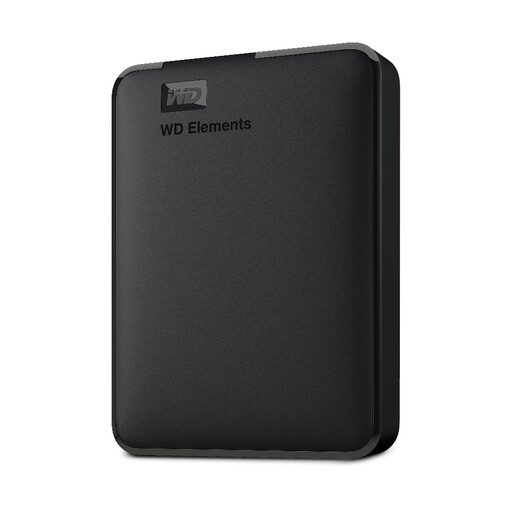
WD Elements Portable 2 TB
A portable HDD for keeping documents and other files locally.
Capacity: 2 TB. The product name mentions USB 3.0 and formatting for PC and Mac.
View at Joybuy
 No image available
Toshiba Canvio Ready 2 TB
An external HDD for local copies if you’re looking for a USB connection and 2 TB of storage.
Capacity: 2 TB. The product name mentions Micro-USB B and USB 3.2 Gen 1.
View at Joybuy
 No image available
Samsung Portable SSD T7 2 TB Blue
A portable SSD for anyone who wants to store documents on an SSD and use the drive with different devices.
Capacity: 2 TB. The product name mentions USB Type-C and USB 3.2 Gen 2.
View at Joybuy
Frequently asked questions
Is one external drive enough to back up my invoices?
Not if you also want protection against losing the drive or an incident at the same location. The Netherlands National Cyber Security Centre recommends keeping the original and two backups of important business data, on different types of media and with one copy stored elsewhere. This is security advice, not a general legal requirement to buy exactly this number of drives.
How can I check that my invoice backup works?
Restore some files and open a few of the recovered invoices. The Netherlands National Cyber Security Centre distinguishes between checking that a backup completed successfully and actually testing whether you can restore your files.
Do I need to format an external drive for my Mac?
It depends on the model. Toshiba says the Canvio Basics USB-C model reviewed comes pre-formatted as NTFS for Windows and needs to be reformatted for macOS. Check the instructions for the exact model before saving files.
How long do I need to keep business invoices in the Netherlands?
If the Dutch tax retention requirement applies to your records, the Tax and Customs Administration generally specifies 7 years for invoices and 10 years for invoices relating to immovable property. It also specifies 10 years for supplies of goods and services covered by the applicable Union scheme or Import scheme. This isn’t a general retention period for every personal invoice.
Do invoices containing personal data need a password-protected drive?
The Dutch Data Protection Authority says that organisations should choose appropriate security measures based on the risks involved in their data processing. This doesn’t mean that every invoice backup needs a particular drive model or a built-in password. If you choose a password feature, check that your exact drive is supported and store recovery details carefully. WD warns that forgetting your WD Security password makes data on a compatible drive inaccessible.


