
Writer who enlarges on-screen text
You transcribe interviews and want to read the text on your screen clearly. Microsoft Support explains how to adjust the text size in Windows; this screen setting is separate from the labels on your keys.


A keyboard with large key labels won’t enlarge the text in your interview collection: adjust the on-screen display separately in your operating system or writing software. Then choose large-print keys if you find the physical keys difficult to read. If you can already find them easily, give more weight to the layout, key feel and workstation setup for long editing sessions. Also check that the layout, connection and any shortcut software are compatible with your computer.
You transcribe interviews and want to read the text on your screen clearly. Microsoft Support explains how to adjust the text size in Windows; this screen setting is separate from the labels on your keys.
You want to distinguish letters, numbers and editing keys more easily. Compare the size and contrast of the labels, and check the keyboard’s physical layout.
You can find the keys, but pay attention to the layout, key feel and workstation setup during long sessions. Arboportaal also highlights screen readability and lighting as factors to consider when working with display screens.
A large-print keyboard won’t change the text on your screen: Microsoft Support describes text size and Magnifier as separate Windows settings. Then decide whether you need different physical key labels or are mainly looking for a keyboard that suits the way you write.
| Factor to consider | What to look for | Who it matters to |
|---|---|---|
| Enlarging on-screen text | Adjust the text size, scaling or Magnifier on your computer; this won’t change the key labels. | I mainly want to read the interview text on screen clearly. Around 36% of consumers prioritise screen readability. |
| Readable key labels | Compare large lettering, contrast, symbols and the physical language layout. | I want to distinguish letters and editing keys quickly while typing and proofreading. Around 29% of consumers prioritise key readability. |
| Comfort during long sessions | Consider the key feel, keyboard shape and space for your hands; also assess your workstation setup. | I can already find the keys, but want to keep typing comfortably during long editing sessions. Around 21% of consumers prioritise typing comfort. |
| Editing workflow | Check the layout and connection, and whether shortcuts require additional software. | I want to navigate quickly or switch between devices while editing interviews. Around 14% of consumers prioritise this workflow. |
Large-print labels apply to the physical keys. Separate settings are needed to enlarge text on screen; Microsoft Support explains how to adjust text size in Windows and use Magnifier.
First adjust the document display on your computer, then decide whether you also need different key labels.
The physical language variant may differ from the input layout on your computer. The dedicated ZoomText and Fusion keys on the ZoomText Large Print Keyboard are designed for use with compatible software.
Before buying, check the physical layout, connection, operating system and any software version requirements.
The shape of a keyboard alone doesn’t determine how the rest of your workstation is arranged. Arboportaal also highlights screen readability, lighting and strain as factors to consider when working with display screens.
Assess your keyboard, screen and lighting together, and vary your tasks regularly.
The yellow-and-black QWERTY version described is designed for anyone looking for large, high-contrast key labels. Sensotec Nederland lists a wired USB connection for this version.
Optelec Nederland describes a large-print keyboard with shortcut keys for ZoomText or Fusion software.
The NERO Slimline Large Print for Windows is described as a wired keyboard with large white labels on black keys.
The Wave Keys and MX Keys S mentioned here cater for different typing needs: shape and wrist support, or features such as backlighting and use with multiple devices.
According to CHERRY’s product information, the KC 6000 SLIM is a standard, low-profile Windows keyboard with a scissor mechanism.
This Joybuy selection includes standard keyboards for typing and editing documents. Enlarge the on-screen text separately, and check that the layout, connection and features suit your computer and the way you write.
 No image available
An option if you’re looking for a standard keyboard for typing and editing documents.
The product name lists a full-size QWERTY layout, numeric keypad, black finish and plug-and-play connection. The description mentions backlighting.
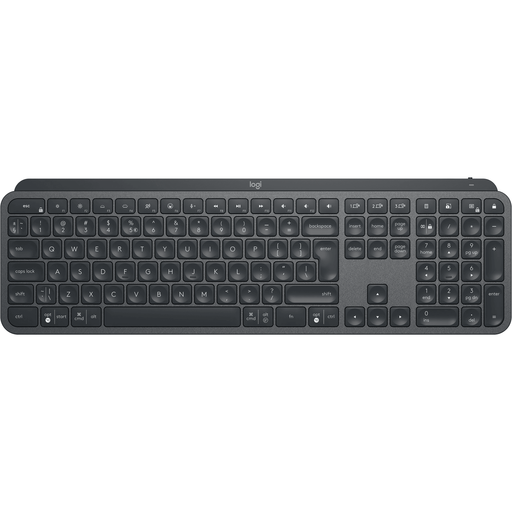 No image available
Suited to a way of working where you want to switch between devices and backlighting matters.
The product information mentions a wireless Logi Bolt connection, automatic backlighting and Easy-Switch for up to three devices.
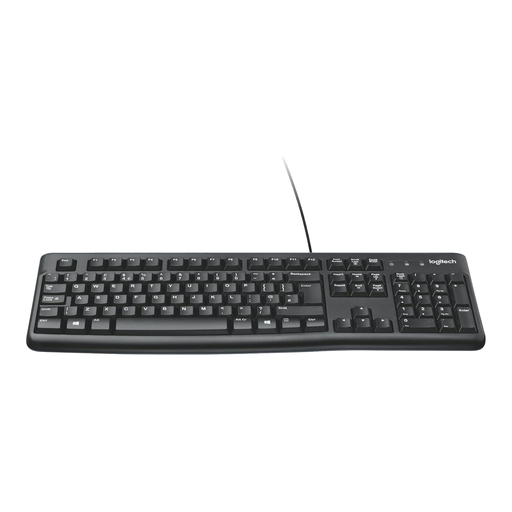 No image available
An option if you’re looking for a standard wired keyboard with a numeric keypad for typing long passages.
The product information mentions quiet, low-profile keys, a USB cable and adjustable feet.
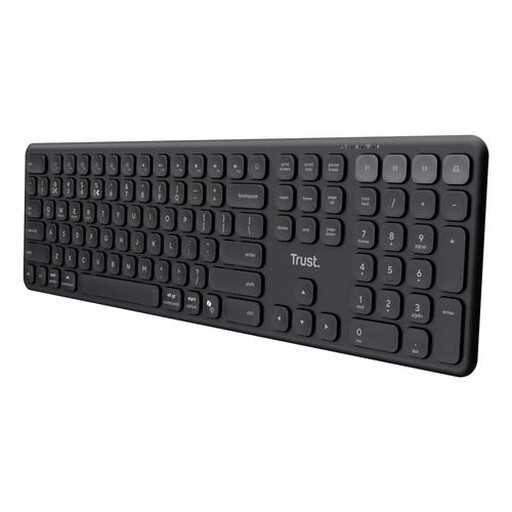 No image available
Suited to a way of working where you want to switch between devices while typing.
The product information mentions a numeric keypad, scissor-style keys and connection via a USB receiver and Bluetooth. Switching between up to four devices is also listed.
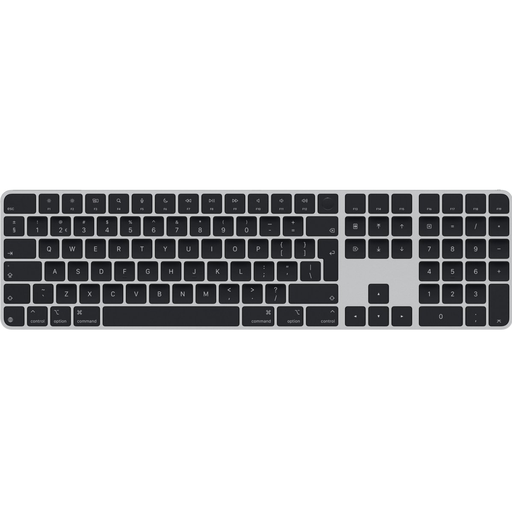 No image available
An option if you’re looking for a Dutch keyboard layout and keys for navigating documents.
The product information mentions a numeric keypad, document navigation keys and a scissor mechanism. The product name lists USB and Bluetooth.
No. Large lettering on a keyboard only changes the physical key labels. Microsoft Support describes separate Windows settings for text size, scaling and Magnifier.
Not for the large labels themselves. The dedicated ZoomText and Fusion shortcut keys on the ZoomText Large Print Keyboard are designed for use with that software; check the supported version and operating system.
Compare the physical language variant with your computer’s input layout, and check that the connection is suitable. In Windows, you can add and select a keyboard layout; using a different layout can affect how you type punctuation.
Consider your screen’s readability, lighting and posture alongside your choice of keyboard. Arboportaal lists these as factors to consider when working with display screens; they don’t guarantee a particular outcome for an individual.
According to Arboportaal, employees who work with display screens for more than 2 hours a day must be able to use the screen and keyboard separately. This requirement applies to employees in that working situation and not automatically to every private buyer.