Vandaag of morgen in huis

Kwaliteit gegarandeerd

Welkomstaanbiedingen ontgrendelen: GRATIS bezorging | Tot 80% korting | Gratis 30 dagen JoyPlus-proefperiode
Download de app
Waiting for your PC to boot or a game to load feels like wasted time. If your computer feels sluggish, your storage is likely the culprit. Upgrading to a modern internal SSD is one of the most effective ways to give your system a significant performance boost.
But with terms like M.2, NVMe, and PCIe 5.0, it's easy to get lost in the technical jargon. This guide will help you make the right choice. We'll explain the key specifications and highlight several popular models so you can buy an internal SSD that fits your needs and budget.
Before making a decision, it's helpful to understand a few key points. This will ensure you choose an SSD that is not only fast but also compatible with your system.
For many, the days of bulky 2.5-inch SATA SSDs are over. The current standard is the M.2 SSD, a compact module that plugs directly into your motherboard. It uses the NVMe protocol over the PCIe interface, resulting in significantly higher speeds than the older SATA connection.
Within the PCIe standard, there are several generations:
Read and write speeds, expressed in megabytes per second (MB/s), determine how quickly files are opened and saved. For daily use, gaming, and most professional tasks, a fast SSD with speeds over 3,000 MB/s already makes a world of difference.
In terms of capacity, 1 TB is a good starting point for most users. Gamers and content creators working with large files should consider a 2TB SSD to avoid constantly needing to free up space.
Before purchasing an M.2 SSD, it's crucial to check your motherboard's specifications. Consult the manual or look online to see which PCIe generation your M.2 slot supports (e.g., PCIe 4.0 x4) and if there are any limitations. This ensures you'll get the maximum speed out of your new SSD.
Based on specifications and use cases, we've highlighted a few compelling options for you.
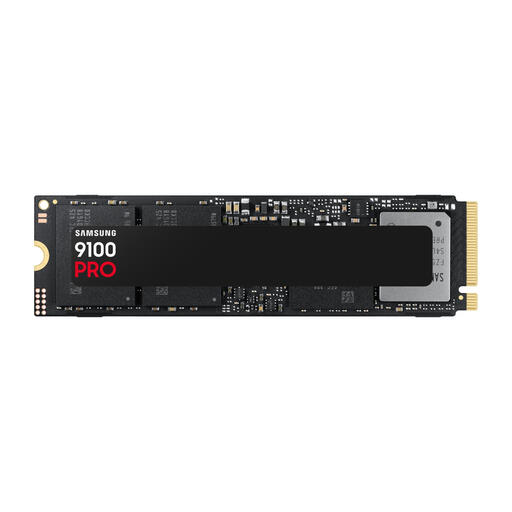
Why it stands out This SSD is built for pure speed. With support for PCIe 5.0, the Samsung 9100 PRO delivers sequential read speeds that far exceed the limits of the previous generation. According to Samsung's specifications, it reaches speeds of up to 14,700 MB/s, resulting in extremely short load times and rapid file transfers.
Key Features
Who is it for? The high-end PC builder, 8K video editor, or hardcore gamer who wants the latest technology and makes no compromises on performance. This is an investment in your system's future.
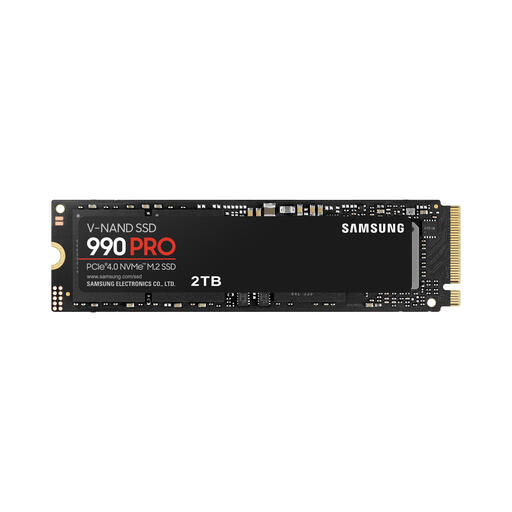
Why it stands out The Samsung 990 PRO offers an excellent balance of price and performance. As one of the top models in the PCIe 4.0 generation, this NVMe SSD delivers speeds that are more than sufficient for the most demanding games and applications. According to Samsung, its intelligent thermal control ensures consistent performance, even under heavy load.
Key Features
Who is it for? For serious gamers and creative professionals looking for a very fast SSD for gaming or video editing. It offers top-tier performance without the premium price tag of the latest PCIe 5.0 models.
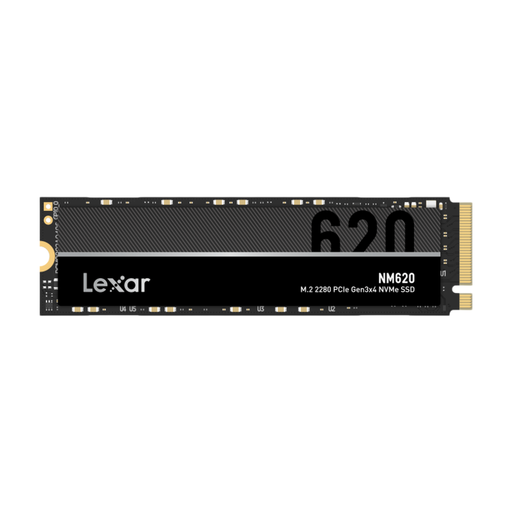
Why it stands out The Lexar NM620 is a perfect example of an affordable upgrade with a major impact. This PCIe 3.0 SSD offers speeds that make a world of difference compared to a traditional hard drive or an older SATA SSD. According to Lexar, it delivers speeds of up to 3,500 MB/s, ensuring a smooth and responsive system.
Key Features
Who is it for? Ideal for users who want to give their laptop or desktop a noticeable performance boost without paying a premium. An excellent choice for everyday use, office work, and mainstream gaming.
The world of storage is vast, with countless options available. If the recommendations above aren't exactly what you're looking for, or if you need a different capacity, there's much more to explore.
Check out our full range of NVMe solid state drives for more models and capacities to suit your specific needs.
The main difference is the interface and speed. A SATA SSD uses the older, slower SATA interface (maxing out at around 550 MB/s) and often comes in a 2.5-inch form factor. An NVMe SSD uses the much faster PCIe interface directly on the motherboard, resulting in significantly higher speeds. They typically use the compact M.2 form factor.
Modern games are getting larger, with titles easily taking up over 100 GB. A 1TB SSD is a good minimum, but if you want to have multiple large games installed simultaneously, a 2TB SSD is a wise choice to be prepared for the future.
Yes, you can. The PCIe standard is backwards compatible. A PCIe 5.0 SSD will work in a PCIe 4.0 slot, but its speed will be limited to the maximum throughput of the PCIe 4.0 slot. You won't be able to leverage the SSD's full performance potential.