
Vandaag of morgen in huis

Kwaliteit gegarandeerd

Welkomstaanbiedingen ontgrendelen: GRATIS bezorging | Tot 80% korting | Gratis 30 dagen JoyPlus-proefperiode
Download de app
An Insta360 Link 2 4K webcam may seem like a straightforward purchase on paper, but the differences between webcams often come down to the details. Students want online lessons without blurry images, homeworkers are looking for a reliable webcam for Zoom, and streamers pay attention to framing, audio and compatibility.
However, there are several common pitfalls:
A 4K webcam for PC and Mac can capture more image information than a Full HD model. This is particularly useful when you want to crop the image later, show a whiteboard or use portrait mode. According to the product details, the Insta360 Link 2 features a 1/2-inch sensor, 4K resolution and HDR.
A larger sensor can offer practical benefits in a home office with less-than-ideal lighting. However, consider the lighting in your own space: HDR can help reduce the difference between bright and dark areas of the image, but it cannot automatically make a dark room well lit.
Also check the field of view. The Link 2 has a fixed diagonal field of view of 79.5 degrees and a horizontal field of view of 67 degrees. This is relevant if you want only yourself to appear on camera or would rather show more of your desk.
A webcam with AI tracking and automatic framing can be useful if you move around during a presentation or do not remain directly in front of the camera at all times. According to the product descriptions, the Insta360 Link 2 and Link 2C support AI tracking or Auto Framing.
Be aware of the difference between tracking and autofocus:
Stable framing is useful for video calls. For streaming or gaming, it is worth checking how much control you retain through the software. The Link Controller software provides settings for features such as DeskView, Whiteboard Mode, portrait mode and privacy.
A webcam with a built-in microphone is practical for online lessons and meetings. The Insta360 Link 2 and Link 2C are described as having a microphone with AI noise cancellation. If you use the webcam for livestreams or longer presentations, check whether the microphone is suitable for the distance between you and the screen. For a professional stream, a separate USB microphone may still offer more adjustment options.
A physical privacy feature is a useful practical addition. According to the product information, the Link 2C has a physical privacy switch. This allows you to cover the camera when you are not using it, rather than relying solely on software settings.
Finally, check whether your computer supports the resolution and frame rate you want to use. The Link 2 product specifications state, among other things, that 4K and 1080p at 60 fps in portrait mode are not supported with H.264. This may affect certain recording or streaming settings.
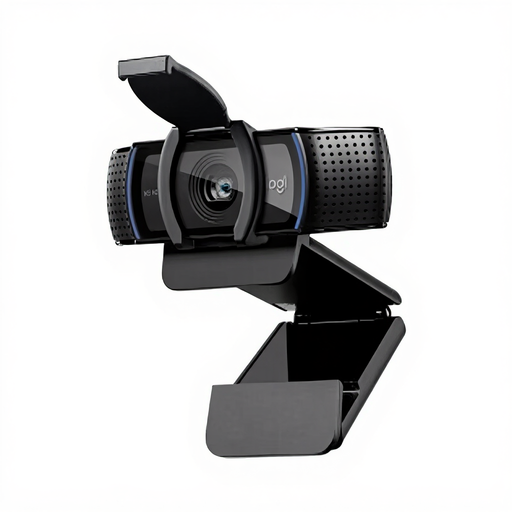
Why it suits this profile: For students and new homeworkers who mainly need a webcam for video calls, this Full HD model offers a simpler starting point than a 4K webcam.
You are not paying for features you may not need. The product information lists autofocus, automatic light correction, two built-in microphones and a privacy cover.
Full HD up to 1920 × 1080, USB connection, compatibility with Zoom and Teams, among others, and a fixed 78-degree field of view.
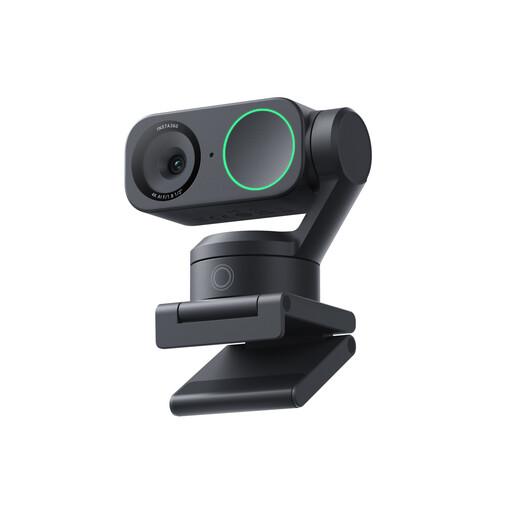
Why it suits this profile: This 4K webcam is aimed at users who want to combine image quality, AI tracking and flexible control for video calls, streaming and presentations.
The specifications state specific values such as the 1/2-inch sensor, PDAF autofocus, HDR, an ISO range of 100–3200 and AI noise cancellation.
4K video, AI tracking, automatic framing, HDR, gesture control and a fixed diagonal field of view of 79.5 degrees.
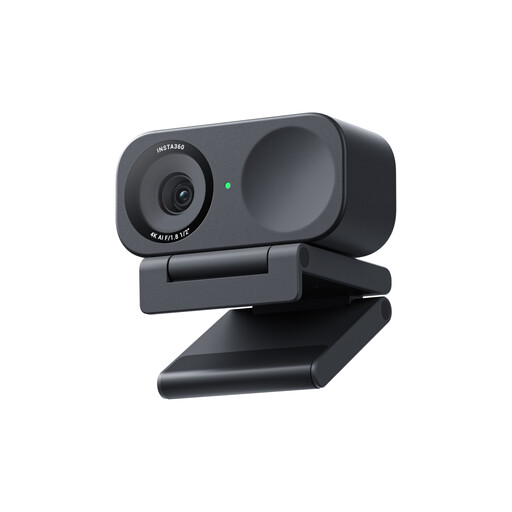
Why it suits this profile: Suitable for streamers, content creators and intensive homeworkers who use multiple recording modes, automatic framing and a physical privacy feature.
The physical privacy switch means you do not have to rely solely on software. However, check Windows compatibility in advance if you use an ARM system.
1/2-inch sensor, 4K, HDR, PDAF autofocus, AI noise cancellation, DeskView, Whiteboard Mode and 4K portrait mode according to the product description.
We have put together a complete, up-to-date list of products that fully meet these strict selection criteria and the applicable European safety regulations.
Place the webcam at eye level, preferably above or directly next to your monitor. Point a lamp towards your face rather than positioning a bright light source behind you. Then open the settings in Zoom, Teams, Twitch or the recording app you use, and manually select your preferred camera, resolution and microphone.
If you use Link Controller features, first check that the software works with your operating system. Test AI tracking and automatic framing before starting a livestream or important meeting. This lets you see immediately whether the image zooms in too much or the background looks distracting.
According to the product information, the Insta360 Link 2 is suitable for Zoom. The final image quality is also determined by the Zoom settings, internet connection, computer and available bandwidth. Recording in 4K therefore does not mean that every Zoom meeting will be displayed in 4K.
The Link Controller software may be required for advanced features such as settings, gesture control and certain image modes. Before buying, check the latest system requirements and any limitations for your PC or Mac.
It can be, particularly if you want to combine a sharp image, automatic framing and HDR. However, check that your streaming software supports the chosen resolution and video encoding. For intensive use, good lighting, a stable USB connection and, if necessary, a separate microphone are also important.
