
Creating large plans
You want to see details on a larger sheet, so you’re weighing up A3 or A3+ against A4.


Start with the paper size that keeps your garden plan easy to read: A4 may be enough if you split the plan across several sheets, while A3 or A3+ gives you room for a larger plan on a single sheet. Then consider how much you print, the type of ink and whether you also want to scan paper sketches; a printer that can print in A3 does not necessarily scan in A3 too.
You want to see details on a larger sheet, so you’re weighing up A3 or A3+ against A4.
You often print plans or images and want to weigh up cartridges against refillable tanks for the way you print.
You want to scan or copy sketches as well as print. Check which sizes the scanner can handle.
First decide how large you want to print the plan and whether it needs to stay to scale. Then factor in how much you expect to print and whether you need scanning.
| What to consider | What should you check? | Who should consider this most? |
|---|---|---|
| Size and scale | Check whether the model prints in A4, A3 or A3+, then select the intended scale or split across sheets in the PDF settings. | If I want to keep a plan with usable dimensions on one sheet, I look at size and scale first. Around 31% of consumers prioritise plan size and scale. |
| Ink for regular use | Compare suitable cartridges or refill ink based on how often you print; don’t use photo yield as a guide to how many plans you can print. | If I print plans often, I want to match my ink choice to how I use the printer. Around 25% of consumers prioritise ink costs in relation to their expected print volume. |
| Colour and detail | Print a test page on the paper you plan to use and check that fine lines, legends and blocks of colour are clearly distinguishable. | If blocks of colour and fine lines make my plan easier to read, I want to assess them on my own design first. Around 19% of consumers prioritise colour clarity and detail. |
| Scanning and copying | Check the scan size separately from the maximum print size; don’t pay for extra features if you only print digital files. | If I want to digitise paper sketches, the scanner needs to handle their size too. Around 13% of consumers prioritise scanning and copying. |
| Maintenance when printing infrequently | Check the maintenance instructions for the exact model and follow the manual if colours are missing or prints look faint. | If I need a usable plan after a period without printing, I check which maintenance steps the model recommends. Around 12% of consumers make maintenance during infrequent use their top priority. |
Print, scan and copy sizes are separate specifications. So a large print size doesn’t automatically mean you can digitise an existing sketch of the same size.
Before choosing, check the maximum sizes for printing, scanning and copying separately.
If you want to digitise a large paper sketch, you may need a separate scanner if the printer you choose doesn’t support that scan size.
A setting that fits a document to the page can change the dimensions of a scaled drawing. Adobe Acrobat offers options such as ‘Actual size’ and ways to split large documents across several sheets.
Choose the print setting that suits the plan, then check a known measurement on a test print.
If the scale isn’t usable, printing it again may use extra paper.
The stated yield for a photo set doesn’t tell you how many garden plans you can print with it. That also depends on your design, the size and how often you print.
Compare cartridges or refill ink with your own usage, and don’t treat photo yield figures as a guide to plan yield.
The models mentioned offer different options: A3+ printing with individual cartridges on the PIXMA iX6850, or an A4 all-in-one with refillable tanks on the PIXMA G650.
The EcoTank ET-8550 and ET-18100 are A3+ models with refillable tanks, but their features differ.
The MFC-J6959DW is an office-focused A3 all-in-one for anyone who wants to handle large paper sketches as well as print.
This selection includes A4 colour printers with refillable tanks and an A3 ink tank printer for black-and-white printing.
 No image available
Ideal for A4 colour garden plans if you also want to scan or copy.
Specifications: A4 colour printing, refillable ink, automatic double-sided printing and a 35-sheet document feeder.
 No image available
Ideal for A4 colour plans if you also want to scan or copy.
Specifications: A4 colour printing, tank ink, automatic double-sided printing and a document feeder.
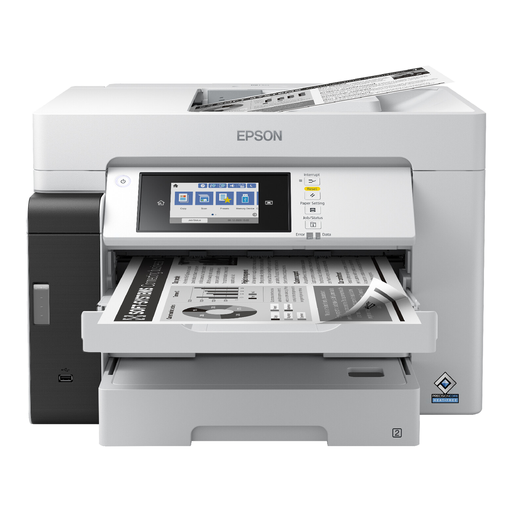 No image available
Ideal for larger garden plans that can be printed in A3, if black and white is sufficient.
Specifications: A3 inkjet printing, tank ink, Wi-Fi, scanning and copying, and an automatic document feeder. The stated printing function is black and white.
Before printing, check the page size and scale setting. Adobe Acrobat offers options such as ‘Actual size’ and ways to split large documents across several sheets. Check the result against a known measurement on a test print.
For the EcoTank or Expression models concerned, Epson recommends running a nozzle check first, followed by printhead cleaning via the maintenance menu if needed. For another brand or model, follow its own manual.
No. Compare suitable refill ink or cartridges with how often you print and the paper you use. Epson gives the stated yield for the ET-8550 in photos; this is not a yield figure for garden plans.
For an online consumer purchase, ACM ConsuWijzer says you generally have a 14-day cooling-off period after delivery, subject to legal exceptions. This is separate from your statutory rights if a product is faulty; the Dutch government states that the Netherlands has no fixed statutory two-year guarantee period for this.
The Dutch government says that, when buying a new similar appliance, private consumers can hand in an old electrical appliance to the retailer free of charge, including when buying online. A collection point or your local council recycling centre is another option.