
Text label makers
You want clear, easy-to-read labels on the paper you have in mind. So check the supported paper types and feed options before weighing up extra photo features.


Start by choosing the size, finish and thickness of your label paper. Then check that the printer supports that material through the right feed. For text-led designs, a standard colour inkjet may be all you need, provided the paper meets the printer’s specifications. For image-heavy or larger labels, consider support for photo media or A3+, as specified by Epson Netherlands for the ET-8550. Compare ink and paper use based on your own designs and how often you reprint: a stated yield for documents or photos won’t tell you how many display labels you can print.
You want clear, easy-to-read labels on the paper you have in mind. So check the supported paper types and feed options before weighing up extra photo features.
You also want to print images or blocks of colour. Compare the size you need, supported media and ink system, without treating a brand claim as an independent print test.
You make or replace labels regularly, so you’ll want to consider the ink system, maintenance and running costs as well as paper support.
First, decide on the paper and size you need. Then compare colour options, ongoing running costs and any office features you’ll actually use.
| Priority | What to look for when buying | Who should pay particular attention? |
|---|---|---|
| Text and paper compatibility | Check the size, paper type and thickness or weight supported by the specific input tray. | If I need readable text on a particular matt paper or card, I want to know whether that exact combination is supported. Around 33% of consumers put paper compatibility and text quality at the top of their list when buying. |
| Size and colour | Compare the size you need with the media supported for your design. | If my labels are larger or include images, I’ll consider size and colour options. Around 25% of consumers give these factors the highest priority. |
| Ink and paper use | Compare the same type of paper and design, using a realistic number of reprints. | If I regularly remake labels, I want to factor in ongoing running costs rather than relying on a general page yield. Around 25% of consumers put these costs first. |
| Ease of use and maintenance | Only consider scanning, copying and automatic double-sided printing if you’ll use those features. | For my home office, ease of use and maintenance between print jobs may matter more than extra features for labels. Around 17% of consumers name ease of use and maintenance as their top priority. |
Supported paper types, thicknesses and feed options vary by model. The 1.3 mm limit for the Epson EcoTank ET-8550 applies to its straight-through feed; it doesn’t automatically apply to every tray or paper type.
Before buying paper, check the specifications for the exact model and the combination of material and feed you plan to use.
A yield for standard documents or photos won’t necessarily reflect your design. The Consumers’ Association also points out that, if you print infrequently, a relatively larger share of ink may be used for cleaning.
Compare printers using the same design, size and paper, and take into account how often you reprint your labels.
An automatic document feeder or automatic duplex function doesn’t prove that a printer can handle your card stock. For example, Canon limits the stated automatic duplex function of the PIXMA TS9550 to specified plain-paper sizes.
Check the supported media and feed options first. Then consider scanning, copying and double-sided printing if you need those features.
Canon has models for a range of sizes and media. Compare the specifications for each model; features don’t automatically apply to every Canon printer.
The EcoTank ET-8550 is worth comparing if you need larger sizes and support for suitable thicker media.
The Smart Tank 7305 is worth comparing if you need your printer to handle office tasks as well as labels.
The DCP-J1360DW is a cartridge-based alternative worth comparing if you need to print, scan and copy at home.
These Joybuy products include inkjet options for home office use, including A4 and A3 models and all-in-one printers. For each model, check separately whether it supports the paper type and thickness you want to use, and whether it can feed your labels.
 No image available
An option to compare if you also want to scan and copy as well as print. Check separately whether it supports your chosen paper type and feed option.
The product title describes a wireless all-in-one colour printer with double-sided printing.
 No image available
A4 support may suit A4 labels, provided the chosen paper type and feed option are compatible with the model’s specifications.
The product title lists A4 and 4800 × 600 DPI.
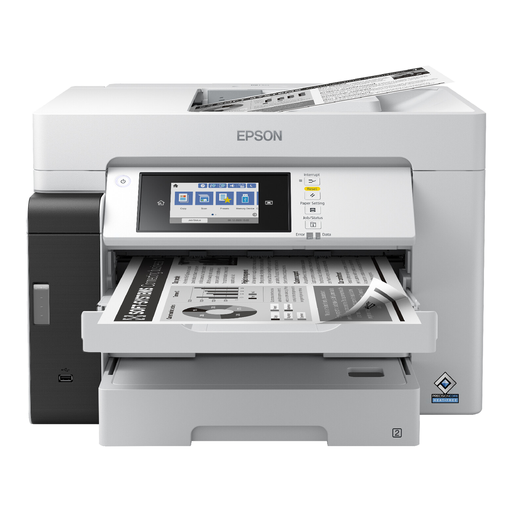 No image available
Worth comparing if you want to print A3 labels. Check that your chosen material is supported by the feed you plan to use.
The product title lists A3, 4800 × 1200 DPI and Wi-Fi.
 No image available
An option to compare if you want to print, scan and copy at home. Don’t assume it supports card stock without checking the model specifications.
The product title describes a wireless all-in-one colour printer with double-sided printing.
Don’t assume you can just because ‘automatic double-sided printing’ is listed. Canon’s specifications for the PIXMA TS9550 limit this feature to specified plain-paper sizes. Check the permitted feed options and settings for your card stock separately.
Check the paper type, size and thickness or weight supported by the exact model and the input tray you plan to use. A general claim about thick paper doesn’t automatically apply to every paper type or feed option.
Not necessarily. The stated yield may be based on documents or photos, so it won’t automatically reflect the ink used for your design. Compare printers using the same size and paper, and a realistic number of reprints. The Consumers’ Association also notes that infrequent printing may mean relatively more ink is used for cleaning.
For the relevant EcoTank and Expression printers, Epson recommends running a nozzle check first, followed by print-head cleaning if needed. Follow the maintenance instructions for your model before starting a cleaning cycle.
For eligible online consumer purchases, you generally have up to 14 days after delivery to change your mind. ACM ConsuWijzer explains the exceptions and conditions around unpacking and trying out a product. Check these before using the printer extensively.