
Maker using specialist insert paper
You use unusual sizes or heavier card and want to know whether the paper path can handle your stock. Canon and Epson provide model-specific information about paper and feeding.


Start with the exact size, paper type and thickness of your insert paper. Canon and Epson specify particular media and feed methods, but that doesn’t mean every type of card is suitable. Then choose between a printer with a dedicated media feed, a model for regular colour printing or an office-focused printer for shared document tasks, depending on your designs and print volume. If your card files contain names or addresses, agree with your studio team who can access the files and prints.
You use unusual sizes or heavier card and want to know whether the paper path can handle your stock. Canon and Epson provide model-specific information about paper and feeding.
You print illustrations or photo-style designs and want to assess the colour on your own paper. Canon and Epson describe models with ink systems designed for image printing.
You’re weighing up ink use against the available paper feeds and connections for multiple workstations. Brother and HP list features for shared use; also check that your chosen model supports your card stock.
First check that your actual insert paper can pass through the right paper feed. Then weigh up colour reproduction, ink use and how your studio team will work together.
| What to consider | What to look for | Who is this important to? |
|---|---|---|
| Paper and size | Compare the size, paper type, weight and, if necessary, thickness with the specifications for the exact model and the required feed path. | I want to know first whether the printer can handle my unusual size or heavier paper. Around 33% of consumers prioritise paper compatibility. |
| Colour on your chosen paper | Print a test page with text and illustrations; check which media and ink system the model specifies. | If my design includes lots of illustrations, I want to assess the print on my own paper. Colour reproduction is the top priority for around 27% of consumers. |
| Ink use | Estimate how many prints you’ll make and compare the ink required for the same type of work. Also consider maintenance if you print irregularly. | I want to know how much I print and how often the printer will be used before choosing a model. Around 20% of consumers give ink use top priority. |
| Shared use | Check the available connections and paper feeds, and agree how people will access files and collect prints. | In a shared studio, I want connections and working arrangements to be practical for multiple users. Around 20% of consumers prioritise collaboration. |
A maximum weight specified for a particular type of photo paper doesn’t automatically apply to other card stock.
Check the exact media designation and test your insert paper using the recommended feed path.
A failed test may mean using extra sheets and printing the job again.
The ink required depends on the number and type of prints. If you print infrequently, an inkjet printer may also use ink for maintenance.
Compare the ink needed for the same expected number and type of prints, and factor in irregular use when choosing.
Cards featuring names or addresses may contain personal data, so unattended prints and accessible files need careful handling.
Agree who can access files and who will collect prints straight away when they contain personal data.
The PIXMA MegaTank G3560 is aimed at A4 card inserts using the specific card and greeting card media listed by Canon. The G650 is an option for image-rich A4 designs.
The EcoTank ET-8500 is an A4 model and the ET-8550 is an A3+ model. Both have a dedicated feed for suitable media.
The MFC-J4550DW is an office-focused inkjet for a studio that also regularly prints standard documents.
The Smart Tank 7005 is a refillable A4 option for regular colour printing in a small shared studio.
These models are suited to colour inkjet printing and shared document tasks. Check whether your card insert paper is suitable for each model.
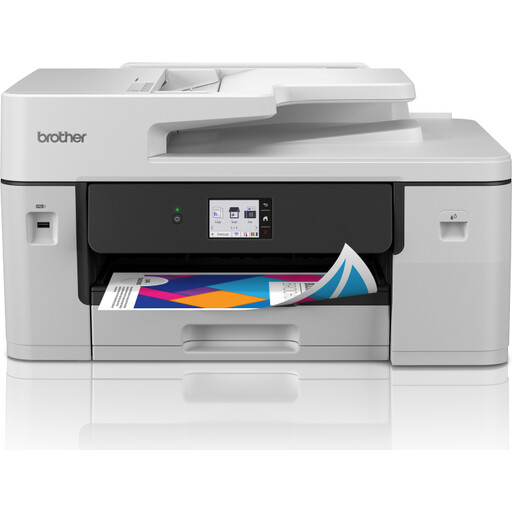 Image unavailable
Suited to a shared studio combining A3 colour printing with document tasks.
The product description lists automatic double-sided printing, Wi-Fi, Ethernet and a 250-sheet paper tray.
The description states that it supports media up to 220 g/m²; check that your specific paper and the recommended feed path are suitable.
 Image unavailable
Suited to A4 colour printing if you also want to scan and copy.
The product description lists colour printing, sizes up to A4, a 60-sheet input capacity and USB 2.0.
Check that your card stock and the corresponding feed method are suitable before printing.
 Image unavailable
Suited to A4 colour printing in a small workgroup that needs network connections.
The product description lists Wi-Fi, Ethernet and automatic double-sided printing.
Check separately whether your card stock is suitable for this model.
Only if you’ve checked that the feature supports your chosen size and paper type. Canon specifies manual double-sided printing for the PIXMA G3560 and G650; check this separately for every other model.
Choose a connection that suits your workstations, and agree who will change the paper and collect the prints. Brother specifies Ethernet and Wi-Fi for the MFC-J4550DW. If designs include names or addresses, decide who can access the files and prints.
Consider the type of prints, the ink required and any maintenance needed if you print irregularly. A stated yield for standard documents doesn’t translate into a fixed number of card illustrations.
If the studio processes personal data as an organisation, it must protect that data appropriately. The Dutch Data Protection Authority says that safeguards should reflect the risks, so what’s appropriate depends on the processing and the circumstances.
When buying a new, similar appliance, consumers can return the old one to the retailer free of charge. According to the Dutch government, this take-back scheme doesn’t apply to equipment used by businesses.