
Table-print maker
You’re choosing mainly by size and finish, and want to make a test print on the paper you plan to use. Canon and Epson list the supported sizes for their models; Canon also specifies different types of photo paper.


Start by choosing the photo size and finish, then estimate how many prints you expect to make. If you’ll be printing photos regularly, a photo-focused ink-tank printer is worth comparing. For a smaller print run, or a printer you’ll mainly use for documents later, a cartridge printer or versatile home printer may be a better fit. Manufacturer page yields don’t guarantee what your own cost per photo will be.
You’re choosing mainly by size and finish, and want to make a test print on the paper you plan to use. Canon and Epson list the supported sizes for their models; Canon also specifies different types of photo paper.
You expect to print lots of photos or keep using the printer afterwards. Compare the printer, ink and paper for the print run you expect. The Consumers’ Association highlights intended use, volume and cost as factors to consider when choosing a printer.
You have limited workspace or aren’t sure whether you can use the venue’s network. Check how much space the paper feed needs, and test in advance that you can connect using a method permitted by the venue’s rules.
| What to consider | What should you check? | Who is this important for? |
|---|---|---|
| Photo size and finish | Check that the exact model supports borderless printing at your chosen size and works with the paper you want to use. Make a test print on your chosen finish. | I want the prints to suit the table layout and look as intended on the paper I’ve chosen. Around 33% of consumers prioritise size and finish. |
| Print run and consumables | For the same number and size of photos, compare the printer, refills or cartridges, and paper. Treat manufacturer page yields as estimates based on their own conditions. | If I’m expecting to print lots of photos, I want to compare the ink and paper I’ll need with the cost of buying the printer. Around 27% of consumers prioritise print volume and running costs. |
| Space and connection | Measure the space, including room for paper input and output. Check that you can print from your device using a permitted connection, and test it in advance. | In a small or shared venue, I want to know whether the printer will fit and whether I’ll be able to connect to it on the day. Around 20% of consumers prioritise placement and connection. |
| Use after the wedding | Decide whether you’ll mainly print documents afterwards or continue printing photos regularly. Check that features such as scanning and copying suit how you’ll use it. | If I’ll mainly use the printer for everyday tasks later, I don’t want to pay for photo features I’ll rarely use. Around 20% of consumers prioritise future use. |
Ink and cartridge systems vary, and how much you need depends on the size of your print run. A quoted photo yield won’t necessarily tell you what your own batch of prints will cost.
For the same expected print run and photo size, compare the printer, compatible ink and photo paper.
Support for A4 doesn’t automatically mean that every paper size, paper weight or type of card is suitable.
Check the size, paper type and feed path for the exact model. Make one finished test card before printing the full batch.
A Wi-Fi feature doesn’t mean you’ll have access to the network in a shared venue.
Check the venue’s rules and test in advance that your device supports a connection that’s permitted there.
If the connection doesn’t work on the day, you could lose preparation time and need to find another way to print.
The PIXMA G650 is a photo-focused ink-tank printer, while the PIXMA TS7650i is a cartridge printer also designed for documents.
The Expression Photo XP-8700 is a photo-focused cartridge printer, while the EcoTank ET-8500 is a photo-focused ink-tank printer.
The ENVY range is worth considering if you’re looking for a printer you can also use for schoolwork and documents.
The DCP-J1460DW is a compact all-in-one for anyone who needs a small workspace and plans to print documents.
This selection includes inkjet printers for table prints and regular colour or document printing. Check the supported photo size, connection options and space required for each model.
 No image available
This could be a good fit if you need scanning and copying as well as colour prints, and want to use a wireless connection.
The product description lists ink tanks, Wi-Fi Direct and Bluetooth. It also mentions automatic double-sided printing and a 35-page document feeder.
For wedding photos, check separately that the printer supports your preferred paper size and finish.
 No image available
This could suit occasional small table prints if you’re connecting your computer by USB and the supported size works for your design.
The product description lists support for 10 × 15 cm paper, USB 2.0 and two included cartridges.
Check which types of photo paper the model supports before printing a larger batch.
 No image available
This could be a good fit if you mainly print larger batches of colour prints or documents and can use a wired or wireless network connection.
The product description lists a 330-sheet input capacity, Wi-Fi and Ethernet. It also states that the printer weighs more than 15 kg and recommends lifting it with two people.
Bear the weight in mind and check that the printer supports your preferred photo paper size.
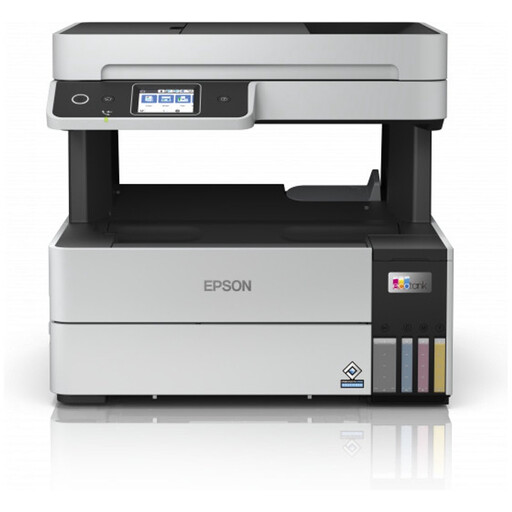 No image available
This could be a good fit if you want to print 10 × 15 cm photos and are also looking for an ink-tank printer for regular printing.
The product description lists EcoTank, support for 10 × 15 cm paper, Wi-Fi Direct and automatic double-sided printing. Apple AirPrint is also mentioned.
Check that your preferred photo paper and connection work with your device.
 No image available
This could suit you if you want wireless colour printing alongside home use later, and the listed photo paper sizes work for your table design.
The product description lists ink tanks, Wi-Fi Direct and automatic double-sided printing. It also mentions borderless printing and photo paper sizes of 4 × 6 and 5 × 7 inches.
The listed dimensions are 427,5 × 364 × 240,3 mm; measure your available space before choosing a model.
Choose a finish that suits the presentation, and make a test print on paper supported by your exact printer. Canon describes glossy, matt and semi-gloss paper types; check your model’s supported sizes too.
That depends on the model, your device and the venue’s rules. Canon specifies Wireless Direct and USB for the PIXMA TS7650i; Epson lists Wi-Fi Direct for the EcoTank ET-8500. Test a permitted connection before you print the photos.
Start with a test print and follow the maintenance instructions for your exact model. The manual for Canon’s G600 series recommends cleaning the print head if there are streaks in the nozzle pattern, and notes that cleaning uses ink. First check that the manual applies to your printer series.
According to the Dutch government, when you buy a product you’re entitled to a legal guarantee: the product must be fit for purpose. Discuss any fault with the seller.
This depends, among other things, on who takes or uses the photos and the context. The Dutch Data Protection Authority states that organisations need a lawful basis under the GDPR to take and publish recognisable photos at events. Consider the specific circumstances before sharing or displaying photos.