
Teams sharing a printer
You want to print forms from several work devices. Check whether the available connection is Wi-Fi, Ethernet or USB.


First, decide how colleagues will use the printer: via USB, Wi-Fi or a shared network connection using Ethernet. Then match the paper capacity and automatic duplex printing to the volume and type of forms you expect to print. A refillable ink tank is worth considering if you print regularly, while size and ink consumption also matter if you only print occasionally.
You want to print forms from several work devices. Check whether the available connection is Wi-Fi, Ethernet or USB.
You top up paper and ink regularly. Compare the paper capacity and refill system with the volume you expect to print.
You want to print on both sides without turning the pages over by hand. Check that automatic duplex printing supports the paper size you use.
Start by working out which connection you need and how much you expect to print. Then check whether your forms need to be printed double-sided automatically and how much space the printer will take up in the workplace.
| Consideration | What to look for | Who is this important for? |
|---|---|---|
| Connecting and sharing | Check which network connections are available and whether each model supports Wi-Fi, Ethernet or USB. | If several colleagues need to print, make sure the connection suits your workplace. Around 36% of consumers prioritise shared access. |
| Paper and ink use | Estimate how much you’ll print regularly and compare the paper capacity and refill system with your needs. | If you print forms regularly, it’s useful to top up paper and ink less often. Around 29% of consumers prioritise a paper and ink system that suits their needs. |
| Double-sided forms | Check that automatic duplex printing supports the size and type of paper you use. | If forms need to be printed on both sides, you won’t want to keep turning pages over by hand. Around 21% of consumers consider double-sided printing their top priority. |
| Occasional use and space | Measure the space available, including room to load paper, and consider ink consumption if you print infrequently. | If you only print now and then, desk space and how the printer performs between print jobs are also important. Around 14% of consumers prioritise occasional use and available space. |
Wi-Fi and Ethernet are different connection options. A printer with Wi-Fi won’t necessarily have an Ethernet port as well.
Check which connection your shared workplace uses and look at the ports on the exact model.
For the OfficeJet Pro 8122e, HP states that dynamic security may block cartridges with non-HP chips, including after firmware updates.
Before buying, check that the cartridges you plan to use are compatible and that any HP+ terms suit your needs.
A printer can print on both sides if you turn the pages over yourself. This works differently from automatic duplex printing.
Check that automatic duplex printing supports the paper size and type used for your forms.
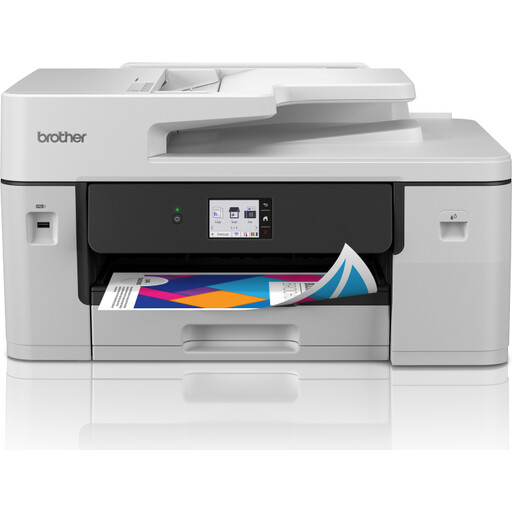
The MFC-J4350DW is a cartridge-based inkjet printer worth comparing if Wi-Fi or USB suits your shared workplace and you also want to scan or copy.
The MAXIFY GX4050 is a refillable inkjet printer to consider if you print forms regularly and need Ethernet in your workplace.
The EcoTank ET-2950 is a refillable A4 inkjet printer worth comparing if wireless printing and double-sided forms are important to you.
The OfficeJet Pro 8122e is a cartridge-based option for a workplace that combines printing, scanning and copying.
This selection includes inkjet printers for forms in a shared workplace, with models offering Wi-Fi, Ethernet or USB connectivity.
 No image available
The listed Wi-Fi and Ethernet connections and automatic duplex printing may suit a shared workplace with double-sided forms.
Supports A3 and A4; the product name lists 1200 x 4800 DPI and 31 ppm. According to the product description, the printer weighs over 15 kg. Two people are advised to lift it, and it should be placed on a stable, level surface.
 No image available
Refillable ink, Wi-Fi and automatic duplex printing make this a good fit for regular printing and double-sided forms.
The product description lists a 35-page document feeder, plus copying and scanning functions.
 No image available
The USB connection may suit you if you’ll connect the printer directly to a computer rather than use it on a shared network.
The product description lists a 60-sheet paper tray, USB 2.0 and printing, scanning and copying functions.
 No image available
The listed Wi-Fi and Ethernet connections and automatic duplex printing may suit a shared workplace where forms are printed double-sided.
The product description lists A4 support and a weight of over 15 kg; two people are advised to lift it.
 No image available
Refillable ink, Wi-Fi and automatic duplex printing make this a good fit for wireless use and forms printed on both sides.
The product description lists a total input capacity of 250 sheets, as well as printing, scanning and copying functions.
Only if you print forms on both sides and don’t want to turn them over by hand. Check that automatic duplex printing supports the paper size you use. For example, Canon lists this feature for A4 plain paper on the MAXIFY GX4050.
First, work out which devices will be printing and which connections are available. Brother lists Wi-Fi and USB for the MFC-J4350DW; Canon also lists Ethernet for the MAXIFY GX4050. Only set double-sided printing as the default if your forms are designed for it.
How much and how often you print also matter. The Consumentenbond points out that when you print very little, a relatively larger amount of ink may be used for cleaning. Take your own usage into account, and don’t treat stated yields as a guarantee of what you’ll get in your workplace.
According to the Dutch Data Protection Authority, an organisation processing personal data must decide for itself which security measures are appropriate for the risks. It doesn’t prescribe one specific printer model or a standard set-up. For these forms, agree who is allowed to collect printouts and how they will be kept secure.
Before buying, check the support available for the exact model and the devices you want to print from. Canon provides model-specific drivers, software, firmware and manuals for the MAXIFY GX4050. Also check that the model works with your equipment.