What should you look for when buying?
For application forms in a shared studio, the required print layout, how often you print, how you handle paper originals and who can access the output tray are all key considerations.
| What to consider |
What should you check? |
Who is this important for? |
| Forms that print correctly |
Check the required paper size and print settings for scale and single- or double-sided printing. |
I want the text and form fields to print on paper as specified in the submission instructions. Around 36% of consumers put correctly printed forms first. |
| Shared use and privacy |
Check that the connection works with the devices in the studio, and agree who will collect printouts straight away. |
If several people print, I want to avoid leaving forms containing personal data unattended by the printer. Around 29% of consumers give shared access and print privacy top priority. |
| Ink costs when print volumes vary |
Compare the printer and compatible replacement ink over the same period and for the same expected number of pages. |
I want to weigh up the costs for our combined print volume, even if our use varies from week to week. Around 21% of consumers prioritise predictable ink costs. |
| Handling paper forms |
Check whether you need a scanner, an automatic document feeder and, if necessary, double-sided scanning. |
When I need to digitise individual completed forms, I want to know how much manual handling that involves. Around 14% of consumers put scanning or copying paper applications first. |
Joybuy printers for shared use
This selection includes multifunction inkjet printers and inkjet models for a shared studio. For each exact variant, compare the document feeder, scanning function, paper size and ink system you need with the way you actually use the printer.
 No image available
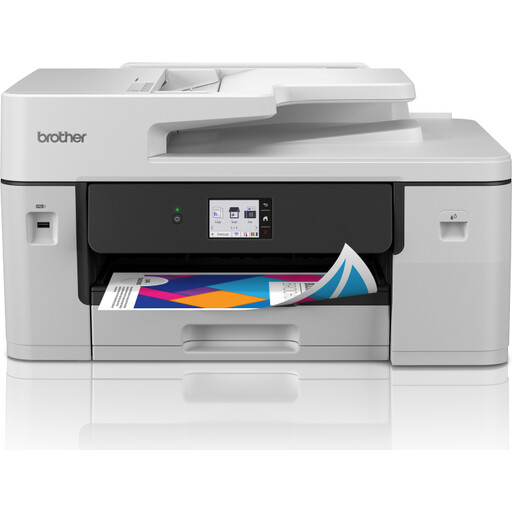
Brother MFC-J6760DW, A3 inkjet printer, 1200 × 4800 dpi, 31 ppm, Wi-Fi
An option to compare if the forms you need to print are in A3; also check whether the exact variant meets your scanning and document-feeder requirements.
Listed features: A3, 1200 × 4800 dpi, 31 ppm and Wi-Fi.
Joybuy
 No image available
HP Smart Tank 7305, wireless colour all-in-one printer, double-sided printing
This Smart Tank model is worth comparing with cartridge models if you print regularly; compare ink costs for the same expected volume.
The product name lists wireless connectivity, colour printing, double-sided printing, copying and scanning. Check whether the exact variant has the document feeder and scanning method you need.
Joybuy
 No image available
Epson WorkForce Pro WF-C5390DW, colour inkjet printer, 4800 × 1200 dpi, A4, Wi-Fi
An option to compare for shared printing of A4 forms if you need Wi-Fi; check separately whether it has the scanning and copying functions you need.
Listed features: colour, 4800 × 1200 dpi, A4 and Wi-Fi.
Joybuy
 No image available
HP Smart Tank 7005, wireless colour all-in-one printer, double-sided printing
This Smart Tank model is worth comparing if you print regularly; consider how you will scan individual originals.
The product name lists wireless connectivity, colour printing, double-sided printing, copying and scanning. The stated scanner is a flatbed model without an automatic document feeder, so you will need to handle loose sheets one at a time.
Joybuy
Frequently asked questions
Is an ink tank suitable if the studio only prints an application form occasionally?
Not necessarily. An ink tank printer is still an inkjet printer and may use ink for cleaning when used infrequently. So compare cartridges and refill ink based on your expected print volume and total running costs, rather than the stated yield per bottle alone.
Does automatic double-sided printing mean completed forms can also be scanned double-sided?
No. Double-sided printing and double-sided scanning are separate functions. Check the scanning specifications for the exact model variant if both sides of an original need to be scanned in a single pass.
How can you manage printing that contains personal data in a shared studio?
Limit who can access the printer and avoid leaving printouts containing personal data in the output tray unnecessarily. The Dutch Data Protection Authority advises organisations to protect personal data properly; tailor your measures to the data processing and the risks involved.
Who can you contact if a printer bought in the Netherlands is faulty?
For a consumer purchase, the retailer is your point of contact for the statutory guarantee. According to the Dutch Government, the Netherlands does not have a fixed statutory two-year guarantee period for every product; what you can expect depends, among other things, on the product and the information provided. If you bought the printer on behalf of a business, check the applicable terms separately.
How can you dispose of an old printer?
According to the Dutch Government, when private individuals buy a new, similar appliance, they can use the free take-back scheme for old-for-new appliances, including for online purchases. This scheme for returning old equipment does not apply to businesses; check which collection route applies to a business studio.


