What should you look for when choosing?
First check that the printer supports your chosen size and paper. Then consider print volume, running costs and the practicalities of your home.
| What to consider |
What should you check? |
Who is this most important for? |
| Size and paper |
Check the supported size and paper type, the paper feed and the settings for your chosen paper. |
If I want my caption to fit the paper I’ve chosen, I’ll check that they work together before printing a batch. Around 36% of consumers focus mainly on paper and captions. |
| Running costs |
Compare cartridges or refills, and the expected print volume over the same period of use. |
For small print runs, I want to know what printing will cost at my own pace, even if the printer has a low purchase price. Around 29% of consumers put running costs first. |
| Space and connection |
Measure the space needed for the printer, paper feed and output tray. Check whether Wi-Fi or USB will work with the devices in your home. |
If I’m sharing the printer with housemates, I want it to fit and be accessible from the devices we use. Around 21% of consumers prioritise space and shared use. |
| How long it will be on display |
Check the media supported. If your captions need to stay on display for a long time, look for information about the exact ink and paper combination you’ve chosen. |
If my captions need to stay on display for a long time, I want to know whether my chosen combination is suitable. Around 14% of consumers prioritise how well the print holds up on display. |
Inkjet printers on Joybuy
This selection includes inkjet printers for captions in A4 or A3 size, with options for different paper types, shared use and refillable ink.
 No image available
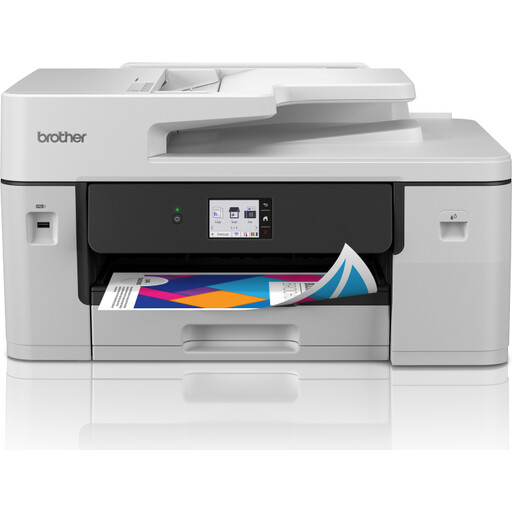
Brother MFC-J6760DW A3 colour inkjet printer
An option to consider if you want to print A3 captions and share the printer for scanning and copying too.
The product information lists A3 printing and media up to 220 g/m². Wi-Fi, Ethernet and USB are also listed. Check that the model supports your intended paper type and size.
Joybuy
 No image available
Canon PIXMA MG2556S A4 inkjet printer
A model to compare if you’re looking for an A4 printer that can also scan and copy.
The product information lists two cartridges, a 60-sheet input capacity and USB 2.0. Paper sizes include A4, A5, B5, 10 × 15 and DL. Check that it supports the paper type you need for your caption.
Joybuy
 No image available
Epson WorkForce Pro WF-C5390DW A4 colour inkjet printer
An A4 option to compare if you want to send print jobs from a shared home.
The product information lists A4 printing, double-sided printing, Wi-Fi and Ethernet. The stated weight is over 15 kg, and the product information recommends lifting it with two people.
Joybuy
 No image available
HP Smart Tank 7005 wireless all-in-one colour printer
A refillable model to compare if you print other colour documents as well as captions, and want scanning and copying functions too.
The product information lists refillable ink tanks, double-sided printing, Wi-Fi and media sizes including A4 and custom sizes. Heavy paper is also mentioned. Check that your exact paper type is compatible with the printer settings.
Joybuy
Frequently asked questions
How do you choose paper for a caption?
First decide on the size and finish you want, then check the media and paper feed supported by the exact printer model. Print a test page before printing the whole batch. The PIXMA TS7750i, for example, lists specific sizes and paper feed options. That doesn’t mean it can handle every type of card.
What should you check if your housemates can’t print wirelessly?
Check that the printer and computer are connected to the right network and that the intended printer is set up on the computer. The Consumers’ Association recommends these steps if a printer appears to be offline.
Is an ink tank automatically cheaper if you only print a few captions a month?
No, not necessarily. The Consumers’ Association points out that if you print very little with an inkjet printer, a relatively large amount of ink may be used for cleaning. Compare the upfront cost and refills over the same period of use, based on your own print volume.
What are your rights when buying a printer online in the Netherlands?
For a purchase covered by distance-selling rules, the Dutch government says you generally have a 14-day cooling-off period. You’re also entitled to a product that works as it should; in the Netherlands, there is no fixed statutory two-year warranty period for every printer. If there’s a fault, contact the seller.


