What should you look for when choosing?
First decide how you’ll position the screen at both desk heights and how much detail you need. Then compare colour management and connectivity with your laptop.
| What to consider |
What should you check? |
Who is this important for? |
| Screen positioning |
Check the height adjustment or arm movement, and whether any desk clamp will fit your desktop. |
If I work sitting and standing, I want to be able to reposition the screen properly at both heights. Around 31% of consumers give screen positioning their top priority. |
| Colour display |
Check the colour mode of the exact model and make sure your computer and design software’s colour management are set up accordingly. |
If I assess colours carefully, I want to know how to configure the monitor and software, not just the stated colour gamut. Around 25% of consumers prioritise colour consistency. |
| Fine-detail display |
Compare the resolution with the screen size and your scaling settings; the 27-inch models in the examples listed are available in 4K or QHD. |
If I check small lines and shapes, I want to know whether the extra pixels will make a difference to my work. Around 25% of consumers give checking fine detail their top priority. |
| Laptop connectivity |
Check that your laptop supports video output through the connection you’ve chosen, and compare its power requirements with the monitor’s power delivery. |
If I want to use my laptop with as few separate connections as possible, I check the video connection and power delivery first. Around 19% of consumers choose primarily on the basis of laptop connectivity. |
Monitors on Joybuy
These monitors offer different features to consider for icon design, including 4K or QHD resolution, adjustability and, on some models, USB-C. Check which features suit your desk and laptop for each model.
 No image available
Dell UltraSharp U3226Q 32-inch 4K UHD 120Hz QD-OLED monitor
An option to compare if you want to factor 4K detail and colour management into your choice.
The product name lists 32 inches, 4K UHD, 120 Hz and QD-OLED. The product description specifies 3840 × 2160 pixels and an integrated colourimeter.
Joybuy
 No image available
MSI Pro MAX 271UPX12G 27-inch 4K UHD 120Hz QD-OLED Creator monitor
A 27-inch 4K model to consider if you want to assess small icon details and connect your laptop via USB-C.
The product name lists 27 inches, 4K UHD, 120 Hz and QD-OLED; USB-C is mentioned in the product description.
Joybuy
 No image available
ASUS ProArt OLED PA32UCDM 31.5-inch 4K QD-OLED monitor
A 4K model with height adjustment to compare if you want to change the screen position at different desk heights.
The product description lists 3840 × 2160 pixels and up to 13 cm of height adjustment. It warns that the QD-OLED panel may be susceptible to burn-in and recommends screen protection as a precaution.
Joybuy
 No image available
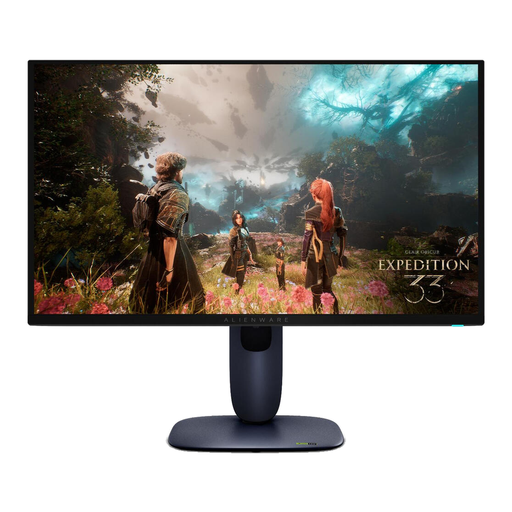
Alienware AW2725Q 26.7-inch 4K UHD QD-OLED monitor
A 4K option to include in your comparison if fine detail and repositioning the screen are important to you.
The product name lists 26.7 inches, 3840 × 2160 pixels and QD-OLED. The product description mentions height and tilt adjustment.
Joybuy
 No image available
ASUS ProArt PA278CV 27-inch QHD monitor
A QHD model to compare if you want to connect your laptop via USB-C and don’t need 4K to check fine detail.
The product name lists 27 inches and 2560 × 1440 pixels. The product description mentions 65 W USB-C Power Delivery, factory calibration and height and tilt adjustment. QHD has fewer pixels than 4K.
Joybuy
Frequently asked questions
Do I definitely need a 4K monitor for a digital icon?
No, not necessarily. The 27-inch QHD option listed has 2560 × 1440 pixels, while the 4K options have 3840 × 2160 pixels. Choose based on the details you want to assess, your scaling settings and the other requirements of your workspace.
How should I set up my monitor at a sit-stand desk?
Check the screen position and any reflections when working both sitting and standing. Arboportaal highlights readability and screen position as important considerations. An adjustable arm lets you reposition the screen, but does not by itself guarantee a comfortable, problem-free workspace.
Is factory calibration enough to assess the colours in my icon?
Not necessarily. Adobe says that connecting a calibrated monitor does not, by itself, guarantee accurate display. Also check the colour preset, ICC profile and your software’s colour management.
Who can help if a product is faulty, and is there a cooling-off period for online purchases?
For a consumer purchase in the Netherlands, the seller must offer a solution if a product is faulty; there is no fixed statutory warranty period. For many online distance purchases from a business, you have 14 days to change your mind, subject to legal exceptions, according to the Rijksoverheid.
Are there Dutch rules for working with display screens?
Workplace rules apply to the relevant working and employment conditions; they are not uniform technical minimum requirements for every private monitor buyer. Arboportaal covers, among other things, alternating screen work with other tasks or taking breaks. For more than two hours of screen work a day, it also sets out workplace requirements, including a height-adjustable display screen. Whether these rules apply depends on the employment and workplace circumstances.


