What should you look for?
Consider your whole workspace and how easy your own inventory list is to read. One specification alone won’t tell you whether a monitor will suit the way you use it.
| What to consider |
What should you check? |
Who will this matter most to? |
| Desk space |
Measure the available width and depth, then compare them with the screen’s dimensions, including the stand. Leave room for your keyboard and mouse too. |
If you share a small workspace with your input devices, you’ll want to know whether the whole setup will fit. That’s why around 31% of consumers prioritise desk space. |
| Readable inventory overview |
Compare screen size and resolution, and view your inventory at your usual viewing distance with a comfortable text size. Dell lists the P2425 as having 1920 × 1200 pixels. |
If you compare lots of inventory entries, you’ll want to see enough information without making the text uncomfortably small. Around 31% of consumers prioritise readability and seeing more of a list at once. |
| Adjustable viewing position |
Check whether the stand is height-adjustable on the exact model. Also consider text size, screen position and distracting reflections. |
If you spend a long time working through your inventory list, you’ll want to adjust the screen to suit your workspace. Around 23% of consumers prioritise an adjustable viewing position. |
| Connections |
Compare your computer’s ports with those on the monitor and check which cables you’ll need. For USB-C, check that each device supports video and charging. |
If you want to connect the monitor to your existing computer or laptop, you’ll need compatible ports and cables. That’s why around 15% of consumers prioritise easy connections. |
Monitors at Joybuy
The selection includes portable screens for a compact setup and standard monitors measuring around 21.5 to 24 inches. For each model, check its dimensions, connections and the cables you’ll need for your workspace.
 No image available
TECLAST V16H 16-inch portable monitor
This portable model has a built-in kickstand and is an option if you want to use a compact screen with a compatible laptop.
16:10 Full HD IPS screen, 144 Hz, two USB-C ports and Mini HDMI. The title also mentions FreeSync, HDR and stereo speakers.
View at Joybuy
 No image available
UPERFECT 15.6-inch portable touchscreen monitor
This portable size may suit a tight workspace, provided your computer supports the required connection.
Full HD with 1920 × 1080 pixels, touchscreen, USB-C and Mini HDMI. The product information also mentions VESA mounting and a protective cover that doubles as a stand.
View at Joybuy
 No image available
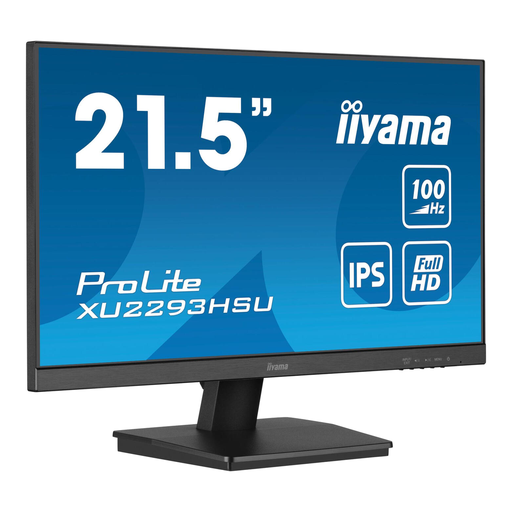
iiyama ProLite 21.5-inch IPS Full HD monitor
A 21.5-inch standard monitor is worth comparing if desk space is limited; measure the stand before deciding.
IPS, 1920 × 1080 pixels, 100 Hz, HDMI, DisplayPort and USB hub. The product information lists a stand depth of 178 mm and VESA mounting.
View at Joybuy
 No image available
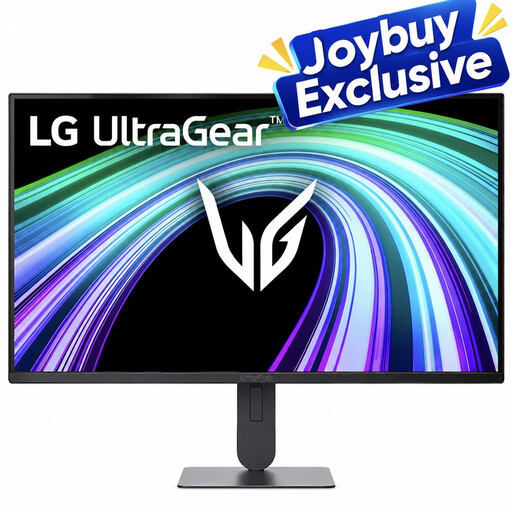
LG UltraGear 24G414B-B 24-inch Full HD monitor
This larger screen may suit you if you’re looking for a 23.8-inch display with adjustable height and have enough desk space.
IPS, 1920 × 1080 pixels, HDMI and DisplayPort. The product information lists height and tilt adjustment, as well as VESA mounting.
View at Joybuy
 No image available
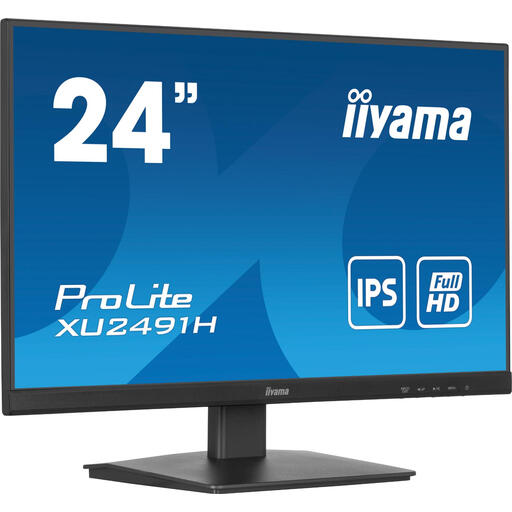
iiyama ProLite 24-inch IPS monitor
A 23.8-inch screen is an option if you have room for a larger standard model; check the stated dimensions against your desk.
Full HD with 1920 × 1080 pixels, 100 Hz, HDMI and DisplayPort. The product information also mentions VESA mounting and tilt adjustment.
View at Joybuy
Frequently asked questions
Is a 21.5-inch monitor automatically suitable for a small desk?
No. Screen size alone isn’t enough to tell you whether the whole setup will fit. Measure the stand and the available depth too, and leave room for your keyboard and mouse. Then check whether the inventory list is comfortable to read at your viewing distance.
How should you set up a monitor for reviewing your inventory for longer periods?
Set the text to a comfortable size, avoid distracting reflections and adjust the screen position. The Arboportaal also offers advice on working with screens; general guidance like this doesn’t prove that a particular monitor model prevents discomfort.
Do you always need just one cable to connect a USB-C monitor to your laptop?
Not necessarily. Check whether your laptop’s USB-C port supports video, what charging capability you need and which cables come with the monitor. USB-C ports don’t all have the same functions. Dell describes the P2425H’s USB-C downstream port as data-only.
What warranty and cooling-off period apply to an online purchase in the Netherlands?
According to the Dutch government, the seller must provide a solution if a product doesn’t meet reasonable expectations; the Netherlands has no fixed statutory warranty period. For distance purchases from a business, a 14-day cooling-off period usually applies, subject to legal exceptions. Also check the terms of the seller you’re buying from.
Does a monitor for working from home have to be height-adjustable by law?
The rules cited for employees don’t automatically mean you have to buy an adjustable monitor for personal use. The Arboportaal sets out requirements for employees’ screen-based workstations, including adjustability when an employee works with a screen for more than two hours a day. If you use a workspace for your job, discuss it with your employer if necessary.


