First, work out whether you’re sharing videos within your home network or sending them to family over the internet. For the latter, your broadband package’s upload speed matters too. Then choose a solution based on the bottleneck: your computer or storage connection, Wi-Fi coverage between rooms, or the connection to your provider’s equipment. A higher advertised Wi-Fi speed won’t automatically solve these different problems.
Who is this choice relevant to?
Family sharing video files at home
You want to make videos on a work computer available to other devices at home. Work out where the files are stored and how those devices can access them. Microsoft Support, for example, explains how to share files over a local network.
Family with weak Wi-Fi between rooms
You find that devices outside the home office have a poor connection and need to decide whether to reposition your equipment, add a Wi-Fi access point or use mesh Wi-Fi. Consumentenbond offers practical advice on where to place Wi-Fi extenders.
Home worker sending videos online
You share large files with family elsewhere and want to keep your work connection available. Your internet connection’s upload speed is a separate consideration from Wi-Fi coverage at home, as Consumentenbond explains.
What should you consider when choosing?
A single router with a wired connection
Choose this option: if Wi-Fi already works well where you need it and you’re mainly looking for a fixed connection for your computer or storage.
Keep in mind: one router won’t automatically fix weak coverage through several walls or between rooms. Also check that USB storage and your preferred file-sharing method are supported.
Mesh Wi-Fi with multiple access points
Choose this option: if devices in other rooms struggle to access videos over Wi-Fi.
Keep in mind: you’ll need to position several devices, and the connection between them depends on reception. TP-Link lists ethernet backhaul as an option for the Deco X50.
Check your existing network first
Choose this option: if local sharing works well but sending files over the internet is slow, or if your current Wi-Fi access point seems poorly positioned.
Keep in mind: testing with a wired connection and changing the placement take time. A different router won’t automatically improve a limited internet upload speed.
| What to consider |
What should you check? |
Who is this most important to? |
| Local access to videos |
Where the files are stored, which devices need them, and whether the router supports your chosen storage and sharing method. |
If I want to share videos from my computer at home, other devices need to be able to access the right files. Around 30% of consumers put local sharing first. |
| Coverage between rooms |
Check the signal and positioning first. Then see whether one router is enough or you need several mesh access points, and whether they can be connected using ethernet. |
If family members want to watch videos in other rooms, coverage in those areas matters. Around 24% of consumers put coverage first. |
| Sending files online |
Check your package’s upload speed and distinguish an internet connection problem from a Wi-Fi problem. |
If I send files to family elsewhere, I want to know whether the internet upload is causing the delay. Around 17% of consumers put sending files online first. |
| Access to private videos |
Check folder permissions, guest access, Wi-Fi security and how to update your router. |
For consumers who want to control who can watch private videos, setting access permissions is a priority; they make up around 17%. |
| Connections and equipment required |
Check how the router works with your provider’s equipment and how many Wi-Fi access points and any cables you’ll need. |
If I don’t want to connect unnecessary devices, the set-up needs to work with my provider’s equipment. Around 12% of consumers prioritise simple connections and the equipment required. |
Common buying mistakes
-
Assuming a high advertised Wi-Fi speed means one video will transfer at that speed
Your actual connection also depends on the device you’re using and where the router is positioned. A higher advertised speed alone won’t tell you what’s causing a delay.
First, work out whether the problem is local sharing, coverage between rooms or your internet connection.
-
Buying a mesh system without planning the connection between access points
Mesh access points need to be able to communicate with each other effectively. Ethernet backhaul is an option for the Deco X50, not something you automatically get just by buying a set.
Plan where to place the access points and decide in advance whether you can connect them with an ethernet cable.
You may need to run a cable or move a Wi-Fi access point.
-
Sharing private videos without checking access permissions
Network access can also give people access to shared files. ASUS Support explains the account settings for file sharing on supported routers.
Check folder permissions and guest access, and keep your router up to date. Don’t give guests access to private files unless they need it.
-
Confusing your own router with a replacement modem
How you connect it depends on your provider’s equipment and the set-up you want. Connecting a router behind that equipment isn’t the same as replacing it with a compatible modem.
Check which settings your provider requires for the connection you’ve chosen.
Brands to consider
TP-Link
The Archer AX55 is a standalone Wi-Fi 6 router with USB, while the Deco X50 is a mesh system designed to provide coverage between rooms.
- TP-Link Netherlands lists USB 3.0 for the Archer AX55 and optional ethernet backhaul for the Deco X50.
- These specifications don’t guarantee transfer speeds or coverage in your home. For the Deco X50, also check how many access points are included in the package.
ASUS
The RT-AX59U is worth considering if you’re looking for a standalone router with USB ports, a guest network and a choice of router or access point mode.
- ASUS lists three gigabit LAN ports, USB 3.2 Gen 1 and USB 2.0 for this model.
- The storage functions you want will also depend on the supported firmware and the file-sharing and folder-permission settings.
FRITZ!
The FRITZ!Box 7690 is an option if you specifically want an integrated DSL router, or a router to use behind a suitable fibre-optic modem.
- FRITZ! Netherlands lists DSL speeds of up to 300 Mbit/s for this model and says it can be used behind a fibre-optic modem.
- Check which type of connection you have at home. The DSL specification doesn’t apply to other FRITZ! models.
Synology
The RT6600ax is worth considering if separate networks and configurable access rules are important to you.
- Synology describes network segmentation and VLAN support for this model.
- You’ll need to configure access between devices if you want them to share videos.
Joybuy products for home use
This selection includes standalone routers for home networks and mesh systems for Wi-Fi coverage in several rooms. For each model, check that its connections and limitations suit the way you share videos.
 No image available
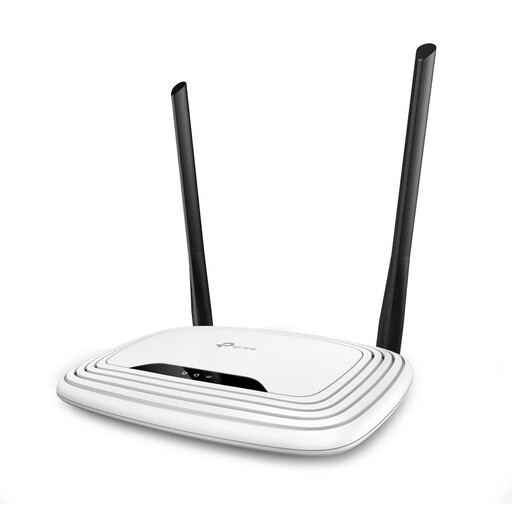
TP-Link TL-WR841N single-band Fast Ethernet router
A standalone router for anyone who needs a wired connection for devices on their home network.
Wi-Fi 4 on 2.4 GHz; four 10/100 Mbit/s LAN ports. The LAN ports are Fast Ethernet.
Joybuy
 No image available
TP-Link Deco E4 (3-pack) Wi-Fi 5 mesh system
A three-device mesh system for anyone who needs Wi-Fi in several rooms.
Dual-band Wi-Fi 5 on 2.4 GHz and 5 GHz. According to the product information, each device has two ethernet ports with speeds of up to 100 Mbit/s.
Joybuy
 No image available
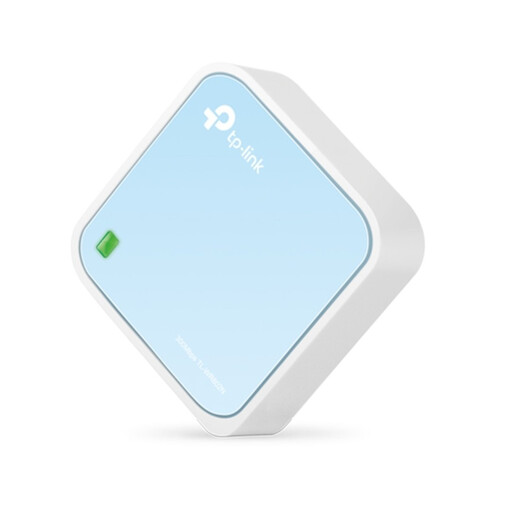
TP-Link TL-WR802N V4 router
A router for a home network with one wired network port.
Wi-Fi 4 on 2.4 GHz; according to the product information, the network port offers wired speeds of up to 100 Mbit/s.
Joybuy
 No image available
ASUS RT-AX52 AX1800 dual-band Wi-Fi router
A standalone router for anyone who wants to use a wired connection on their home network.
Wi-Fi 6, dual-band on 2.4 GHz and 5 GHz, AiMesh compatibility and gigabit ethernet ports.
Joybuy
 No image available
TP-Link Deco X50 (3-pack) Wi-Fi 6 mesh system
A three-point mesh system for anyone who needs Wi-Fi in several rooms.
Dual-band Wi-Fi 6 on 2.4 GHz and 5 GHz; the product information lists three gigabit ethernet ports per access point.
Joybuy
Frequently asked questions
Do you need a USB port on your router to share videos at home?
No, not if the videos are stored on a computer and you set up file sharing over your local network. Microsoft Support explains how to do this. If you want to share files from a drive connected to the router, check that the router supports the drive and your preferred sharing method, and that access permissions are set correctly.
Why can’t your family see the shared videos?
First, check that the devices are on the right local network and that file sharing and folder permissions are set up correctly. A guest network may restrict access to the local network, so don’t give guests access to private files unless they need it.
Will a faster Wi-Fi router help if videos are slow to send to family elsewhere?
Not necessarily. First, check your internet connection and your package’s upload speed. Consumentenbond notes that upload speed matters when sending photos and videos over the internet. If necessary, test your connection using an ethernet cable to tell a Wi-Fi issue from an internet connection issue.
Can you use your own router in the Netherlands?
ACM ConsuWijzer explains the rules on choosing your own router, but a device connected directly to your provider’s network must meet the relevant connection and security requirements. Ask your provider which settings you need. Connecting a router behind your existing provider’s equipment is a different set-up.


