
Home worker who makes video calls
Needs a reliable connection in a fixed, compact workspace and can check whether a wired connection is an option.


Start by pinpointing where the connection is unreliable. One router may be enough if it provides good coverage in your compact workspace, while a mesh system or extra Wi-Fi access point could be a better choice if the signal is weak in other rooms. Also check whether you can work using a wired connection, how many devices are online at once, and how your own equipment connects to your provider’s connection. Stated wireless speeds do not guarantee the speed you’ll get at your desk.
Needs a reliable connection in a fixed, compact workspace and can check whether a wired connection is an option.
Uses multiple devices at once and wants to tell the difference between network capacity and a coverage problem elsewhere in the home.
Needs better coverage beyond the room where the current router is located and can work out where extra access points could go.
First, identify where the connection is letting you down. Then decide whether you need one router, extra access points or an improvement to your existing setup.
A good fit if: your compact workspace and the rooms you need are well covered from one suitable location.
Consider: a new router will not automatically fix weak coverage in distant rooms, and may need extra configuration.
A good fit if: your workspace and other rooms you use are far apart and the signal is weak in those areas.
Consider: extra access points need space, power and a suitable connection between them.
A good fit if: the connection is good near your provider’s router and the problem might be solved by adjusting its position or adding an access point.
Consider: you keep the router’s existing features, but have less freedom to replace the equipment.
| What to consider | What to look for | Who should pay particular attention? |
|---|---|---|
| Connection at your workspace | Check the connection where you work, and see whether an Ethernet cable and enough LAN ports are available. | If I need a stable connection while working from home, I first want to know whether the bottleneck is the Wi-Fi, the setup or the internet connection. Around 36% of consumers prioritise their work connection. |
| Several devices online at once | Compare the Wi-Fi standards supported by your router and devices; don’t assume stated wireless speeds are the same as the speed of your internet connection. | When work and evening use happen at the same time, I want to know whether all my devices can share the network without relying solely on peak speeds. Around 29% of consumers prioritise using multiple devices at once. |
| Coverage in other rooms | Identify weak spots and possible locations for Wi-Fi access points; check whether you can run cables between them. | If the Wi-Fi is weak outside my workspace, I want to know where extra access points could go and how they’ll connect to each other. Around 21% of consumers prioritise coverage in other rooms. |
| Setup and security | Check your provider’s connection instructions, firmware support for the exact model, and that the version on offer has the correct CE marking. | If you want to set up and maintain your own equipment easily, it’s worth finding out in advance what configuration and support you’ll need. Around 14% of consumers prioritise this. |
Wireless speeds are product specifications. The connection you get in a particular spot also depends on your internet connection, the setup and the devices you use.
Check the connection where you work, and see whether you can connect your computer using a cable.
A mesh system is designed to spread Wi-Fi across several areas. You won’t necessarily need extra access points in a compact space.
First identify the weak spots, then work out how many access points you can position and how they’ll connect.
Extra access points also need suitable power sockets and time to install.
The settings you need depend on your connection. Incorrect configuration can disrupt your internet, television or phone service.
Follow the instructions for your connection and decide in advance whether you’ll keep your provider’s router.
Configuring it yourself can take extra time and make fault-finding more complicated.
TP-Link offers both standalone routers and Deco mesh systems, so you can compare a central router with coverage extended by multiple access points.
The RT-AX57 is a standalone Wi-Fi 6 router to consider if you’re looking for one central location and router features.
The FRITZ!Box 7530 AX is a DSL modem router with Wi-Fi 6 and phone features, making it worth considering if you need that type of connection and those features.
The RAX10 is a standalone Wi-Fi 6 router to consider if you’re looking for one central router.
This selection includes standalone routers for a compact workspace and mesh systems for coverage across several rooms.
 No image available
For a compact workspace where you need a standalone router; the product information also mentions expandability with AiMesh-compatible routers.
Dual-band Wi-Fi (2.4 and 5 GHz), Wi-Fi 6 and three gigabit Ethernet ports are listed. For indoor use only.
Before buying, check that the version on offer has the correct CE marking.
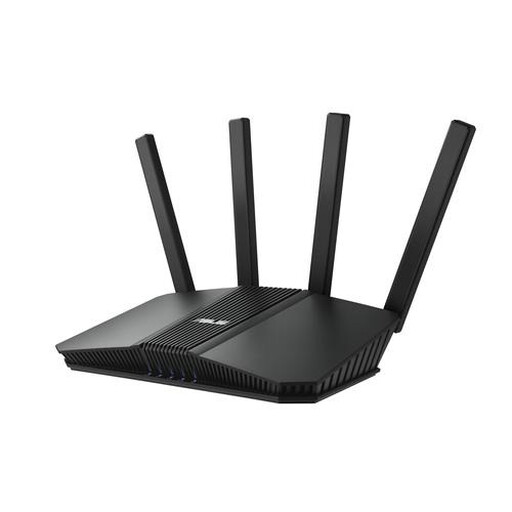 No image available
A standalone dual-band router to consider for a central location; AiMesh support is listed.
The product name lists 2.5 Gigabit Ethernet and dual-band (2.4 and 5 GHz).
Before buying, check that the version on offer has the correct CE marking.
 No image available
For a standalone router setup; the product information mentions management via a mobile app and AiMesh expansion.
Dual-band (2.4 and 5 GHz), Wi-Fi 6, OFDMA, MU-MIMO and gigabit Ethernet are listed.
Before buying, check that the version on offer has the correct CE marking.
 No image available
For extending coverage to several rooms where the signal is weak; this set contains three mesh access points.
Tri-band Wi-Fi on 2.4, 5 and 6 GHz and three Ethernet ports per access point are listed.
A set with three access points needs to be positioned in several locations, with a suitable connection between them. Before buying, check that the version on offer has the correct CE marking.
 No image available
For coverage across several rooms; the product information describes a mesh system with three access points.
Wi-Fi 6, tri-band on 2.4, 5 and 6 GHz, and three gigabit ports per access point are listed.
A set with three access points needs to be positioned in several locations, with a suitable connection between them. Before buying, check that the version on offer has the correct CE marking.
Not always; the right solution depends on your connection and your provider’s instructions. Ziggo explains how to use bridge mode with your own equipment, but says this mode cannot be switched on or off on a fibre-optic modem. KPN warns that you’ll need to configure your own equipment and that incorrect settings can disrupt your internet, television or phone service. Follow the instructions for your connection.
Check whether the exact model receives firmware updates and install any available updates, as they can fix security vulnerabilities. Also secure your Wi-Fi and adjust the settings through the router’s admin menu.
According to the Dutch Authority for Digital Infrastructure, a Wi-Fi router, as a radio device, must have the correct CE marking. Radio equipment subject to additional requirements has also had to meet stricter European cyber security requirements since 1 August 2025. Check the marking on the version on offer; a general product listing does not confirm it for a specific item.
A mesh setup may need extra access points and cabling, depending on the system you choose and the areas that need Wi-Fi. KPN says you’ll need to configure your own equipment and keep the KPN modem in case it’s needed to diagnose a fault. So check your provider’s instructions and what your chosen setup requires.