What should you look for in a Wi-Fi solution?
First, compare your upload speed over a cable with Wi-Fi at your workspace. Then decide whether you mainly need to address your internet connection, coverage or simultaneous use.
Move or configure your existing equipment
Choose this if: your wired upload speed is good and moving or adjusting your equipment could improve Wi-Fi at your workspace.
Bear in mind: moving your equipment may require a longer cable and won’t fix a limited upload speed from your internet connection.
One standalone Wi-Fi router
Choose this if: there’s a suitable spot in your home that can reach your workspace, and the router can connect to your existing modem.
Bear in mind: a standalone router doesn’t automatically replace your modem; distance and obstacles may mean you need additional Wi-Fi points.
Wired workspace or access point
Choose this if: you can run a cable to a fixed workspace and want a stable connection there.
Bear in mind: installing cables takes effort and won’t increase your broadband plan’s upload speed.
Mesh with multiple Wi-Fi points
Choose this if: your workspace and other rooms still have poor coverage after you’ve tried a better location for your equipment.
Bear in mind: you’ll need to set up several devices; check whether you can connect them with cables. Mesh won’t speed up a slow internet upload.
| Priority |
What to look for when buying |
Who should consider this? |
| Upload speed and bottlenecks |
Compare your upload speed over Ethernet with Wi-Fi at your workspace; check that the WAN port is compatible with your existing modem. |
If I send large design files, I want to know whether my internet connection or Wi-Fi is causing the delay. Around 36% of consumers are most concerned about upload bottlenecks when buying. |
| Coverage at your workspace |
Test whether moving your router helps; check whether you can run a cable between additional Wi-Fi points. |
If my workspace is behind walls or on another floor, I want enough coverage there without adding unnecessary equipment. Around 29% of consumers prioritise coverage at their workspace. |
| Simultaneous use |
Check which devices are active at the same time, and look at the available Ethernet ports and network management options. |
If housemates or colleagues are working or making calls online at the same time, I want to consider the shared connection and my network choice together. Around 21% of consumers are most concerned about simultaneous use. |
| Security and maintenance |
Check how firmware updates are provided and what network management options the model offers. |
If you want to manage your own network, look at updates and settings for other users. Around 14% of consumers prioritise maintenance and network management. |
Joybuy product options
These product options include mesh solutions for multiple areas and standalone routers designed to connect behind an existing modem. Neither will overcome a limitation with your internet connection.
 No image available
ASUS ZenWiFi BD4 Dual-Band Wi-Fi 7
A mesh option to consider if you need Wi-Fi coverage in several areas.
Dual-band (2.4 GHz / 5 GHz); Wi-Fi 7 (802.11be).
View at Joybuy
 No image available
TP-Link Deco X50 Dual-Band Wi-Fi 6 (3-pack)
A mesh option to consider if you want Wi-Fi coverage in several areas.
3-pack; dual-band (2.4 GHz / 5 GHz); Wi-Fi 6 (802.11ax).
View at Joybuy
 No image available
Huawei eKit OptiX FG736 BE3600 Dual-Band WiFi 7 Mesh Router
A mesh router to consider if you’re looking for a mesh solution for your home network.
BE3600; dual-band; WiFi 7.
View at Joybuy
 No image available
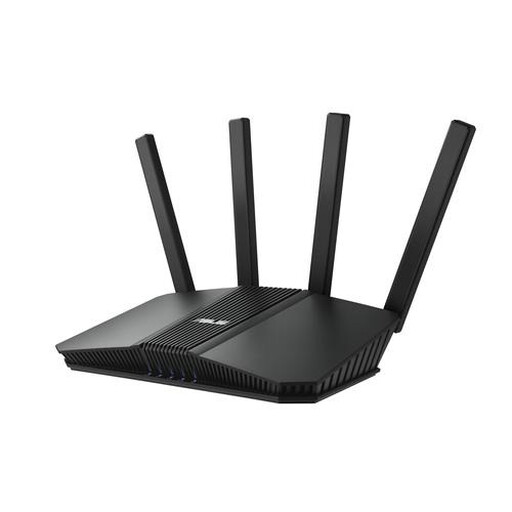
ASUS RT-BE82U BE6500 Dual-Band Wi-Fi 7 router
A standalone router to consider if you’re looking into a wired network connection for your home office.
2.5 Gigabit Ethernet; dual-band (2.4 GHz / 5 GHz); Wi-Fi 7.
View at Joybuy
 No image available
ASUS RT-AX52 Pro AX3000 Dual-Band router
A standalone router to consider if a single router location can reach your workspace.
Gigabit Ethernet; dual-band (2.4 GHz / 5 GHz); AX3000.
View at Joybuy
Frequently asked questions
Will a new Wi-Fi router always make uploading your design file faster?
No, a new router won’t overcome a limitation with your internet connection. First, measure your speed over a network cable, then over Wi-Fi at your workspace; the Consumers’ Association recommends a wired connection for speed tests.
Can you use your own router in the Netherlands?
Yes. According to ACM ConsuWijzer, you’re free to choose your own router. Your provider may set security requirements for your device, and you may need provider-specific settings to connect it.
Do you need a permit or registration to use Wi-Fi in your home office?
According to the Dutch Authority for Digital Infrastructure, using Wi-Fi on designated frequencies and within the conditions of use does not require a permit. There’s no notification or registration requirement for using these permit-exempt frequencies.
What should you consider when installing and maintaining your router?
Try placing it somewhere suitable and free from obstacles, choose the correct country settings and keep your router up to date. The Dutch Authority for Digital Infrastructure highlights country settings as something to check; VeiligInternetten recommends protecting your router with the latest update.
Is a two-year manufacturer’s warranty the same as your full statutory guarantee?
No, a manufacturer’s warranty and your statutory guarantee are not the same. According to ACM ConsuWijzer, there’s no fixed general two-year period for statutory guarantees in the Netherlands: what you could reasonably expect from the product is what matters, and the retailer is your point of contact.


