What should you look for?
First, measure upload speed by the router using a cable, then compare it with Wi-Fi at your workspace. If the wired connection is slow too, an extender is unlikely to solve the problem with your internet connection itself. Next, decide whether you want to extend coverage locally, can run a cable or want to expand an existing mesh system.
Wireless Wi-Fi extender
Choose this if: Wi-Fi is weak mainly in your home office and you can place the extender somewhere it will receive a usable signal from the router.
Bear in mind: the connection between the router and extender remains wireless; an ethernet port for your laptop won’t make that connection wired.
Wired access point
Choose this if: you can run a network cable to or near your home office and want to avoid a wireless connection between the router and Wi-Fi access point.
Bear in mind: you’ll need a cable and a suitable device with access point mode; this won’t change your internet upload speed.
Mesh expansion
Choose this if: coverage is poor in several places around your home or you want to expand an existing compatible mesh system.
Bear in mind: mesh features depend on the combination of router and extender. Check the exact models and supported mode.
| What to consider |
What should you check? |
Who is this important for? |
| Coverage where you upload |
Compare Wi-Fi at your workspace with the reception at a potential spot between the router and the extender. |
If I mainly need a usable connection in my home office, I focus on the signal there. Around 36% of consumers prioritise coverage in one home office. |
| Upload route and connection to the router |
Compare a wired measurement by the router with Wi-Fi in your home office; check whether you can run a cable to the access point. |
When I send large or regular design files, I want to know where the upload slows down and whether a cable can replace the Wi-Fi route. Around 29% of consumers prioritise the upload route. |
| Coverage in several places |
Map out which rooms need Wi-Fi and check whether expanding your existing system is suitable. |
If I also need coverage outside my home office or use several devices at once, I look for a solution that covers more areas. Around 21% of consumers focus mainly on coverage and use in several places. |
| Router compatibility and use |
Check the exact router model and mesh mode; also check power consumption and that the version has the correct CE marking. |
If I want to expand my network without losing the features of my existing router, I first check compatibility and management options. Around 14% of consumers prioritise suitable integration and management. |
Joybuy products for this situation
These Joybuy products are relevant for extending Wi-Fi in a home office, setting up a wired access point or creating a mesh network. For each model, check that the connection, network mode and version are right for your home.
 No image available
Wifi Repeater Pro Black
Suitable if you want to extend Wi-Fi to an area with poor coverage, provided the extender itself can still receive a usable signal.
The product description lists a 2.4 GHz signal and setup via the Mi app.
View at Joybuy
 No image available
TP-Link Omada EAP653
Suitable for a permanent access point setup if you have a network connection at the chosen location.
The product information lists Wi-Fi 6, Power over Ethernet (PoE) support, ceiling or wall mounting and web management. The product title states 2976 Mbit/s.
View at Joybuy
 No image available
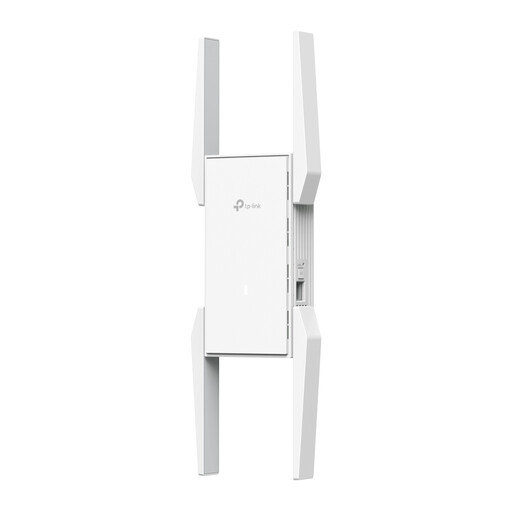
TP-Link Omada EAP673 extender, white
Suitable for extending an existing Wi-Fi network, provided the repeater is still within range of that network where you place it.
The product information lists Wi-Fi 6, dual-band and one ethernet LAN port. The described setup requires coverage from the existing network.
View at Joybuy
 No image available
TP-Link TL-WA801N
Suitable for a setup where you want to use access point or extender mode and have a wired connection available.
The product title lists a wireless speed of up to 300 Mbit/s, two antennas, WPS and Passive PoE. The ethernet LAN speed is 10/100 Mbit/s.
View at Joybuy
 No image available
TP-Link Deco X50, 2-pack
Suitable for a network with several Wi-Fi access points; the product description also lists ethernet backhaul as an option between the units.
The product information lists Wi-Fi 6, dual-band and three gigabit ethernet ports per unit.
View at Joybuy
Frequently asked questions
How can you tell whether a Wi-Fi extender will help you upload your design faster?
First, measure the upload speed using a computer connected to your home network by a network cable, then compare it with Wi-Fi in your home office. If the wired connection is slow too, investigate your internet connection. If Wi-Fi is slow mainly at your workspace, coverage or the wireless route may be the issue. A stated Wi-Fi speed isn’t a promised internet upload speed.
Where should you place a wireless extender, and what changes in access point mode?
Don’t put a wireless extender somewhere the router’s signal is barely detectable; it needs to receive a usable signal itself. TP-Link lists a signal indicator on the RE605X that can help you position it. In access point mode, you connect a suitable device to the existing network with a network cable, so the connection between that point and the router isn’t wireless.
Will every extender work as a mesh point with your router?
No, specific mesh features come with compatibility requirements. TP-Link describes OneMesh with a compatible OneMesh router, FRITZ! Mesh with a FRITZ!Box, and ASUS AiMesh with an AiMesh-compatible router. Before buying, check the exact models and the network mode you want.
What if your Wi-Fi extender breaks down too soon after you buy it?
For consumer purchases in the Netherlands, statutory guarantee applies alongside any manufacturer’s or retailer’s warranty. According to ACM ConsuWijzer, if a product breaks down too soon under normal use, the retailer must resolve the problem free of charge, for example by repairing or replacing it. This doesn’t mean that every product has the same fixed guarantee period.
Which Dutch product regulation is relevant to a Wi-Fi extender?
Radio equipment sold in the Netherlands must meet the applicable European radio equipment requirements and carry the required CE marking. The Dutch Authority for Digital Infrastructure advises against using a device without the correct CE marking and recommends contacting the retailer. Check the version and marking of the specific product; this doesn’t automatically confirm that an individual listing complies.


