Not necessarily. First, measure your upload speed using a computer connected to your modem with a cable, then compare it with the Wi-Fi speed at your workspace. If Wi-Fi is the main bottleneck there, consider where to place a single router, whether to use mesh, or whether to connect your computer with a cable. A router with a higher advertised Wi-Fi speed won’t automatically increase the upload capacity of your internet connection.
Who is this guide for?
Creative professional with large portfolio files
You regularly send large photo, video or design files. First, work out whether the bottleneck is your internet connection’s upload speed or the Wi-Fi at your workspace. Odido recommends connecting a computer to the modem with a cable for a reliable speed test.
Home worker with a workspace further away
Your uploads are noticeably slower at your workspace, and you want to know whether a different router position, mesh or a cable would better suit your home’s layout. TP-Link describes mesh as a system with multiple network points; the connection in your home also depends on where you place them.
Home worker handling confidential files
You send files to clients or customers and want to set up and maintain your router carefully. The Dutch Data Protection Authority recommends using a strong password for your router or Wi-Fi network.
What should you look for?
Odido recommends testing your connection with a cable at the modem, then comparing it with the Wi-Fi connection where you work. This will help you work out whether to focus on your internet connection, coverage or a wired workspace.
One well-positioned router
Choose this option when: your wired upload speed is sufficient and the router can reach your workspace.
Bear in mind: walls and placement matter; an advertised Wi-Fi speed is not a guaranteed internet speed.
Mesh with multiple points
Choose this option when: a single router doesn’t provide enough coverage at your workspace, for example on another floor.
Bear in mind: where you place the units and whether you can connect them with a cable.
Connect your computer with a cable
Choose this option when: you upload from a fixed workspace and can run an Ethernet cable to your computer.
Bear in mind: a cable limits where you can work. If your existing equipment provides a good wired connection, you may not need a new router.
| What to consider |
What should you check? |
Who is this most relevant to? |
| Upload speed |
Test with a cable at the modem and over Wi-Fi at your workspace. If the wired upload speed is already too low for your needs, also look at your connection or plan. |
If I send large files, I want to know whether my internet connection itself has enough upload capacity. Around 36% of consumers prioritise the upload speed available to them. |
| Wi-Fi coverage |
Test at your workspace and compare one router with multiple mesh points. If you’re considering a mesh kit, check how many units it includes and whether you can connect them with a cable. |
If my workspace is far from the router, I want a usable connection there without immediately assuming I need a different plan. Around 29% of consumers put coverage first. |
| Wired workspace |
Check whether you can use an Ethernet cable and whether the ports are compatible with your equipment and connection. |
If I work in a fixed location, I want the option to connect my computer directly when needed. Around 21% of consumers prioritise a fixed, wired connection. |
| Security and maintenance |
Check how to change passwords, receive software updates and disable remote access if you don’t need it. |
If I send files to clients, I want to manage access to my network carefully and keep it up to date. Around 14% of consumers put secure management at the top of their buying concerns. |
Common buying mistakes
-
Confusing the advertised Wi-Fi speed with your internet upload speed
A high wireless speed doesn’t tell you how much upload capacity your internet connection provides. A new router won’t automatically solve a limitation with your connection.
Before comparing router specifications, test with a cable at the modem and then over Wi-Fi at your workspace.
-
Choosing a mesh kit without checking your workspace and the number of units
A good connection near the modem doesn’t necessarily mean that Wi-Fi will be strong enough in another room or on another floor. The advertised coverage applies to the specific kit and isn’t a measurement of performance in your home.
Test the connection where you work, check how many units are in the box and see whether you can connect the points with a cable.
A mesh setup may require extra equipment or cabling work.
Brands to compare
TP-Link
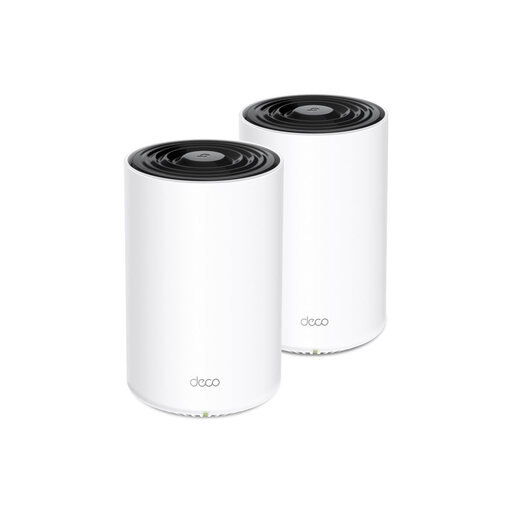
The Archer AX55 is an example of a single Wi-Fi 6 router, while the Deco X50 is a separate mesh product range with multiple network points.
- According to TP-Link, the Archer AX55 has gigabit ports, and the Deco X50 supports optional Ethernet backhaul.
- Advertised wireless speeds and coverage are manufacturer claims, not measurements of portfolio uploads in a Dutch home. Check the kit size for the Deco X50 and the hardware version for both product ranges.
ASUS
The RT-AX58U is a Wi-Fi 6 router worth comparing if router or access point mode and wired connections matter to you.
- ASUS lists four gigabit LAN ports and several operating modes for this model.
- The processor differs between V1 and V2. Check which hardware version is on offer; these features don’t automatically apply to all ASUS routers.
FRITZ!
The FRITZ!Box 4060 is designed to be used behind an existing modem. It may be worth considering if you also want telephony or FRITZ! network features.
- FRITZ! lists a 2.5-gigabit WAN port, three gigabit LAN ports and telephony features for this model.
- These extra features won’t, on their own, increase the upload capacity of your existing internet connection.
Router and mesh options at Joybuy
This selection includes a standalone Wi-Fi router and mesh systems to help you assess the connection to a home office. Check the CE marking and relevant conformity information for the version you’re buying; the product family alone doesn’t tell you which version is on offer.
 No image available
TP-Link Deco PX10, dual-band Wi-Fi 6 (2.4 GHz / 5 GHz)
Compare this powerline mesh option if you’re considering extending your network over your existing electrical wiring.
The product name lists Wi-Fi 6 (802.11ax) and dual-band on 2.4 GHz and 5 GHz. Check the exact version and what’s included in the box.
View at Joybuy
 No image available
ASUS RT-AX52 AX1800 AiMesh router
A standalone router to compare if you’re looking for a single network point behind your modem and also want to use wired connections.
The product name lists dual-band (2.4 GHz / 5 GHz), Gigabit Ethernet and AiMesh. Check that the connections and exact version suit your equipment.
View at Joybuy
 No image available
TP-Link Deco X50, 3-pack, Wi-Fi 6
A mesh kit with three units to consider if a single router may not reach your workspace.
The product name lists Wi-Fi 6 (802.11ax) and dual-band (2.4 GHz / 5 GHz). Before buying, consider where the units will go and whether you can run cables between them.
View at Joybuy
 No image available
Huawei eKit OptiX FG736 BE3600 Wi-Fi 7 mesh router
Compare this mesh router if you’re considering multiple network points for your home workspace.
The product name lists Wi-Fi 7, dual-band and BE3600. Check that the version and connections suit your home setup.
View at Joybuy
 No image available
Huawei eKit OptiX FG630 AX3000 Wi-Fi 6 mesh router
A mesh option to compare if you want to assess the Wi-Fi connection in a workspace in another room.
The product name lists Wi-Fi 6 and dual-band. Check the exact version and the connection options for your computer.
View at Joybuy
Frequently asked questions
How can you tell whether a new router will help with your portfolio uploads?
First, test using a computer connected to the modem with a cable, then compare the result with Wi-Fi at your workspace. If the wired upload speed is also too low for your needs, assess your connection or plan before choosing a router.
Can you use your own router in the Netherlands?
Yes. According to ACM ConsuWijzer, you’re free to choose your router, but the right connection may depend on your network and equipment. Ask your provider for the settings you need if you connect your own equipment to its network.
How can you keep your router securely configured?
Use strong passwords for your router and Wi-Fi, change the default settings, disable remote access if you don’t need it and install available software updates. The Dutch Data Protection Authority recommends using a strong password; these steps don’t guarantee that a router is risk-free.
What should you check before using a Wi-Fi router in the Netherlands?
Radio equipment placed on the market in the Netherlands must meet European product requirements. According to the Dutch Authority for Digital Infrastructure, the manufacturer applies the CE marking when the device meets the relevant requirements. Check the marking and conformity information for the exact version.
Are you limited to the manufacturer’s warranty after buying?
No. In addition to any manufacturer’s warranty, consumer purchases are covered by the Dutch statutory guarantee: you’re entitled to a product that does what you can reasonably expect it to do. ACM ConsuWijzer explains that a fixed, general two-year period isn’t the right standard; report any fault to the seller.


