Start by considering the space available on your desk and the type of drawings you review. A compact screen may be more practical if space is limited, while a 27-inch 4K monitor offers more pixels if your desk can accommodate it. Then check the dimensions, including the stand, the adjustability and how it connects to your laptop. Manufacturer specifications can help you compare models, but they are not an independent real-world test of colour reproduction or performance.
Who is this buying guide for?
Anyone viewing drawings at a small desk
You mainly look at floor plans and documents, and want to know how much desk space the screen and stand will take up. A compact QHD screen and a 16:10 model offer different trade-offs between detail and vertical workspace. LG and ASUS list these model features for the monitors mentioned here.
Anyone reviewing renders and materials
You focus on details and colours in visualisations, and have room for a larger screen. Compare the resolution and colour features of the exact model; manufacturer specifications are not an independent assessment of your entire workflow. BenQ and ASUS describe these kinds of features for specific ProArt and PD models.
Anyone using a laptop at a shared desk
You want to connect and set up your monitor easily. Check whether your laptop supports video over USB-C, whether the power delivery is sufficient and whether the monitor offers enough adjustment. LG, ASUS and Philips list connection and adjustment features for the models mentioned here.
What should you look for when choosing?
Compact 24-inch QHD
Suitable for: a desk where space matters, but you want more pixels than Full HD offers. LG lists a resolution of 2560 × 1440 pixels and a width of 540,1 mm including the stand for the 23,8-inch 24QP750P-B.
Trade-off: the screen area is smaller than that of a 27-inch monitor; the listed depth including the stand is 240 mm.
Compact 24,1-inch 16:10
Suitable for: documents, cross-sections or vertical views, and a compact setup. ASUS lists a resolution of 1920 × 1200 pixels and USB-C with up to 96 W Power Delivery for the ProArt PA248CRV.
Trade-off: the 16:10 aspect ratio gives you a different distribution of screen space, but it is no substitute for the resolution of a 4K screen.
27-inch 4K
Suitable for: a desk that can accommodate the larger size, where you view fine details, renders or general office work. BenQ lists 3840 × 2160 pixels and CAD/CAM and sRGB modes for the PD2706U; Dell lists the same resolution for the S2725QC.
Trade-off: check the available width and depth; BenQ lists the PD2706U as 613,8 mm wide and 238,3 mm deep including the stand. Resolution and colour features alone do not prove that an entire design workflow will be colour-accurate.
Use the table to match the main considerations to your desk, drawings and laptop.
| What to consider |
What to look for |
Who should pay particular attention? |
| Desk space |
Measure the available width and depth, then compare them with the dimensions including the stand. LG lists 540,1 × 240 mm for the 24QP750P-B; BenQ lists 613,8 × 238,3 mm for the PD2706U. |
I want to leave enough room for my keyboard and documents, so the stand dimensions matter just as much to me as the screen size. Around 29% of consumers say desk space is their top priority. |
| Drawing detail |
Compare the resolution and screen size with your files, and check the readable scaling in your own software. LG lists 2560 × 1440 pixels on a 23,8-inch screen; BenQ lists 3840 × 2160 pixels on a 27-inch screen. |
When I’m reviewing fine lines, dimensions and text, I want to know what scaling will remain comfortable to read at my workstation. Around 24% of consumers give drawing detail top priority. |
| Colour assessment |
Check which colour space your files use and which mode or calibration report applies to the exact model. BenQ lists 100% sRGB and 95% P3 for the PD2706U; ASUS lists 100% sRGB and 99% DCI-P3 for the PA279CRV. |
When reviewing renders and images of materials, I want to know whether the listed colour features are suitable for my files and software. Around 18% of consumers rank colour assessment above other purchasing concerns. |
| Connecting to a laptop |
Check that both your laptop and monitor support video over USB-C and Power Delivery, and make sure the charging capacity is sufficient. Philips lists DP Alt Mode as a requirement for USB-C video; LG lists up to 65 W Power Delivery for the 24QP750P-B. |
I want to connect my laptop without any fuss, but only if video and charging work with my device. Around 17% of consumers say easy connectivity is their top priority. |
| Setting up your workspace |
Check height adjustment, tilt, viewing distance and reflections in your own setup. Arboportaal outlines workplace setup requirements for applicable display-screen work; check which of them apply to your situation. |
If I use the screen for long periods or share a workspace, I want to adjust it to suit my posture and check for distracting reflections. Around 12% of consumers put posture and positioning first. |
Common pitfalls
-
Measuring only the screen diagonal
The stand takes up desk space too. A screen that looks small based on its diagonal may still take up room you need for documents or a keyboard.
Measure the available width and depth, then compare them with the dimensions including the stand. Only consider VESA mounting, an arm and weight capacity if you actually plan to use an arm.
-
Assuming 4K or a wide colour gamut guarantees accurate colour assessment
Resolution, colour mode and stated factory calibration are separate features. On their own, they do not prove that your entire software, file and output workflow will deliver the colours you want.
Check the colour space of your files and the available mode on the exact model. Treat manufacturer claims as model specifications, not an independent guarantee for your workflow.
-
Assuming USB-C always provides both video and power
A USB-C port on a monitor does not automatically mean your laptop can send video through it or charge at a sufficient rate.
Check the video and power specifications of both your laptop and monitor. Philips lists DP Alt Mode as a requirement for video over USB-C; compare your laptop’s power requirements with the monitor’s Power Delivery capacity.
Brands to consider
LG
The 24QP750P-B is a compact QHD option for anyone who wants more pixels than Full HD on a smaller desk.
- LG lists a 23,8-inch screen, 2560 × 1440 pixels, height adjustment and USB-C with up to 65 W Power Delivery for this model.
- The listed dimensions including the stand are 540,1 mm wide and 240 mm deep. These are model specifications, not a statement about other LG monitors or independent colour performance.
ASUS
The ProArt models mentioned here offer a compact 16:10 option and a separate 27-inch 4K option.
- ASUS lists 1920 × 1200 pixels and USB-C with 96 W for the PA248CRV; for the PA279CRV, ASUS lists 3840 × 2160 pixels and specified colour spaces.
- The PA248CRV does not have the resolution of the 27-inch 4K model. Colour and calibration details are manufacturer specifications for the models mentioned here.
BenQ
The PD2706U is a 27-inch 4K option for anyone who wants to compare design-focused colour modes and has enough desk space.
- BenQ lists 3840 × 2160 pixels, CAD/CAM and sRGB modes, a factory calibration report and USB-C with 90 W Power Delivery.
- The listed dimensions including the stand are 613,8 mm wide and 238,3 mm deep. Gamut and accuracy are model-specific manufacturer claims, not an independent comparison with other brands.
Dell
The models mentioned here offer two 27-inch options: 4K for mixed use and QHD with hub features.
- Dell lists 4K at up to 120 Hz and height adjustment for the S2725QC; for the P2725DE, Dell lists QHD and 90 W USB-C power delivery.
- The higher refresh rate of the S2725QC does not in itself prove an advantage for reviewing static drawings. Make sure you distinguish between the full model numbers.
Philips
The 24B1U5301H/00 is a compact Full HD option when video calls and connectivity matter alongside documents.
- Philips lists a 23,8-inch Full HD screen, an integrated 5MP webcam and USB-C for this model.
- Full HD offers fewer pixels than the 24-inch QHD and 27-inch 4K models discussed here. For video over USB-C, the connected device must support DP Alt Mode; charging has separate compatibility requirements.
Joybuy products
These options range from compact portable monitors to 27-inch 4K screens for desks with enough room. Check whether each model’s connections and screen size suit your own setup.
 No image available
TECLAST V16Q portable monitor
A compact option to consider if desk space is limited and you want to view drawings on a portable screen.
The product name lists a 16-inch IPS screen, 2.5K resolution, 16:10 aspect ratio, built-in stand, 2 USB-C ports and Mini HDMI. Its smaller screen offers less physical viewing area than a larger desktop monitor.
View at Joybuy
 No image available
ARZOPA Z1RC 16 portable monitor
A portable 16-inch screen to consider if desk space is limited and you’re looking for a 16:10 aspect ratio.
The product name lists 2560 × 1600 pixels, an IPS panel, USB-C, HDMI and a built-in stand. Its smaller screen offers less physical viewing area than a larger desktop monitor.
View at Joybuy
 No image available
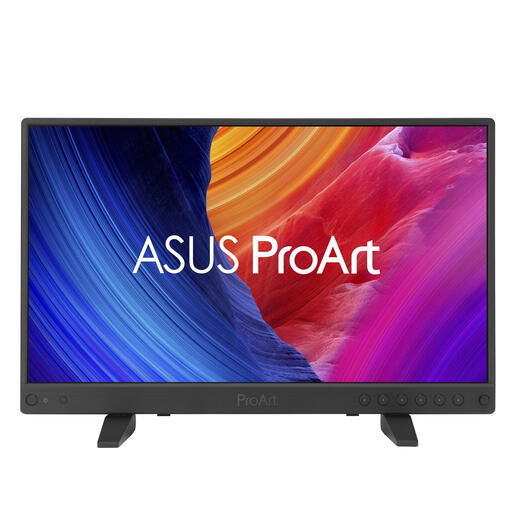
ASUS ProArt PA16USV 15,6-inch monitor
A compact screen to consider if desk space is limited and you’re looking for a 4K model.
The product name lists a 15,6-inch screen and 3840 × 2160 pixels. The product information lists USB-C with DisplayPort Alt Mode; check whether your laptop supports this feature. The screen offers less physical viewing area than a larger desktop monitor.
View at Joybuy
 No image available
LG UltraFine 27U711B-B 27-inch monitor
A larger screen to consider if your desk can accommodate 27 inches and you want to view detailed designs.
The product name lists a 27-inch 4K IPS screen. Its larger size requires more desk space than the compact portable options.
View at Joybuy
 No image available
LG UltraFine 27U710B-B 27-inch monitor
A larger screen to consider if your desk can accommodate 27 inches and you’re looking for a 4K monitor with several connection options.
The product name lists a 27-inch 4K IPS screen. The product information lists USB-C, HDMI and DisplayPort; check which connections are suitable for your laptop. Its larger size requires more desk space than the compact portable options.
View at Joybuy
Frequently asked questions
Should I always choose a 27-inch 4K monitor for floor plans?
No. First compare the dimensions, including the stand, with your desk and check that your drawings are readable at the scale you use. LG lists 2560 × 1440 pixels on a 23,8-inch screen for the compact 24QP750P-B; a 27-inch 4K model offers more pixels, but needs a wider setup.
Does every USB-C monitor provide both video and laptop power through one cable?
No. For video over USB-C, your laptop must support the right video feature; Philips lists DP Alt Mode as a requirement. Also compare your laptop’s charging requirements with the Power Delivery capacity of the exact monitor.
How should I set up a monitor for extended viewing?
Use the available height and tilt adjustments, and check whether reflections are distracting in your setup. Arboportaal outlines additional workplace setup requirements for employees whose work involves display screens. There is no universal statutory viewing distance specified here.
What do the energy label and power consumption tell me?
According to the European Commission, computer monitors are covered by the energy labelling rules for electronic displays. The label uses classes A to G; compare the label and accompanying information for the exact model.
What are my rights when buying online or if a product is faulty?
For a standard online consumer purchase, you generally have up to 14 days after delivery to change your mind, with some exceptions. According to the Dutch government, there is no fixed statutory guarantee period in the Netherlands; if a product is faulty, the seller is responsible for providing an appropriate solution. A manufacturer’s guarantee or paid-for extra cover does not replace your statutory rights.


