What should you look for when choosing?
Beside a bright window, first decide where the monitor can go and how you’ll manage the light. Then choose a computer to suit the software and work you actually do.
Compact desktop with a separate monitor
Suitable if: you mainly review drawings, documents and visualisations, and have limited desk space.
Consider: check the connections and software compatibility; a compact computer isn’t automatically suitable for large BIM models.
Compact Windows workstation
Suitable if: you use Windows software and want to save space, but also need a workstation configuration.
Consider: check the installed graphics card, memory, monitor ports and which accessories are included.
Windows tower or SFF workstation
Suitable if: you work on large CAD or BIM projects, demanding 3D visualisations or rendering, and need a suitable configuration.
Consider: compare the components in the configuration on offer with your software requirements; a product range name or stated maximum doesn’t automatically describe the base configuration.
| What to consider |
What to check before buying |
Who is this important for? |
| Visibility in natural light |
Check whether you can position and connect the separate monitor appropriately. Arboportaal advises keeping your line of sight parallel to the window; blinds and positioning are separate considerations. |
When I review home designs in daylight, I want to see drawings clearly without reflections disrupting the discussion. Around 36% of consumers prioritise screen visibility beside a bright window. |
| CAD and BIM compatibility |
Note your software version and compare the operating system, installed RAM and specific configuration with the requirements for your projects. Autodesk’s Revit requirements vary by model size and use category. |
If you use Revit or AutoCAD yourself, you’ll want to know whether your chosen computer suits your software and models. Around 29% of consumers put CAD or BIM compatibility at the top of their list when buying. |
| Graphics capability |
Compare the exact GPU and video memory with your software, project and monitor setup; a GPU option listed on a product range page doesn’t tell you which card is included in a particular configuration. |
When I create larger 3D models or visualisations, I want to match the graphics configuration to those tasks. Around 21% of consumers prioritise 3D and graphics performance. |
| Compact setup and accessories |
Check the actual RAM and storage configuration, video outputs, and whether the monitor and input devices are included. |
When space is limited, I want to know in advance which components I’ll need for a complete workstation. Around 14% of consumers prioritise a compact setup and the essentials they need. |
Desktop options at Joybuy
This selection includes compact PCs for use with a separate monitor, as well as tower configurations for anyone looking to assess CAD, BIM or 3D tasks. Check that the components and software suit your work for each configuration.
 Image unavailable
RGB gaming PC with RTX 5060, Ryzen 5 and 16 GB RAM
A tower configuration worth comparing if you’ll be doing graphics work as well as discussing designs; check that its components suit your software and projects.
The product information lists an RTX 5060 with 8 GB of video memory, 16 GB RAM and a 480 GB SSD.
Windows 11 is listed as not activated.
Joybuy
 Image unavailable
Panoramic gaming PC with Ryzen 7 5700X and RTX 5060 Ti
A tower to consider if you’re comparing configurations for graphics work; check that it’s suitable for your specific software and model sizes.
The product name lists 8 GB of video memory, 16 GB DDR4 RAM and a 480 GB NVMe PCIe SSD.
Windows 11 Home is listed as pre-installed but not activated.
Joybuy
 Image unavailable
FIREBAT R3 mini PC with Ryzen 5 7430U
A compact option to compare if you’re looking for a small desktop to use with multiple monitors.
The product name lists 16 GB RAM, a 512 GB SSD, Wi-Fi 6, Bluetooth 5.2 and support for three 4K monitors.
Joybuy
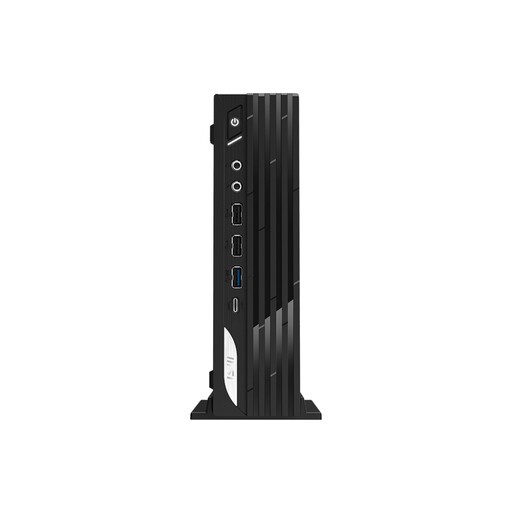 Image unavailable
MSI Pro DP21 14M-1042EU with Core i7-14700
A compact Windows desktop worth comparing for a workstation with a separate monitor; check that the connections match your monitor.
The product name lists 16 GB DDR5 RAM, a 1 TB SSD and Windows 11 Pro. The product information lists HDMI and DisplayPort connections.
Joybuy
 Image unavailable
MSI CUBI NUC AI 1UMG-005EU with Core Ultra 7 155H
A compact Windows PC worth comparing if you want to connect multiple monitors; check that the setup suits your software and workspace.
The product name lists 16 GB DDR5 RAM, a 1 TB SSD and Windows 11 Pro. The product information lists support for up to four monitors and VESA mounting.
Joybuy
Frequently asked questions
Will a faster desktop reduce reflections from the window?
No, a faster desktop won’t change the light. Where possible, Arboportaal advises positioning your line of sight parallel to the window and adjusting your workstation and blinds to suit the light.
What should you check if you want to connect two design monitors?
First, compare the video outputs on your chosen PC with the inputs and resolutions of your monitors. In its compatibility guidelines, SketchUp advises using no more than two monitors and no more than one 4K monitor at a time; check the guidance for your version too.
Which components should you check for a complete workstation?
Check whether a monitor, keyboard and mouse are included and whether the connections suit your existing equipment. For the ThinkStation P3 Tiny Gen 2 configuration with product number 30K5CTO1WWNL3, Lenovo states that the monitor, keyboard and mouse are sold separately.
What cooling-off period and warranty apply to online purchases in the Netherlands?
For online consumer purchases from a trader, you’ll generally have a statutory 14-day cooling-off period after delivery, with some exceptions. ACM ConsuWijzer also explains your right to receive a product that does what you could reasonably expect it to do under normal use; the seller is your point of contact. Check whether these consumer rules apply to your purchase, particularly if you’re ordering for a business.
Are there Dutch workstation rules for employees who spend a long time reviewing designs?
Yes, employers have obligations relating to safe screen work. Arboportaal states that if someone works at a screen for more than two hours a day, the screen and keyboard must not be attached to each other. This isn’t a general product specification and doesn’t automatically apply as a buying rule to every private user.


