What should you look for?
Microsoft Support describes cross-references and updating them as Word features. So, when choosing a keyboard, the main things to consider are the layout, key feel, desk space and connection.
| What to consider |
What to look for |
Who should prioritise this |
| Typing comfort |
Compare the key mechanism and key profile; try the keys for yourself if possible. |
If I’m writing long passages and making lots of edits, I want a key feel that stays comfortable. Around 40% of consumers give typing comfort their top priority. |
| Desk space |
Check the dimensions and whether you need a number pad; see if there’s room for your mouse alongside it. |
With a small desk, I want enough space to use my mouse comfortably. Around 20% of consumers put this need for space first. |
| Shortcuts and references |
Check the keyboard layout and whether any configuration software is compatible with your computer. |
If I often edit headings and references, I want to carry out commands quickly, while remembering that the word processor manages cross-references. Around 30% of consumers give access to shortcuts or configurable keys their top priority. |
| Connection and layout |
Check which connection your computer has and whether the specific version includes the characters and keys you want. |
For a fixed computer workstation, I want to connect the keyboard easily and get straight to work with a layout I know. Around 10% of consumers put easy connection and use first. |
Keyboards at Joybuy
These keyboards suit writing and editing tasks, with options ranging from wired full-size models to more compact versions and models with configurable keys or macros.
 Image unavailable
Full-size QWERTY keyboard with number pad
Suited to anyone looking for a wired keyboard with a number pad for working on documents.
The product name lists QWERTY, black, plug-and-play and a full-size design.
View at Joybuy
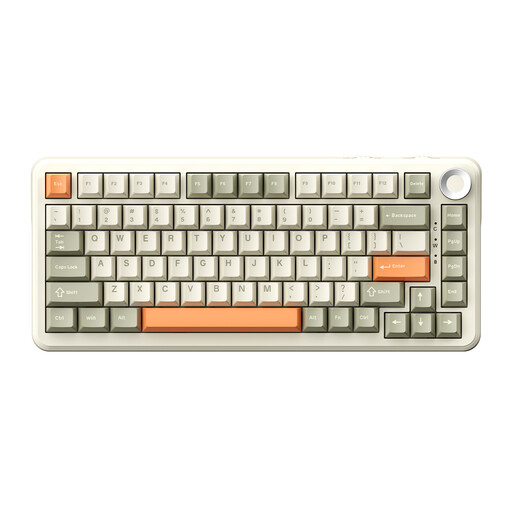 Image unavailable
AJAZZ AK820 MAX 75% mechanical keyboard, US QWERTY
Suited to anyone looking for a more compact layout and wanting to configure frequently used key actions; the product information mentions macros with built-in memory.
The product name lists tri-mode connectivity, US QWERTY and Flying Fish Switches.
View at Joybuy
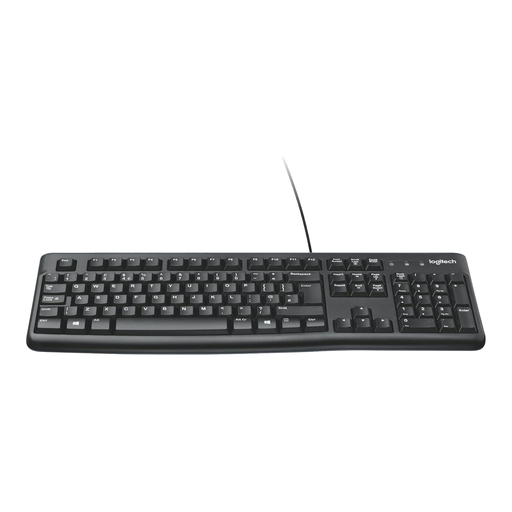 Image unavailable
Logitech K120 wired keyboard
Suited to anyone looking for a wired keyboard for a fixed computer workstation.
The product title lists the K120 model in black. Before buying, check that the connection and layout of this version suit your computer.
View at Joybuy
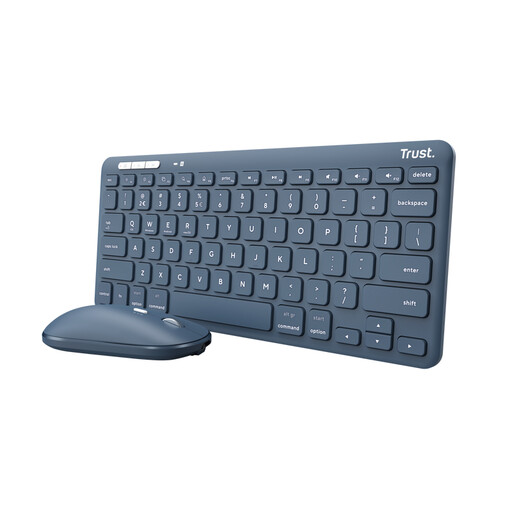 Image unavailable
Trust Lyra keyboard and mouse, US English QWERTY
Suited to anyone looking for a keyboard and mouse set who wants to work wirelessly.
The product name lists RF wireless and Bluetooth, a US English QWERTY layout and the colour blue.
View at Joybuy
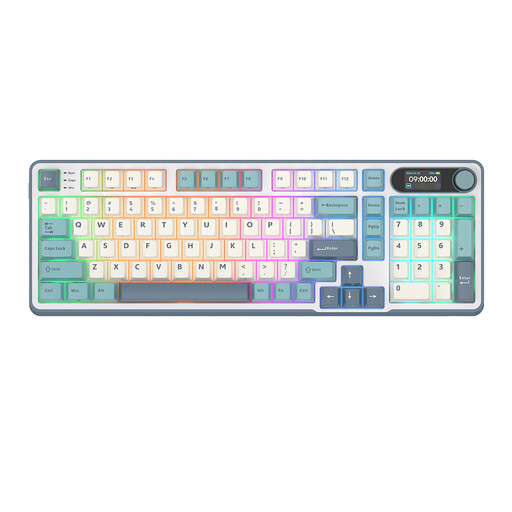 Image unavailable
RK ROYAL KLUDGE S98, Snow Emperor Switch
Suited to anyone who wants to configure frequently used key actions and is looking for a compact layout with plenty of keys.
The product name lists 98 keys, a 96% layout and Bluetooth, 2.4 GHz and USB-C connections.
View at Joybuy
Frequently asked questions
Do you need a special keyboard to create cross-references?
No. In Word, you create cross-references using a document feature. The keyboard helps you use the available commands, but it doesn’t create the link itself.
How do you update references after editing your guide?
For Word, Microsoft Support describes updating an individual field and pressing Ctrl+A followed by F9 to update the whole document. You may need to update fields in tables separately; check the steps for your version of Word.
Do you have to use a separate keyboard if you write your guide on a laptop?
Not if you’re a private user. Arboportaal states that for employees who work at a screen for more than 2 hours a day, the screen and keyboard must not be attached to each other. When using a laptop, it must therefore be possible to use a separate screen or keyboard. This isn’t a general requirement for every buyer.
What if the keyboard breaks too quickly under normal use?
According to ACM ConsuWijzer, you’re entitled to a legal guarantee if the product doesn’t meet what you could reasonably expect from it. The seller must then offer a suitable solution free of charge. This is separate from any commercial warranty.
Can you try a keyboard bought online before deciding whether to keep it?
ACM ConsuWijzer states that online consumer purchases generally come with a statutory cooling-off period of up to 14 days after delivery, subject to exceptions and rules on unpacking and returning items. Check the terms before you order.


