You don’t need a separate streamer if the history lecture already plays well on your TV or projector. If it doesn’t, first check whether the provider offers a suitable app or casting option, then compare the controls and connections. Extra picture or sound features only matter if the recording and your equipment support them too.
Who is this relevant to?
Viewers of a particular online lecture
These viewers want to know in advance whether the lecture they’re interested in will play on the big screen, even if it’s only available on a website. Google says you can cast most web content from Chrome, but not all of it.
Viewers who want to pause from the sofa
These viewers want to start, pause or rewind a long lecture easily, and turn on subtitles if the video offers them. Google and Xiaomi list a remote control for the boxes mentioned here; YouTube says subtitles are only available on videos that offer this feature.
Owners of a more advanced home cinema
These owners want the network, HDMI and audio connections to work with their TV or projector and any receiver they use. Google, Apple and Xiaomi describe connections and versions that can vary by model, so check how each one will work with your own setup.
What should you look for when choosing?
First, test the current way you watch the lecture. If it doesn’t meet your needs, compare the available app or casting method, then check that the connections will work with your home cinema.
| What to consider |
What should you check? |
Who is this important to? |
| Access to the lecture |
Check whether the provider has an app for the version you’re considering, or whether the lecture plays using a suitable casting method. If possible, test the website and video themselves. |
I want to be sure this particular lecture works on my big screen, even if the provider only uses a website. Around 36% of consumers prioritise access to the specific lecture. |
| Controls and clarity |
Compare the remote control and the controls in the app you’ll use. Check whether the video offers subtitles and whether your preferred language is available. |
For a long lecture, I want to pause or rewind easily and use subtitles if they’re available. Around 29% of consumers give controls and clarity top priority. |
| Connecting to your home cinema |
Check the HDMI input, power supply and network connection. Also make sure the audio connection works with the recording and your other equipment. |
I want to connect the streamer to my screen, network and any audio equipment without assuming the recording supports features it doesn’t. Around 21% of consumers start by checking the connections. |
| Extra purchases and accessories |
First check whether your current TV plays the lecture, then see which cables and accessories are included with each version. |
I want to avoid buying a device when my current setup will do, or overlooking a cable I need. Around 14% of consumers want to avoid unnecessary purchases and extra accessories first. |
Common pitfalls
-
Assuming a 4K logo guarantees a sharper picture
A streamer’s output capability doesn’t change the resolution of the original recording. Your TV must also support the picture quality you want.
Check the recording and your screen before paying extra for picture features you can’t use.
-
Assuming every website works on every streamer
Google says Chrome casting works with most web content, but some plug-ins won’t work. AirPlay is another way to play content from compatible Apple devices.
Check the app or playback method for the specific lecture before choosing a platform.
-
Assuming an HDMI cable or ethernet port is included
Included accessories and connections vary by model and version. Google says a certified HDMI 2.1 cable for the Google TV Streamer (4K) is sold separately; Xiaomi lists an HDMI cable with the TV Box S (3rd Gen).
Compare the contents of the box and the ports on the exact version with your setup.
You may also need to arrange a separate HDMI cable for the Google TV Streamer (4K).
-
Assuming an announced model is available to buy now
Apple gives 13 November 2026 as the date the fourth-generation Apple TV 4K becomes available, so as of 31 October 2026, it’s still a future option.
Distinguish between the third and fourth generations, and check current availability before planning a purchase.
Brands to compare
Google
The Google TV Streamer (4K) is a box worth comparing if you want Google TV, casting and built-in ethernet in one device.
- Google specifies gigabit ethernet and up to 4K HDR for this model.
- Google says Chrome casting works with most, but not all, web content.
- Google says a certified HDMI 2.1 cable is sold separately.
Xiaomi
The TV Box S (3rd Gen) is a standalone Google TV box worth comparing if Wi-Fi is good enough where you watch.
- Xiaomi lists Wi-Fi, a remote control, an HDMI cable and up to 4K output for this model.
- Check the connections on the exact EU version and whether an app for your lecture is available.
Apple
Apple TV 4K is worth considering if you want to show a lecture from an iPhone, iPad or Mac using AirPlay. The generation and version also determine which connections you get.
- Apple documents AirPlay from an iPhone, iPad or Mac to Apple TV 4K.
- For the third generation, only the 128 GB version with Wi-Fi and ethernet has an ethernet port.
- Apple gives 13 November 2026 as the availability date for the announced fourth generation.
NVIDIA
The SHIELD TV Pro is worth comparing if you want to consider its listed connections and local media features as well as watching lectures.
- NVIDIA specifies gigabit ethernet and two USB 3.0 ports for the Pro.
- Extra connections won’t automatically give you access to a particular online lecture; check the playback app or casting method.
Joybuy products
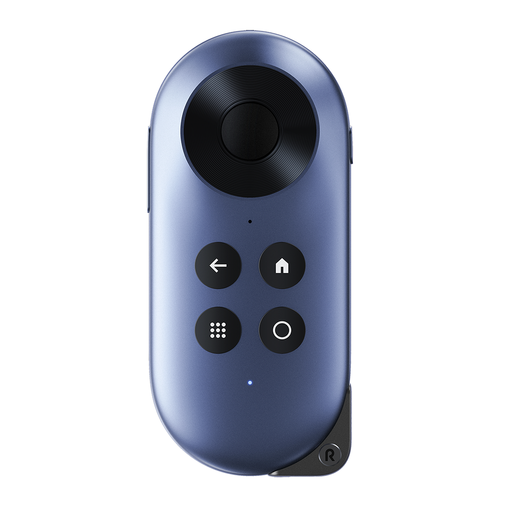
This Joybuy selection includes an Android TV streaming device for watching a lecture through a compatible Android TV app. Check with the provider whether the app is available for the version you’re considering.
 No image available
Rokid Station Google-Certified Portable Android TV Device
The Android TV interface mentioned is relevant if you want to watch the lecture through an app that’s available for it.
The product description lists a Google-certified Android TV interface and an included remote control.
For this exact version, check the product information and conformity documentation. The interface’s features alone don’t show that the device meets all applicable product requirements.
View at Joybuy
Frequently asked questions
Can you watch a lecture that’s only available in a browser on your TV?
You may be able to cast it from Chrome using a compatible playback method, but this won’t work with every website or plug-in. Google describes this option for devices including the Google TV Streamer (4K), so test the specific website and video.
How do you connect a streamer to your home cinema?
Check the HDMI input on your TV, projector or receiver, along with the power supply and network connection. Google and Apple say an HDMI cable is needed separately for the boxes mentioned here; Xiaomi lists an HDMI cable with the TV Box S (3rd Gen).
Will every history lecture have subtitles?
No, don’t assume so. YouTube says subtitles are available for videos that offer them. For the lecture you’re watching, check with the provider and look at the language and settings in the player you’re using.
What product safety rules apply to a wireless streamer in the Netherlands?
Electrical equipment with Wi-Fi or Bluetooth sold in the Netherlands must meet the applicable European product requirements. The Dutch business portal lists CE marking and an EU declaration of conformity as requirements for this type of equipment. The Netherlands Enterprise Agency stresses that the CE logo is not an independent safety certification.
Do you need a separate streamer if your TV already plays the lecture?
No, not for that lecture if your current playback method works well and the controls meet your needs. Test the specific video and check that you can use subtitles and your preferred audio setup before choosing an extra device.


