
Taking part from one computer
You want to ask questions and be clearly visible yourself. Check that your voice can be picked up from your seat.


Choose a personal webcam if you mainly need to show one speaker, a camera with a wider field of view if several people are taking part, or a document camera when paper materials are the focus. Test the field of view and how clearly people can be heard from the actual seats; a document camera does not automatically replace a camera that frames faces. The features mentioned are manufacturers’ specifications from brands including Logitech and IPEVO, not independent measurements taken in this classroom.
You want to ask questions and be clearly visible yourself. Check that your voice can be picked up from your seat.
You want to involve several people in the discussion. Check the picture and sound from the places where people will be sitting.
You want to show maps, photographs or documents. Check that the material fits in the frame and that small details are readable.
Choose this when: one participant will do most of the speaking and be on camera; match the field of view to where the computer is positioned.
Bear in mind: a fixed field of view is less flexible for a group or paperwork on a table.
Choose this when: several people are taking part in front of the same camera; check that the intended seats fit in the frame.
Bear in mind: a wider view may also show bystanders, and manufacturers’ descriptions do not prove that people at the back of this room will be heard clearly.
Choose this when: a map or other physical document will be the main focus for an extended period; compare its dimensions with the capture area.
Bear in mind: this camera is designed to show material on a table and does not automatically replace a camera for the speaker.
| What to consider | What to look for | Who it matters to |
|---|---|---|
| Being clearly heard | Check that the microphone is switched on and hold a test call from the actual speaking and seating positions. On the Logitech C920e, the built-in microphones must be activated via Logi Tune; Logitech specifies a range of up to one metre for this model. | If I want to ask questions from my seat, I want to know that my voice will get through. Around 36% of consumers say being able to speak clearly is their top priority. |
| Getting the group in shot | Check from the intended seats that everyone fits in the frame, and test the sound separately. Trust positions the TW-250 as suitable for several people in front of the camera; Logitech describes the MeetUp as a camera for small rooms. | When several people are taking part, I want to see in advance which seats the camera will capture. Around 29% of consumers prioritise showing the group. |
| Showing archival documents clearly | Measure the document and test small text in the meeting app. IPEVO lists a maximum capture area of 440 × 330 mm for the V4K PRO 120; Logitech describes the Brio 500’s Show Mode for showing objects on a desk. | If I’m sharing a map or letter, I want it to fit in the chosen frame and be readable. Around 21% of consumers prioritise showing archival material. |
| Controls and privacy | Check that your computer and meeting app recognise the camera, and preview the image before joining. Agree with the organiser how identifiable participants and any recordings will be handled. | In a shared room, I want to be able to set up the camera easily and prevent people from being captured unintentionally. Around 14% of consumers say ease of use and privacy are their top priorities. |
A higher stated resolution won’t fix the wrong camera angle. Personal webcams, group cameras and document cameras are designed for different subjects.
First decide whether faces, several seats or paper will be the main focus.
According to Logitech, the C920e’s microphones must be activated via Logi Tune, and are specified for speech at up to one metre. That doesn’t mean someone will be clearly heard from every spot in a classroom.
Test a call from every place where someone will actually be speaking.
A cover blocks the camera’s view when the lens is covered, but it doesn’t determine who is filmed during the lecture or what happens to the footage.
Check the camera view and discuss participation and any recordings with the organiser in advance.
The models described range from personal webcams to a camera for small group spaces.
The TW-200 is a fixed-focus webcam; the TW-250 is described as suitable for framing several people.
The V4K PRO 120 is a document camera for showing physical maps and papers during an online conversation.
The PowerConf C200 is described as a personal webcam with an adjustable field of view.
These product picks are webcams for taking part online, from personal setups to wider fields of view for several people. Check the field of view and microphone performance in the room where you’ll be attending the lecture.
 Image unavailable
A personal webcam for video calls from a Windows PC; check that your meeting app is using the right microphone.
The product name lists 1440p/1080p at 60 FPS and USB. The product description mentions a built-in omnidirectional stereo microphone, compatibility with Windows 10/11 and a sliding privacy shutter.
 Image unavailable
The product description mentions video calls and a flexible tripod base; check the framing and sound from your usual position.
The description lists 1920 × 1080 video, a 120° lens, a built-in omnidirectional microphone and USB plug-and-play.
 Image unavailable
The stated field of view may suit a personal setup; check from the intended seats how much of the room will be visible.
The product name lists autofocus, two microphones, a lens cover, a 75° field of view and USB-A/USB-C connectivity.
 Image unavailable
The wide stated field of view may suit a setup with several people in front of the camera; test whether the picture and sound work as required in the room.
The product name lists a 99° field of view. The description mentions 4K video, a built-in noise-cancelling microphone and a USB connection.
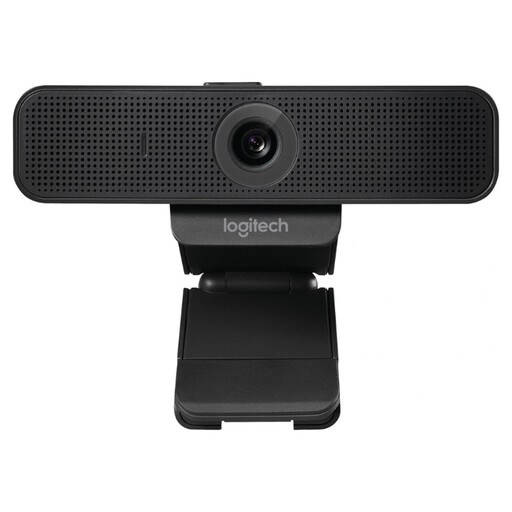 Image unavailable
The product description mentions video conferencing and a field of view for one or two people; check the framing for the chosen seats.
The description lists Full HD video, a 78° field of view, autofocus, a built-in microphone, a USB connection and a lens cover.
That depends on the seating, field of view and audio. Logitech describes the MeetUp as a camera for small rooms, with a microphone array and speaker; test all the intended seats before the lecture.
First check that the built-in microphones are enabled via Logi Tune Desktop and that the meeting app is using them as its input. Logitech specifies the microphones for speech at up to one metre once activated, so also test the distance from your own seat.
For a quick look at an object, the Brio 500, which tilts towards the desk, may be suitable; for showing physical documents for longer, the IPEVO V4K PRO 120 is a dedicated document camera. Compare the dimensions with IPEVO’s stated maximum capture area of 440 × 330 mm, and check during a test call that small text is readable.
Not automatically: according to the Dutch Data Protection Authority, an organisation needs a lawful basis under the GDPR to create and publish images in which people are identifiable. When video-calling in education, it is also important to agree how participants will be shown and how recordings will be stored. The obligations that apply depend on who is organising the lecture and what happens to the footage.
You don’t need an extended warranty to have statutory rights if a product is faulty. ACM ConsuWijzer explains that in such cases the seller is responsible for providing an appropriate solution free of charge; check the terms of any extended warranty separately.