Choose a laptop based on your workflow: searching existing digital newspapers calls for something different from processing scans and OCR files yourself. For running several programmes at once, the Consumers' Association recommends 16 GB of RAM as a guide; work out how much SSD storage you need based on your own files, and keep a separate local backup. A larger screen gives you more room to work, but is less compact. So also check that your OCR software, scanner and external drive work with the configuration you choose.
Who is this buying guide for?
Building a searchable newspaper archive
You process scans into OCR text and metadata yourself, and want to switch between files and programmes. The KB describes newspaper files containing scans, OCR and word coordinates. Also check your OCR software’s requirements, as the quality of the input image matters too.
Managing local newspaper collections
You store scans, PDFs and metadata on your laptop and want to avoid losing your work by keeping a separate backup. Safe Internetting lists external storage, such as a hard drive or USB stick, as one way to back up your files.
Researching across multiple locations
You consult and describe newspapers in different places. You’ll need to weigh portability against screen space and the connections your scanner or external drive requires.
What should you look for when buying?
First decide whether you’ll mainly search existing digital collections or process scans yourself. Then choose storage, screen space and connections to suit your files and workspaces.
| What to consider |
What to look for when buying |
Who is this most relevant to? |
| Processing scans and OCR |
Check the system requirements for your OCR and indexing software, and look at the memory and processor in the exact configuration. The Consumers' Association recommends 16 GB of RAM as a guide for running several programmes at once. |
When I process scans, OCR text and metadata at the same time, I want my laptop to handle my programmes. Around 27% of consumers put processing work at the top of their list. |
| Storing files locally |
Calculate how much space you need based on your own scans and PDFs. Also check that your external backup drive and its connection are suitable. Safe Internetting lists an external drive as one possible way to store backups. |
I want to keep my collection locally and have a separate copy in case my laptop or files are lost. Around 33% of consumers put keeping files locally first. |
| Viewing pages and metadata |
Compare the screen size and resolution of the exact configuration with the windows you want to use side by side. |
Having enough screen space to view a newspaper page alongside OCR text and descriptions is important to me. Around 27% of consumers put reading and input space at the top of their list. |
| Working in different locations |
Check the weight, screen size, connections for your scanner and drive, and whether your software is compatible with the operating system. |
I take my laptop to different workspaces and want to connect my usual equipment there. Around 13% of consumers put portability first. |
Common buying mistakes
-
Confusing internal storage with a backup
Files on the same laptop could be lost along with the device. More internal storage helps when working locally, but it isn’t a separate copy.
Keep an external drive for a separate, up-to-date copy, and set aside time to update and check your backup.
A separate drive and a regular backup routine take extra resources and time.
-
Assuming a processor or GPU name guarantees accurate OCR
The developers of Tesseract point out that better results often also depend on the quality of the input image. A laptop’s specifications alone don’t tell you how accurately it will recognise your scans.
Check the requirements for your own software and try representative pages, including ones with hard-to-read print.
Improving and checking scans can take extra time.
-
Choosing based on screen size alone
A larger screen can give you more room to work, but weight and connections also affect how practical the laptop is in other locations.
Compare the screen, weight and ports of the exact configuration with your scanner, external drive and workspaces.
Depending on your workspace, you may also need an adapter or external monitor.
-
Assuming old newspapers are always free to publish
Newspapers may still be protected by copyright. The Dutch government also distinguishes between a private copy for personal use and distributing or making it available to the public.
Check the rights and privacy conditions for the specific collection before sharing scans or a public index.
Brands to consider
Lenovo
The ThinkPad E16 Gen 3 configuration 22AY00A6MH is a 16-inch Windows option for working with multiple windows.
- Lenovo lists 16 GB of memory, a 512 GB SSD and an anti-glare 1920 × 1200-pixel screen for this configuration.
- Lenovo says the memory is on-chip, so don’t assume you can upgrade it later.
HP
The ProBook 4 G1i 16 configuration A23QQEA#ABH is a Windows option with a large screen and several types of connection.
- HP lists 16 GB of RAM, a 512 GB SSD, a 16-inch 1920 × 1200-pixel screen, HDMI, Type-A and two Type-C ports for this configuration.
- Check that the exact configuration and its connections suit your software and peripherals.
Acer
The Aspire 5 A517-58GM, manufacturer code NX.KJLEH.009, is an option with a larger built-in screen and more internal storage.
- Acer lists a 17.3-inch screen, 16 GB of RAM, a 1 TB SSD and a weight of around 2,40 kg for this configuration.
- The weight may be a consideration if you often take the laptop with you. A dedicated graphics card does not, on its own, guarantee better OCR results.
Apple
The MacBook Air M5 series is a compact macOS alternative, provided your OCR software, scanner and backup setup are compatible.
- Apple lists 16 GB of memory, a 512 GB SSD, a 13.6-inch screen and two Thunderbolt 4 ports for the 13-inch M5 base configuration.
- These specifications don’t confirm compatibility with a particular scanner or Windows application, so check separately.
Joybuy laptops for this work
These Joybuy picks are suited to extended indexing work on a larger screen, with a more compact option for working in different locations too.
 No image available
HP OmniBook X Flip NG AI PC 16-as0050nd D75LQEA#ABH
Suited to anyone who wants to view scans and multiple work windows on a larger built-in screen.
16-inch 3K OLED screen, 360° modes, 24 GB of memory and a 1 TB SSD. The charger must be purchased separately.
View at Joybuy
 No image available
ASUS Vivobook S16 S3607QA-SH109W
A 16-inch configuration for anyone who wants to work with documents on a larger built-in screen.
WUXGA OLED screen, 16 GB LPDDR5X, a 512 GB SSD and Windows 11 Home. Check that your software and peripherals work with this configuration.
View at Joybuy
 No image available
MSI Venture 16 AI A2HMG-068NL
A 16-inch configuration to consider if you process scans and documents on a larger screen.
32 GB DDR5 RAM, a 512 GB SSD, a 1920 × 1200-pixel screen with a 144 Hz refresh rate and Windows 11 Pro. This configuration is supplied without a power adapter.
View at Joybuy
 No image available
ASUS Zenbook A14 UX3407QA-QD479W
A more compact option for anyone who takes their laptop between workspaces and is happy with less built-in screen space.
14-inch WUXGA OLED screen, 16 GB of RAM, a 512 GB SSD and a Dutch QWERTY keyboard. The specified compatible 65W USB-C Power Delivery charger is required but not included.
View at Joybuy
 No image available
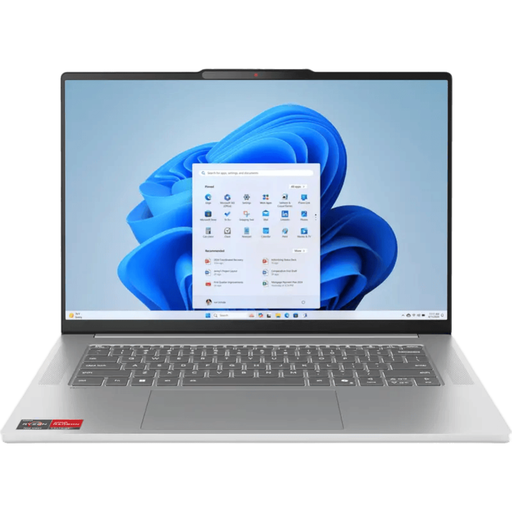
Lenovo IdeaPad Slim 5 NB IPS5 15ARP10 R7 16G 512G 11H
Suited to anyone who wants to combine document work on a larger screen with local storage.
15.3-inch screen with a resolution of 1920 × 1200 pixels, 16 GB of memory and a 512 GB SSD. The charger must be purchased separately.
View at Joybuy
Frequently asked questions
Do you need powerful hardware if you’re only searching existing historical newspapers?
Not necessarily for that task alone. The KB describes existing digital newspapers with scanned pages, OCR and searchable PDFs; processing scans yourself is a different workflow. Choose a laptop to suit what you actually do.
How do you get started with a local backup?
Use a separate external drive and regularly make an up-to-date copy. Safe Internetting lists external storage and automatic backups as options; also check that you can find and open the copy.
Does a larger SSD mean you don’t need an external backup?
No. A larger internal SSD gives you space to store files locally, but a separate copy is there for situations where files or your laptop are lost.
Do you need a specific laptop or a separate graphics card for OCR?
The available information doesn’t suggest that. Check the system requirements for your own software and try a representative newspaper page. The developers of Tesseract also highlight the importance of input image quality.
Can you publish indexed historical newspapers online?
Not automatically. The Dutch government distinguishes between a private copy for personal use and distributing or making content available to the public. The KB notes that newspapers may still be protected by copyright, so check the rights and any privacy obligations for the specific collection and intended use.


