Choose a monitor based on the space you need to view an enlarged scan and your indexing form at the same time. Screen size, aspect ratio and the level of magnification you need all affect how comfortably you can do this. Then compare the resolution, adjustability and connections with your computer. The KB, the National Library of the Netherlands, highlights that OCR also depends on scan quality: enlarging an image cannot restore details missing from the scan.
Who is this choice relevant to?
Readers of small newspaper adverts
If you enlarge lettering in scans, you’ll want to check any uncertain text against the original image too. The KB, the National Library of the Netherlands, describes scans as part of searchable newspaper collections; image quality also plays a part in OCR.
Indexers working with two windows
If you want to keep an advert open while entering names, dates or keywords, check whether you can still read both the scan and the input field side by side at your preferred magnification.
Researchers working at a screen for long periods
When you spend a long time reading and checking material, screen height and reflections can affect your workspace. Arboportaal outlines the requirements that apply to employees who work at a screen for more than two hours a day, including a height-adjustable screen without distracting reflections.
What should you look for?
If you want to enlarge historical adverts while indexing them, the key considerations are readability, room for two windows, an adjustable workspace and a suitable connection to your computer.
27-inch QHD work monitor
A good fit if: you want to place a scan and input fields side by side, and can adjust the text size in each application. According to their manufacturers, the Dell P2725D and LG 27BA65QB-B have a resolution of 2560 × 1440. Try one of your own scans to see how much space remains for each window.
Keep in mind: at high magnification, less of the scan may be visible at once, so you may need to scroll more often.
Taller 3:2 screen with more pixels
A good fit if: you mainly want more vertical space to compare a newspaper page as you enlarge it. BenQ lists the RD280U as having a 28.2-inch screen, 3840 × 2560 pixels and a 3:2 aspect ratio.
Keep in mind: a 3:2 aspect ratio won’t automatically give you the space you need for two wide windows. Check how the layout works with your documents and desk space.
The table highlights the most useful practical test for each buying consideration. The percentages relate to consumers choosing a monitor for this type of indexing work.
| What to consider |
What should you check? |
Who is this important for? |
| Checking small advert text |
View a representative scan at your preferred text size and check that both the lettering and its context remain clear. |
If I need to read small print accurately, I want to view it at the right size and check anything uncertain against the scan. Around 36% of consumers give readability of advert text top priority. |
| Viewing the scan and input fields at the same time |
Place your usual scan and form side by side at the scale you work with. |
I want to enter details without losing sight of the source. Around 29% of consumers prioritise being able to see the scan and form at the same time. |
| Posture and reflections |
Check the height adjustment and view the screen under the lighting conditions in your workspace. |
If I’m checking material for long periods, I want to position the screen comfortably and minimise distracting reflections. Around 21% of consumers put posture and reflections at the top of their list. |
| Connecting to your computer |
Check the video output and supported resolution. Also check for USB-C video and power delivery if you want to use those features. |
I want to know whether my computer and cable support the connection I need, including charging via USB-C if required. For around 14% of consumers, the computer connection is the top priority. |
What to watch out for when buying
-
Confusing more pixels with more information in the scan
The KB, the National Library of the Netherlands, identifies the quality of the image file as one factor affecting OCR. A higher screen resolution can’t restore details missing from the original scan.
Try a difficult advert and check any uncertain details against the source image.
-
Comparing screen resolution alone
Your preferred magnification, window layout and screen position all affect whether you can see your scan and input fields clearly while you work.
Try both windows at your preferred scale, and check the height adjustment and reflections in your workspace too.
-
Assuming USB-C on both devices is all you need
Having a USB-C port on both your laptop and monitor doesn’t, by itself, guarantee that video and the charging function you need will work with your setup. LG lists Power Delivery of up to 65 W for the 27BA65QB-B; BenQ lists 90 W for the RD280U. Check your laptop and cable specifications.
Before buying, compare the video output, supported resolution and power delivery you need.
-
Assuming there’s a fixed two-year legal guarantee
According to the Dutch government, there is no fixed statutory guarantee period in the Netherlands. An additional guarantee plan is therefore not automatically necessary, nor is it equivalent to your existing statutory rights.
Compare the terms of any additional plan with your rights when buying from the retailer.
Brands to compare
Dell
The P2725D is a useful point of comparison for an adjustable 27-inch QHD monitor if extra hub features aren’t a priority.
- Dell Netherlands lists a resolution of 2560 × 1440, an IPS panel and height adjustment for the P2725D.
- These specifications don’t determine how clearly you’ll be able to read your historical scan; try it at your preferred scale.
LG
The 27BA65QB-B is a 27-inch QHD reference with USB-C features, which you can compare with a simpler connection setup.
- LG Netherlands lists a resolution of 2560 × 1440, an adjustable stand and USB-C Power Delivery of up to 65 W for this model.
- The listed features don’t confirm that your laptop supports the video and charging functions you need; check that the devices work together.
BenQ
The RD280U has a 28.2-inch 3:2 screen, making it worth comparing if you want to assess the extra vertical space for documents.
- BenQ lists a resolution of 3840 × 2560, a matte coating, 110 mm of height adjustment and USB-C Power Delivery of 90 W.
- The aspect ratio alone won’t determine how a full-page document and input windows will fit on your desk; try your own layout.
Philips
The 27E1N5600HE/01 is another 27-inch QHD reference to consider if you also want to compare a webcam and USB-C for other work.
- Philips lists a resolution of 2560 × 1440 and the ability to connect a compatible device via USB-C.
- A built-in webcam isn’t essential for indexing adverts; consider this feature if you’ll use it for other tasks too.
Joybuy monitors to explore
Compare these 27-inch QHD monitors by viewing your enlarged scan and indexing form side by side at your preferred scale.
 No image available
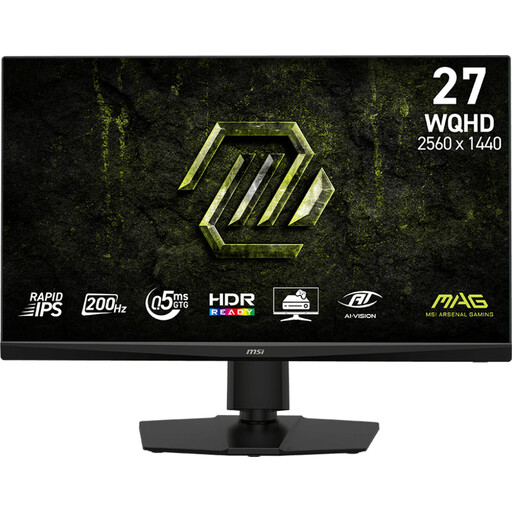
MSI MAG 272QPF E20 27-inch 2K WQHD monitor
The listed 27-inch QHD specification gives you a starting point for testing how much space the scan and form take up side by side.
IPS; 2560 × 1440 pixels; 200 Hz.
Joybuy
 No image available
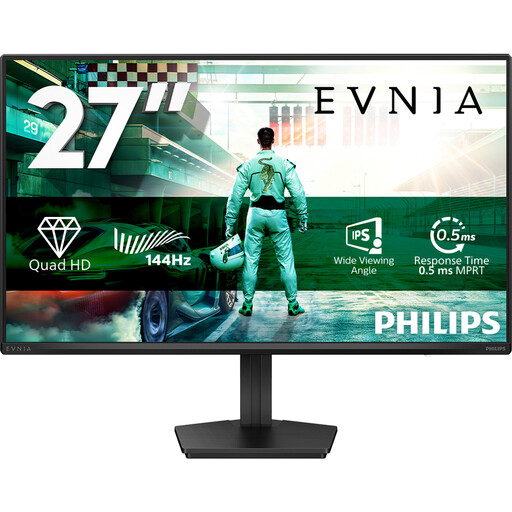
Philips Evnia 27M2N3500NF 27-inch QHD monitor
The listed 27-inch QHD resolution is useful for testing your scan and indexing fields at your preferred scale.
IPS; 2560 × 1440 pixels; 144 Hz; DisplayPort 1.4 and HDMI 2.0.
Joybuy
 No image available
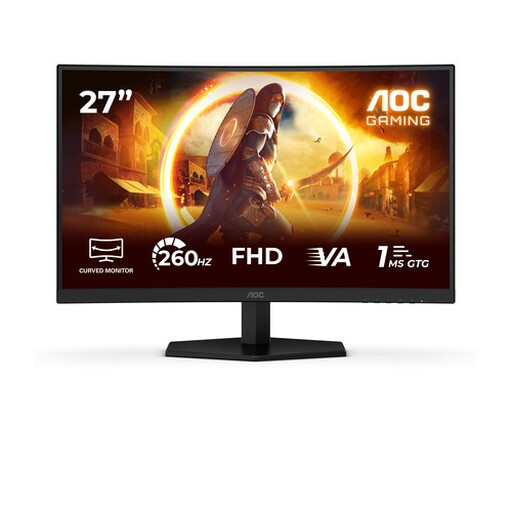
AOC G4 Q27G4ZR 27-inch Quad HD monitor
The listed 27-inch QHD resolution gives you a starting point for assessing the scan and input fields together at your preferred scale.
IPS; 2560 × 1440 pixels; 130 mm of height adjustment.
Joybuy
 No image available
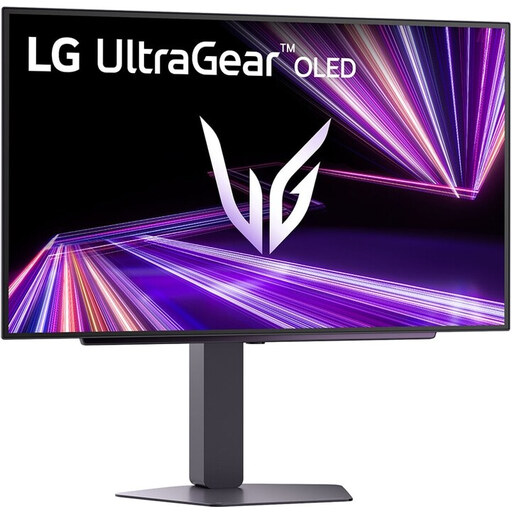
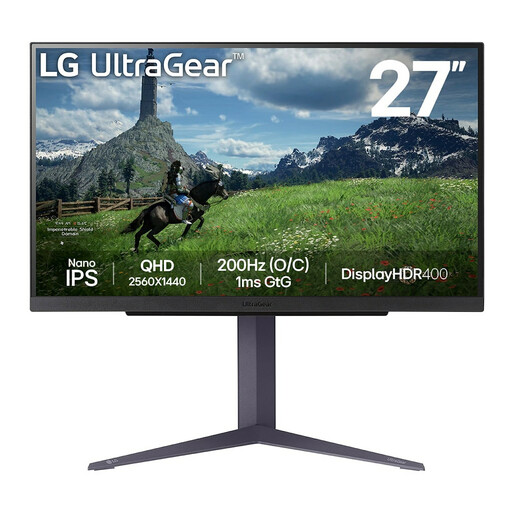
LG UltraGear 27GX704A-B.AEU 27-inch OLED QHD monitor
The listed 27-inch QHD resolution is worth considering when testing your preferred magnification and window layout.
OLED; 2560 × 1440 pixels; 240 Hz; glossy screen coating, which may be less suitable if reflections are distracting.
Joybuy
 No image available
LG 27GS85Q-B 27-inch Quad HD monitor
The listed 27-inch QHD specification gives you a starting point for trying an enlarged scan and input fields side by side.
IPS; 2560 × 1440 pixels; tilt adjustment.
Joybuy
Frequently asked questions
Will a monitor with more pixels correct errors in historical advert text?
No. According to the KB, the National Library of the Netherlands, OCR also depends on the scan and the quality of the source material. Check uncertain indexing details against the original image; a monitor can’t replace checking the source.
How can you make text larger without buying a new monitor?
In Windows, you can change the text size or scale for text, images and apps. You can also try the zoom function in the application you use to view the scan. Microsoft Support explains these scaling settings for Windows.
What applies to a workplace where an employee indexes material for long periods each day?
For employees who work at a screen for more than two hours a day, Arboportaal outlines the applicable workplace requirements, including a height-adjustable screen without distracting reflections. Arboportaal also recommends alternating with other tasks or taking a break. These aren’t general product requirements for every private buyer.
What cooling-off period and guarantee apply to online purchases in the Netherlands?
When you buy online as a consumer from a business, you generally have a 14-day cooling-off period; check whether an exception applies. According to the Dutch government, there is no fixed two-year statutory guarantee period in the Netherlands. Different rules may apply to business purchases.


