
Student who often changes study spaces
You take your laptop and screen between study spaces and want to view a map alongside your notes, without having to set up a permanent workstation each time.


If you often move between study spaces, a portable monitor is the obvious choice. If you usually work at the same desk, a larger fixed monitor gives you more screen space for the map, legend and sources. Next, check that your laptop can provide both the picture and power, and that labels are legible at your chosen screen size. Touch is mainly useful if you want to annotate the map directly.
You take your laptop and screen between study spaces and want to view a map alongside your notes, without having to set up a permanent workstation each time.
You compare neighbourhoods, labels and legends, and prioritise useful screen space over the smallest travel-friendly size.
You want to point to things or write on the screen. In that case, touch functionality, pen type, and compatibility with your device and software all matter—not just resolution.
Best for: moving around often and viewing a map alongside sources on your laptop.
Trade-off: a smaller screen takes up less space in your bag, but gives you less room to view the map, legend and text together.
Best for: pointing to or annotating digital maps and documents directly, provided your laptop and software support the input you want to use.
Trade-off: touch functionality alone doesn’t mean pen support. Check which type of pen and devices you’ll need.
Best for: working at the same study space most of the time and viewing maps, legends and sources side by side.
Trade-off: a larger monitor is less practical to carry around regularly. Also check that you have enough space for it at your desk.
| What to consider | What should you check? | Who is this important for? |
|---|---|---|
| Map detail and legend | Compare the screen diagonal, native resolution and aspect ratio. View your own map on a similar screen and check that the smallest relevant labels are legible. | If I want to view map labels and the legend side by side, I prioritise usable screen space over the smallest size. Around 33% of consumers rank map detail as their top buying priority. |
| Carrying and setting up | Compare the full set of items you’ll carry, including the case, stand and cables, and consider how much desk space they’ll take up. | If my study space changes often, I want to know how easy it is to carry and set up the monitor alongside my laptop and accessories. Around 25% of consumers give portability top priority. |
| Connection and power | Check your laptop’s video output, the input on the exact monitor model, the cable and how both devices get power. | If I study in different places, I want to know in advance whether my laptop and monitor will work together without the connection or power supply limiting my setup. Around 25% of consumers prioritise a working connection. |
| Adjustable study setup | Check the tilt and height adjustments, the desk depth available and whether you can set up the monitor comfortably in different places. | If I usually study in one place, I want to be able to position the screen to suit my desk. Around 17% of consumers give an adjustable permanent workstation top priority. |
A USB-C connection alone doesn’t confirm that your laptop can send a picture to the monitor. ASUS specifies DisplayPort Alt Mode as a requirement for the USB-C video connection on the ZenScreen MB166CR.
Check the specifications for your laptop port, monitor port and cable. Also check separately how the monitor will get power in your setup.
Resolution alone doesn’t tell you how labels and legends will look from your usual viewing distance. Screen size and aspect ratio also affect how much room the map and other windows take up.
If possible, open your own map on a screen of a similar size and check the smallest labels you need to read.
If you move your monitor around often, you’ll also need to consider the case, stand and cables. The weight of the complete set could be quite different from what the screen alone suggests.
Compare everything you’ll actually carry together and consider whether the stand will fit on the desks where you study.
A manufacturer’s warranty is not the same as the statutory protection you have if a product is faulty. The Dutch government states that the seller must provide a solution for a faulty product, and that the Netherlands has no fixed statutory warranty period.
Read exactly what an additional warranty covers and compare it with your statutory rights before choosing extra cover.
The features listed apply to the specific models below; they don’t automatically apply to every monitor from the same brand.
The models mentioned from ASUS include both portable screens and a larger monitor for a permanent study space.
The ThinkVision M14t Gen 2 is a portable touchscreen for anyone considering touch or annotation while using maps.
The Dell Pro 14 Plus P1425 is a 14-inch portable second monitor without a touchscreen.
The HP E14 G4 is a 14-inch portable monitor supplied with a case and stand.
These product picks focus on portable monitors for studying maps in different places, including touchscreen models.
 No image available
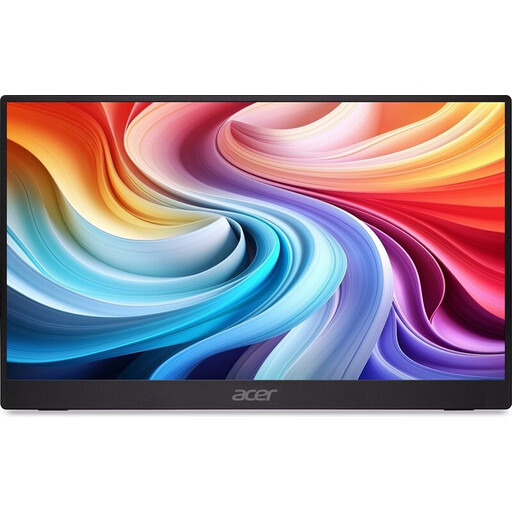
The portable design suits changing study spaces. Check that map labels are legible for you on the 16-inch screen.
The product name lists 2560 × 1600 pixels, a 16:10 aspect ratio, QLED, 144 Hz, Mini HDMI and Type-C.
 No image available
This portable screen could suit a study space that changes regularly. Compare the screen space with the map and legend you want to view.
The product name lists a 15.6-inch screen diagonal and a 60 Hz refresh rate. According to the product information, a charger isn’t included and must be bought separately.
 No image available
The built-in kickstand could be handy when setting up the screen again in different study spaces.
The product name lists FHD, a 16:10 aspect ratio, 144 Hz, two USB-C ports and Mini HDMI.
 No image available
This model is worth considering if you want to interact with the map directly on the screen. Check that touch functionality is compatible with your laptop and software.
The product name lists 1080p, Mini HDMI and USB-C. The product information also mentions a VESA mount.
 No image available
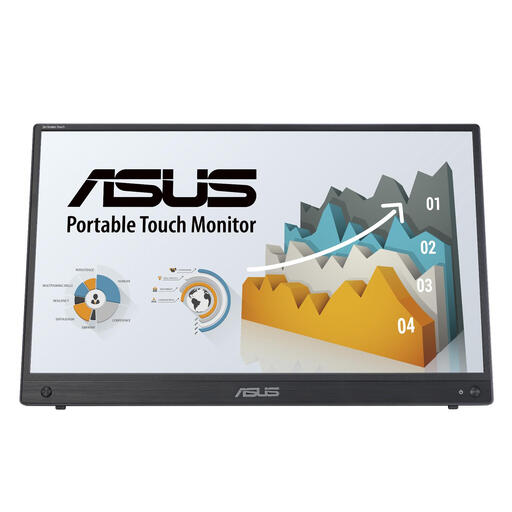
The touchscreen makes this model a good option if you want to interact with the screen directly while studying.
The product name lists a resolution of 1920 × 1080 pixels and Full HD.
No, not automatically. Check whether your laptop port can output video using the connection required by the exact monitor model. For example, ASUS specifies DisplayPort Alt Mode for the USB-C connection on the MB166CR. Also check how the monitor gets power.
No, not if you only want to view the map. If you want to annotate directly on the screen, check that the monitor, laptop and software support touch and pen input. Lenovo lists a passive pen in the box with the ThinkVision M14t Gen 2; pressure-sensitive writing requires a compatible active stylus.
View your own map on a screen of a similar size and check the smallest labels, colour areas and legend. Resolution alone doesn’t guarantee that the map will be legible from your usual viewing distance.
Reassess your setup when you sit down in a new place. Arboportaal recommends, among other things, placing the screen directly in front of you and keeping the top just below eye level. Adjust the setup to suit the space and how you use it.
For many distance purchases made online from a business, you have a 14-day cooling-off period, according to the Dutch government. The seller must also provide a solution if the product is faulty. The Netherlands has no fixed statutory warranty period; the applicable terms depend partly on the problem.