
Learners who want to listen back to both voices
You practise remotely and want to hear both your own answers and the other person's after the conversation. The recording settings are therefore just as important as the headset.


Choose a headset that suits your device and lets you position the microphone clearly for your own voice. If you also want to listen back to the other person, your recording app or computer must be able to record the audio being played back too. A wired headset means you won't need to charge it during practice, while Bluetooth gives you more freedom to move but requires you to keep an eye on pairing and battery life. Make a short test recording in your usual practice space before relying on it.
You practise remotely and want to hear both your own answers and the other person's after the conversation. The recording settings are therefore just as important as the headset.
You want to record your own pronunciation clearly, even when there are other sounds around in the evening. Pay attention to the microphone and make a test recording; noise cancellation cannot guarantee a particular recording result.
You want to be able to move around during a conversation or switch between your phone and computer. The connection, pairing and battery life all play a part in your choice.
A good fit if: you usually practise on a laptop or PC and don't want to stop to charge your headset. Check that the USB connection is compatible with your device.
Trade-off: the cable limits how freely you can move, and the microphone won't automatically record the other person's voice.
A good fit if: you want to move around while practising or switch between your phone and computer, provided your devices and recording app work with the headset.
Trade-off: you'll need to keep track of pairing and battery life. Logitech states that the Zone 300 offers up to 16 hours of talk time, but this isn't a measured figure for this particular practice scenario.
| What to consider | What should you check? | Who is this more important to? |
|---|---|---|
| Recording both voices | Test the recording with the calling app you plan to use and check that you can hear both the microphone and the audio being played back. Audacity describes Windows WASAPI loopback for computer playback; it isn't a universal solution for every app or setup. | If I want to listen back to both my own pronunciation and the other person's answers, I also check the recording settings. Around 33% of consumers prioritise recording both voices. |
| Recording your own voice clearly | Check the microphone position and mute setting, then record a test sentence in the room where you practise. | If I mainly want to assess my pronunciation while there's background noise at home, I want to hear how my voice sounds in a real practice setting. Around 27% of consumers prioritise the clarity of their own voice. |
| Comfort during practice sessions | Look for adjustability and ear cushions, and assess the fit during a session that's about as long as your usual practice. | If I regularly practise for longer in the evenings, I want a headset that stays comfortable throughout a typical session. Around 20% of consumers make wearing comfort their main consideration. |
| Freedom to move and switch between devices | Check that your devices support Bluetooth and test the recording with the app you actually use. | If I want to move around while practising or switch between my phone and computer, I want to know whether pairing and recording work with my devices. Around 20% of consumers prioritise freedom of movement. |
Manufacturers describe noise cancellation for specific headsets, but that doesn't tell you exactly how a recording will sound in your room and with your app.
Record a short test sentence in the room where you usually practise, then listen back to it.
Your microphone and the audio being played back are different recording sources. Whether the other person's voice is saved also depends on the app and recording settings.
Test a full conversation with the app you plan to use before relying on it to capture both voices.
A product series can include several connections or versions. HP lists the 3.5 mm option specifically for the Blackwire 3315 and 3325; it doesn't automatically apply to every Blackwire 3300.
Check the full model name and connector against the port on your device.
The wired H390 is an option for practising on a computer; the wireless Zone 300 is designed for people who want to move around during calls.
The wired Ayda USB-ENC is a computer headset for those looking for microphone controls and an adjustable fit.
The Evolve2 30 SE comes in wired versions where the fit and microphone design are important considerations.
The wired Blackwire 3300 series includes mono and stereo versions for computer calls.
These Joybuy products are wired USB headsets for practising on a computer. If you want to listen back to both voices, you should also check your app or computer's recording settings.
 No image available
A wired USB headset for practising on a computer, with an adjustable microphone that you can position near your mouth.
The product information lists volume controls and microphone mute. Check that the USB connection is compatible with your device.
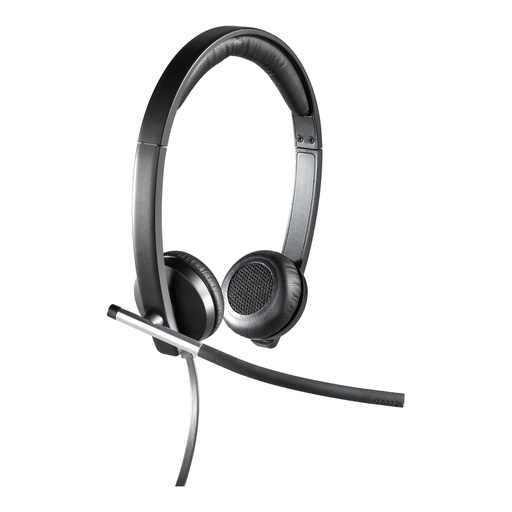 No image available
A wired stereo headset with a microphone for computer calls. Check that the connection works with your device and recording app.
The product information lists USB and in-line controls.
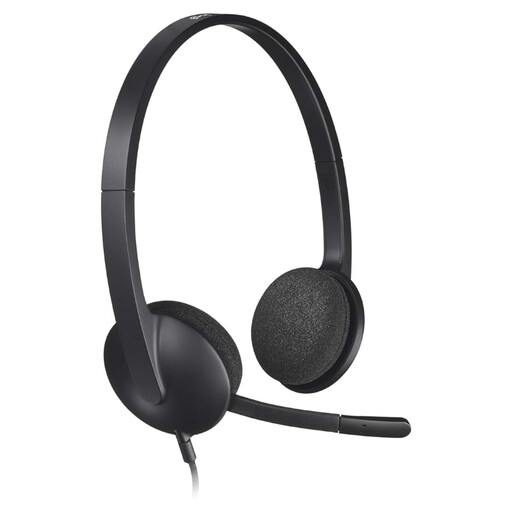 No image available
A wired USB headset for practising on a computer, with an adjustable microphone for your own voice.
The product information lists volume and mute controls. Check that the USB connection is suitable for your device.
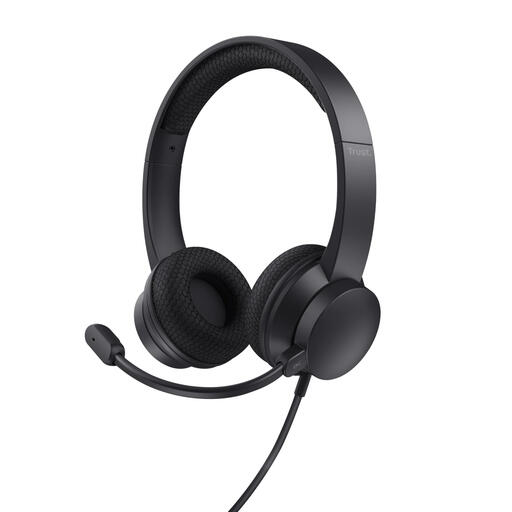 No image available
A wired headset for practising on a laptop or PC with USB Type-A; flip the microphone up to mute it.
The product information lists an adjustable headband. Check that USB Type-A is compatible with your device.
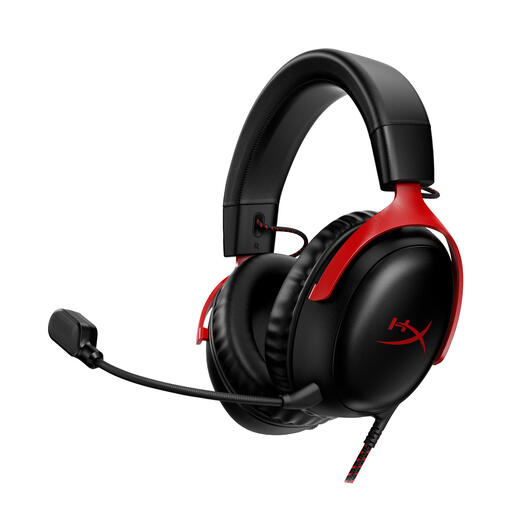 No image available
A headset with a microphone for communication and calls. Check which connection your device and recording app require before you buy.
The product information lists 3.5 mm, USB-A and USB-C connections, as well as a detachable microphone. These connections are listed for this product; check which connection your device needs.
No. The headset microphone is designed to pick up your own voice; recording the other person's voice depends on the app and recording settings. Audacity describes Windows WASAPI loopback for computer playback, but this doesn't confirm that every app or setup will capture both voices at once. Test the complete recording with the app you plan to use.
Select the headset as your microphone input, check the mute setting and listen back to a short test recording. If you're using Audacity on Windows and also want to record computer playback, the guide describes a loopback setting. Test whether it works with your chosen playback device and recording setup.
According to the Dutch government, you're entitled to a product that works properly, and the seller must provide a solution if a product is faulty. The Netherlands has no fixed statutory two-year guarantee period; a manufacturer's guarantee is in addition to your statutory rights.
The Dutch Data Protection Authority describes a GDPR exception for processing personal data solely for personal or household use; this isn't blanket permission to publish recordings. The rules may depend on the conversation and what you do with the recording. Agree with your practice partner whether you'll record and share it.