For recording and listening back beside your laptop, a wired USB headset is a good choice if its connector is compatible with your laptop. You won’t need to pair it over Bluetooth or charge a headset battery, but the cable will limit how far you can move. A Bluetooth headset gives you more freedom to move around, while a headworn microphone such as the Shure WH20 needs a suitable audio connection and a separate way to listen back. Make a test recording in both languages and check that your laptop is using the headset microphone; Microsoft Support explains how to test this in Windows.
Who is this practice setup for?
Speakers who listen back to their recordings
You practise close to your laptop, recording passages in Dutch and another language, and want to hear your pronunciation. The connection, microphone boom position and a test recording all matter here; Logitech, Trust and Microsoft Support explain relevant connection and testing steps.
Speakers who practise while moving around
You want to move around as you rehearse, so you’re happy to pair a Bluetooth headset and charge it. Logitech describes the Zone 300 as a Bluetooth headset.
Speakers recreating their presentation setup
You want to practise with a headworn microphone, like the one you might use on stage. Shure describes the WH20 as available with XLR, jack and TQG connections; also check how you’ll listen back to your recording.
Which buying choices matter?
Wired USB computer headset
A good choice if: you mainly practise beside your laptop and want to record and listen back to your voice straight away.
Bear in mind: the cable limits how far you can move; check the connector on the exact version.
Wireless Bluetooth headset
A good choice if: you want to walk around the room while practising and your laptop supports Bluetooth.
Bear in mind: you’ll need to pair and charge the headset; test the microphone from the places where you plan to practise.
Headworn stage microphone
A good choice if: you want to recreate the microphone setup you’ll use for your presentation.
Bear in mind: a stage microphone isn’t automatically a USB headset; you’ll need a suitable audio connection and a way to listen back.
| What to consider |
What to check before buying |
Who is this important for? |
| Recording and reviewing your voice |
Check that the headset works as a microphone input and make a test recording in both languages. |
I want to record passages beside my laptop and listen back to assess my pronunciation. That’s why around 40% of consumers prioritise being able to listen back. |
| Freedom to move |
Check that your laptop supports Bluetooth and test the recording in the places where you plan to practise. |
If I want to walk around the room while rehearsing, a cable that limits how far I can move is a drawback. Around 30% of consumers prioritise freedom of movement. |
| Connection and microphone input |
Compare the exact USB connector with your laptop, then select the correct microphone input. |
I want to use the headset without connection problems and make sure my laptop picks up the right microphone. That’s why around 20% of consumers prioritise a compatible connection. |
| Recreating your presentation setup |
Check what the microphone connects to and how you’ll listen back to the recording. |
If I want to recreate the headworn microphone setup from my presentation, the rest of the audio equipment needs to be suitable too. Around 10% of consumers prioritise recreating their stage setup. |
Which buying mistakes can you avoid?
-
Assuming every version has the same connector
A product range can include different connections. Logitech describes USB-A and USB-C versions of the H390, for example, while the H390 specification mentioned here is for USB-A.
Check the connector on the exact product and compare it with the ports available on your laptop.
-
Assuming noise cancellation guarantees a good practice recording
A manufacturer’s claim about background noise doesn’t, on its own, tell you whether every sound in your speech will be captured clearly in both languages.
Record a short passage in both languages and listen back to check that it’s clear and no sounds are missing.
-
Treating a stage microphone as a complete laptop headset
The Shure WH20 is described as having an XLR, jack or TQG connection; it isn’t automatically a USB headset with headphone playback.
Plan the full connection chain to your laptop in advance, including how you’ll listen back to the recording.
Which brands and product ranges are relevant?
Logitech
The H390 is a wired computer headset for practising beside your laptop; the Zone 300 is a Bluetooth option for anyone who wants more freedom to move while practising.
- For the H390, Logitech lists a positionable microphone boom, in-line controls and a 1.9 m cable.
- Check the connection on the exact H390 version. Logitech quotes up to 16 hours of talk time for the Zone 300; wireless use means pairing and charging.
Trust
The Ayda USB-ENC 25089 is a wired on-ear option for anyone who wants a laptop connection and easy-to-reach microphone controls.
- Trust describes USB and USB-C connections, and muting the microphone by flipping it up.
- The background noise reduction claim comes from Trust; make a test recording yourself to see how clearly sounds in both languages are captured.
EPOS
The PC 8 USB, product number 504197, is a stereo computer headset for recording and listening at your desk.
- EPOS lists in-line volume and mute controls, and compatibility with PC and Mac.
- Another product number is also listed under the same product range name; check the exact version before comparing specifications.
Jabra
The Evolve2 40 SE is a wired office headset for anyone who wants to shut out surrounding noise during a practice session.
- Jabra describes passive noise isolation from the ear cushions and a microphone boom.
- Versions are available for different connections and communication platforms. Noise isolation can be inconvenient if you also need to hear instructions from someone in the room.
Shure
The WH20 is a headworn microphone for anyone who wants to recreate a presentation or stage setup, not a complete USB computer headset.
- Shure lists XLR, jack and TQG versions for use with a bodypack system.
- Choosing compatible audio equipment is important; you’ll need to arrange headphone playback separately to listen back.
Headsets to consider
This selection focuses on wired USB headsets for practising and listening back beside your laptop, plus a wireless headset for greater freedom to move.
 No image available
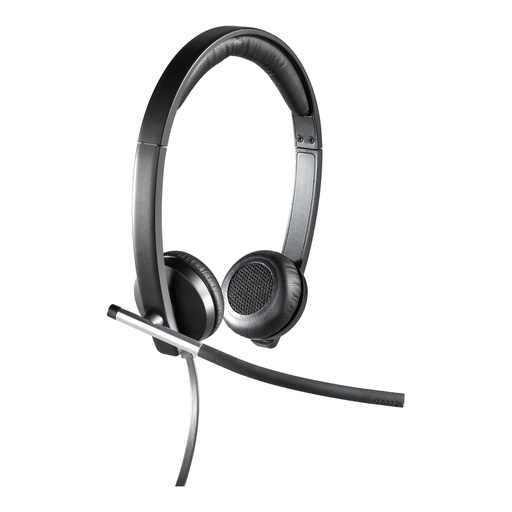
Logitech PC 960 USB headset
A wired USB headset for practising beside your laptop and listening back.
Features an adjustable microphone boom, stereo audio and in-line volume and mute controls.
View product at Joybuy
 No image available
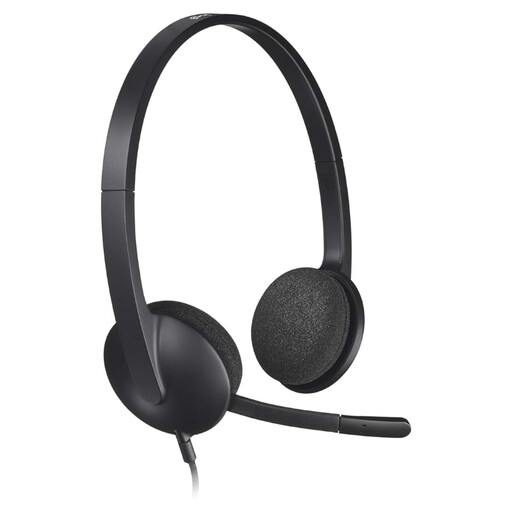
Logitech H650e Stereo wired headset
A wired USB stereo headset with a microphone for practising beside your laptop.
The product description lists in-line volume controls.
View product at Joybuy
 No image available
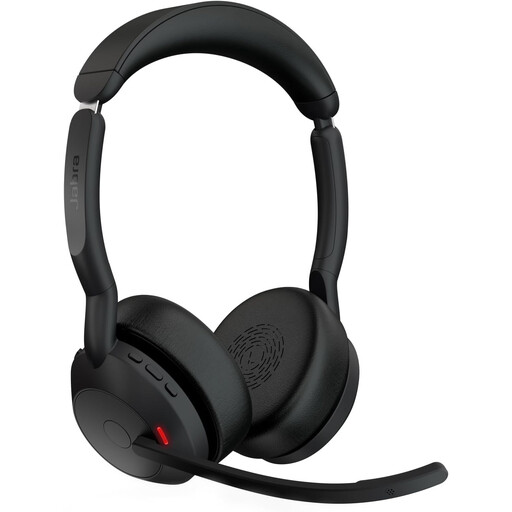
Logitech H340 USB headset, black, wired
A wired USB headset for speaking and listening in stereo while you practise.
The product description lists an adjustable microphone boom and digital stereo audio.
View product at Joybuy
 No image available
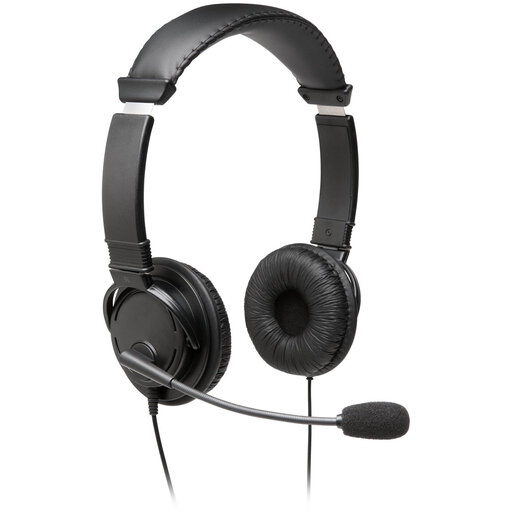
Jabra Evolve2 55 wireless stereo headset
A wireless headset for practising without a headset cable when you connect it to your laptop using the supplied adapter.
Features a flexible microphone boom and is described as coming with a Link 380 USB Bluetooth adapter.
View product at Joybuy
 No image available
Kingston USB Hi-Fi headphones with microphone
USB headphones with a microphone and stereo playback for speaking and listening back beside your laptop.
The microphone boom rotates through 270 degrees and the USB cable is 1.8 metres long.
View product at Joybuy
Frequently asked questions
How can I tell if my laptop is using the headset microphone?
Select the headset as your microphone input and make a short test recording; listen back before practising your whole speech. Microsoft Support explains how to choose the input and use features such as Start test and Playback in Windows 10 and 11.
Can a Shure WH20 be plugged straight into a standard USB port on a laptop?
Not using only the XLR, jack and TQG connections described by Shure for the WH20. First work out the right audio setup for your laptop; you’ll also need separate headphones to listen back.
What should I check when making a practice recording with a wired headset?
Position the microphone boom by your mouth, check that mute is off and listen back to a passage in both languages. Logitech lists a 1.9 m cable for the H390 described here; bear the length of the exact version in mind when positioning your laptop.
What if my headset breaks sooner than expected during normal use?
According to ACM ConsuWijzer, the seller must put things right free of charge if a product breaks sooner than expected during normal use. In the Netherlands, there is no single fixed end date for the statutory guarantee on every product.
What should I look for in a headset’s product safety information for the Dutch market?
The Dutch government explains that electronic products placed on the EU market must meet safety requirements and carry a CE mark. Check the product and seller information, especially when buying from outside the EU; the mark doesn’t tell you how clearly your practice recording will come through.


