What should you look for with soft speech?
First, check the microphone position and select the correct recording input. Then use a test recording to assess the level and any filters. This lets you weigh up clarity, background noise and connectivity separately.
| Consideration |
What should you check? |
Who is this important for? |
| Clarity of soft speech |
Position the microphone boom close to your mouth and select the correct input. Audacity suggests peaks around −6 dB as a guide; check with a test recording that your voice remains clear. |
If I speak softly, I want to record clear words without simply turning up the input level. Around 36% of consumers prioritise clarity when speaking softly. |
| Background noise and filters |
Record a clip with your usual background noise and compare it with and without a filter. Listen to check that quiet syllables and the beginnings of words are preserved. |
If I record near something like a keyboard or fan, I want to reduce background noise without cutting off words. Around 29% of consumers say this is their top priority. |
| Connecting to your computer |
Compare the exact headset version with the ports on your computer or interface. Check that you can select the microphone as a recording input. |
If I want to start recording straight away, the connection needs to work with my computer and recording software. Around 21% of consumers consider compatibility their most important concern. |
| Comfort and controls |
Check the fit and microphone controls during a session of the length you expect. Before a long recording, also check whether the microphone is muted. |
For a full tutorial, I want a comfortable headset and an easy way to check whether the microphone is muted. Around 14% of consumers prioritise comfort and controls. |
Headsets for a USB setup
This selection features wired USB headsets with microphones for a computer setup. Check the connection and use a test recording to assess how your soft voice and any filters sound.
 No image available
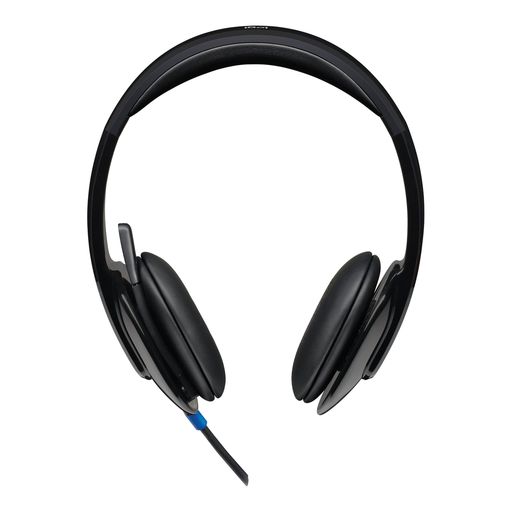
Logitech H540 USB headset
Suitable for a computer setup with USB-A and controls on the ear cup. The product description lists USB Type-A, on-ear-cup volume control and microphone mute, as well as an adjustable headband.
The microphone is described as noise-cancelling; make a test recording to assess how soft speech sounds in your space.
Joybuy
 No image available
Logitech PC 960 USB
The adjustable microphone boom makes this model worth considering if you want to position the microphone close to your mouth while recording. The product description lists USB, an adjustable boom and a microphone described as noise-cancelling.
It also lists inline volume control and mute with an indicator light. Test it with soft speech to see whether the recording and filter settings suit your needs.
Joybuy
 No image available
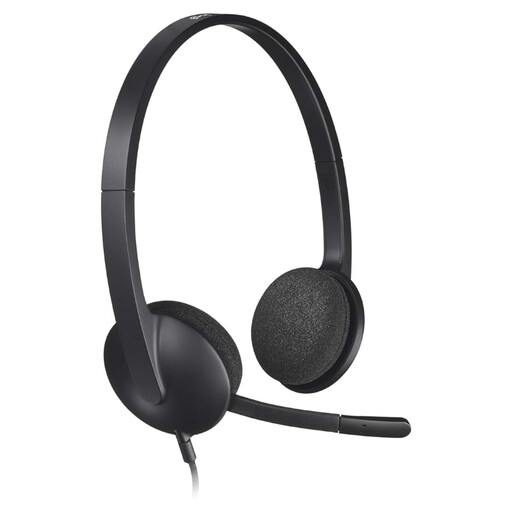
Logitech H340 USB headset
The flexible, adjustable microphone is useful if you want to change its position while recording. The product description lists a USB connection and plug-and-play setup.
The microphone is described as designed to reduce background noise; check with a test recording that quiet words are preserved.
Joybuy
 No image available
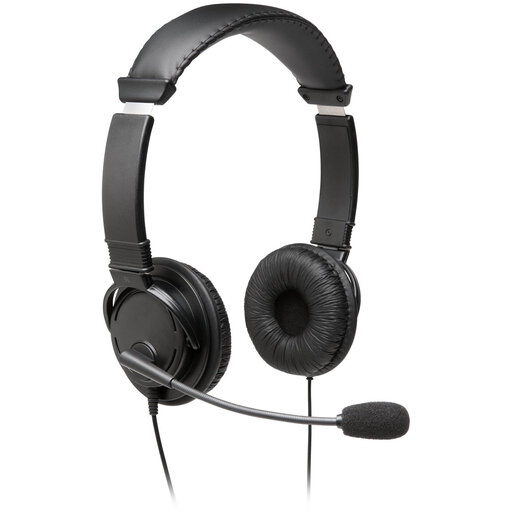
Kingston USB Hi-Fi Headphones with Microphone
The product description lists compatibility with Windows, Mac and Chromebooks, making this model worth considering if you use one of those systems. The USB cable is listed as 1.8 metres long.
The description also lists a microphone boom that rotates through 270 degrees and passive noise reduction. Make a recording to check that the microphone position works with your speaking style.
Joybuy
 No image available
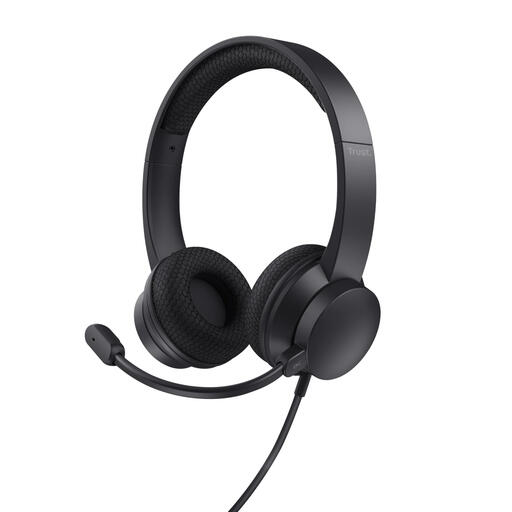
Trust Ayda wired USB headset
This model is worth considering if you want to use USB-A and mute the microphone quickly. The product description lists USB-A with a USB-C adapter cable and flip-to-mute controls.
The microphone is described as noise-cancelling; use a test recording to check whether soft speech remains clear.
Joybuy
Frequently asked questions
How do I set the recording level for a soft voice?
First select the intended microphone input and record a test passage at your usual volume. Watch the meter as you speak; Audacity suggests peaks around −6 dB as a guide. Listen back to the test for noise, missing quiet words and distortion before recording your tutorial.
Why do the beginnings of words sometimes disappear when I use noise filters?
A gate or expander set too aggressively can reduce soft speech that falls below its threshold. OBS Project warns that an expander can also cut off speech if the setting is too strong. Compare a short recording with and without the filter at your usual soft speaking volume.
Do I always need an audio interface for an analogue headset?
No, it depends on the headset version and the connections on your computer. The RØDE NTH-100M uses the supplied TRRS cable and can work with a suitable input; the non-USB ATH-M50xSTS has an XLR microphone connection and a separate headphone connection. Check that your recording equipment supports these inputs.
What are my rights in the Netherlands if a headset I bought online is faulty?
According to ACM ConsuWijzer, the seller is responsible for providing an appropriate solution if a product does not perform as you could reasonably expect under normal use; this is separate from any manufacturer's warranty. Online purchases also generally come with a 14-day cooling-off period after delivery. Check the applicable terms and exceptions before using or returning the product.


