
Safety announcement narrator
Wants to keep the microphone beside their mouth while reducing plosive sounds in the recording. Shure recommends positioning the SM35 at the corner of the mouth.


For a safety announcement, a headset is suitable if its microphone boom can be positioned securely beside your mouth and its connection works with your recording device. Shure recommends positioning the SM35 at the corner of your mouth, rather than directly in front of it, to reduce plosive sounds. So make a test recording with your chosen headset, too, and listen back to the full script. A USB headset can be straightforward to use with a computer that has a compatible port, while a broadcast headset such as the Audio-Technica BPHS1 requires separate microphone and headphone connections.
Wants to keep the microphone beside their mouth while reducing plosive sounds in the recording. Shure recommends positioning the SM35 at the corner of the mouth.
Wants to be able to position the microphone and assess how much background noise can still be heard in the final recording.
Needs to check whether USB, a 3.5 mm TRRS connection, or separate XLR and headphone connections are compatible with their existing equipment.
Choose this option if: you’re recording on a computer with a compatible USB port and want a straightforward connection. Logitech describes the H390 as a USB-A headset with a positionable microphone.
Bear in mind: select the correct input in your recording software and assess a test recording. Product specifications for calls don’t prove how your safety announcement will sound.
Choose this option if: you need an adjustable microphone boom and a specific USB-A or USB-C connection. Jabra describes both versions of the Evolve2 40 SE.
Bear in mind: Jabra’s information about call performance isn’t an independent assessment of recording quality. Also check that your device and app support USB audio.
Choose this option if: you already have compatible audio equipment and want to connect the microphone and headphones separately. According to the manufacturer, the Audio-Technica BPHS1 has an XLR microphone plug and a 6.3 mm headphone plug.
Bear in mind: both inputs need to be available. Don’t confuse the BPHS1 with the BPHS1-XF4 version for intercom systems.
Choose this option if: you want a detachable microphone and your recorder supports the microphone function of the supplied TRRS cable. RØDE describes this cable as essential for the NTH-100M’s microphone.
Bear in mind: a 3.5 mm headphone socket alone doesn’t mean the microphone will work too. Check the input and whether you need an adapter.
| What to consider | What should you check? | Who is this important for? |
|---|---|---|
| Microphone position | Check whether the boom is adjustable. Position the microphone beside your mouth and listen for plosive sounds in a test recording; Shure gives similar positioning advice for the SM35. | If I’m speaking close to the microphone, I want it to stay in position without disruptive bursts of breath. Around 33% of consumers say microphone position is their main consideration. |
| Background noise | Compare the microphone’s direction and position, and record in the room where you’ll make the announcement. Listen back using the intended playback system; manufacturer claims about speech processing don’t assess your recording. | In a noisy room, I want to hear whether background noise is masking words. Around 27% of consumers prioritise reducing audible background noise. |
| Connection | Check the exact version, available ports, and microphone and headphone inputs. According to Audio-Technica, the BPHS1 uses XLR and 6.3 mm connections; the RØDE NTH-100M requires the supplied TRRS cable for the microphone. | If I’m using existing recording equipment, I want to be sure the headset works as a microphone input. Around 20% of consumers put device compatibility first. |
| Monitoring and fit | Check whether you can listen back while recording and whether the headband and ear pads fit comfortably. Audio-Technica lists closed-back earcups for the BPHS1; that alone says nothing about how it will fit you. | For a longer recording session, I want to check my voice and wear the headset comfortably. Around 20% of consumers make monitoring and fit their top considerations. |
A microphone in the airflow can pick up plosive sounds. For the SM35, Shure recommends positioning it at the corner of your mouth rather than directly in front of it.
Position the boom beside your mouth as directed in your model’s manual, then make a test recording using words with p and b sounds.
Audible plosive sounds could mean you have to re-record part of the announcement.
Headsets may use USB, TRRS, or separate XLR and headphone connections. A socket intended only for headphones won’t automatically record microphone audio as well.
Compare the exact headset version with the available microphone and monitoring inputs. Depending on the connection, you may need a compatible interface or adapter.
Product information about calls or noise cancellation doesn’t tell you how your recording will sound in your room.
Record the full script and listen back using the system that will play the safety announcement.
The BPHS1 is a broadcast headset for equipment with separate microphone and headphone connections.
The NTH-100M combines headphones with a detachable headset microphone.
The H390 is a wired computer headset with USB-A in the version described.
The Evolve2 40 SE is a wired office headset with a flexible microphone boom.
The Blackwire 3320 version 8X220AA is a wired headset with USB-C and a USB-A adapter.
These Joybuy products have a built-in, pivoting, adjustable or foldable microphone and a connection for a compatible device. Check that each model’s microphone input works with your recorder or computer.
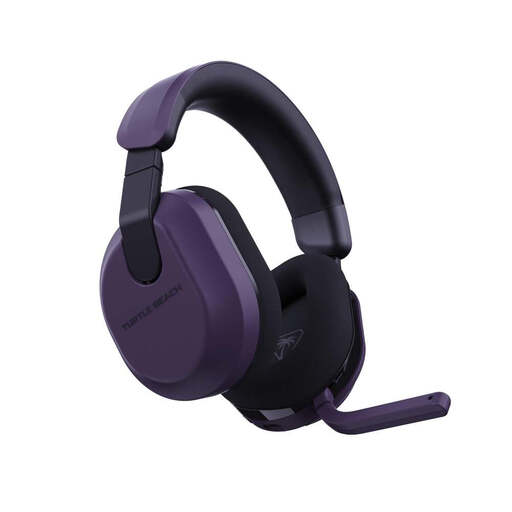 No image available
Could suit you if you want to use a pivoting microphone with a compatible device. Check first that your recording setup supports the USB receiver or Bluetooth connection.
The microphone is built in and can be pivoted up; according to the product information, it mutes when raised. The description says it can connect via a USB receiver or Bluetooth.
 No image available
Worth considering if you want to record on a computer with a compatible USB port and need an adjustable microphone boom.
The description lists a USB connection, an adjustable microphone boom, and in-line volume and mute controls. Check whether your computer recognises the headset as a recording input.
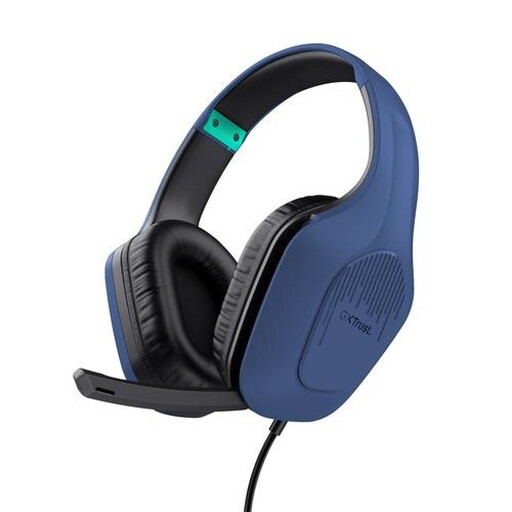 No image available
Could suit you if you’re looking for a headset with a foldable microphone and a 3.5 mm cable. Check whether your device’s connection also supports microphone audio.
The description lists a fixed 3.5 mm cable, a foldable microphone with mute control and an adjustable headband.
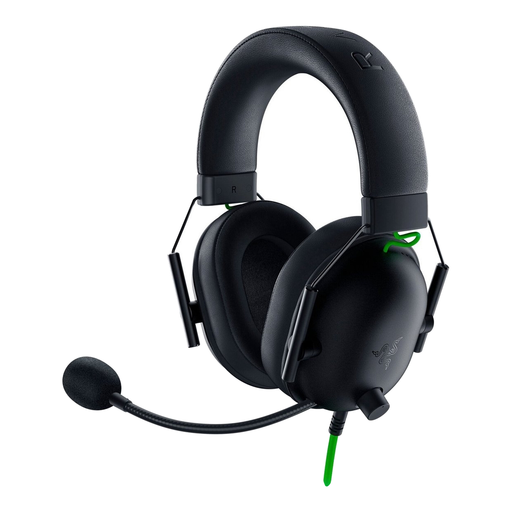 No image available
Worth considering if you want a wired headset with a microphone boom; the instructions recommend keeping it about 1–2 inches from your mouth.
The description lists a cardioid microphone, a 3.5 mm connection and a mute button. For a computer with separate microphone and headphone ports, it recommends using a splitter.
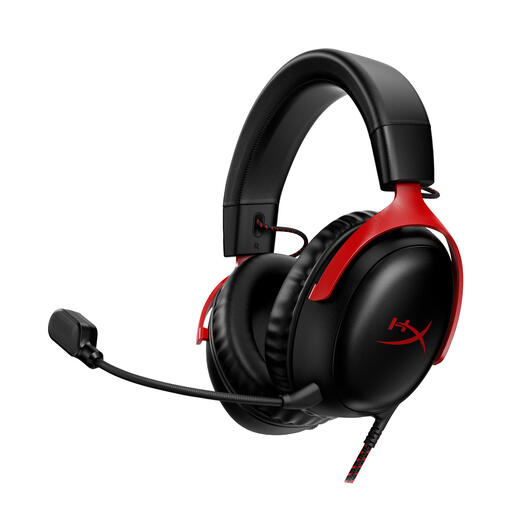 No image available
Could suit you if you want a headset with a detachable boom microphone and your recording device has one of the listed connections.
The product information lists 3.5 mm, USB-A and USB-C connections, as well as a detachable boom microphone. Check which connection and input are right for your recording setup.
Start beside the corner of your mouth, not directly in front of it. Shure recommends this position for the SM35 to reduce plosive sounds. Follow the guidance for your own model too, and listen back to a test recording.
No. A 3.5 mm connection alone doesn’t mean the microphone will work. RØDE specifies the supplied TRRS cable for the NTH-100M microphone; check whether your recorder or computer accepts a microphone signal through that connection.
Select the headset as the recording input, check that mute is off, and make a test recording of the full script. If there’s no sound, Logitech also recommends checking the connection port and microphone settings on your device and in the app.
For an applicable online consumer purchase, you generally have a 14-day cooling-off period from delivery, with exceptions such as goods made to order or personalised. Your Europe explains these rules. In the Netherlands, there is no fixed statutory guarantee period for all products; according to the Dutch government, the seller must provide a solution if a product is faulty.
No. A headset can’t assess whether the script or final playback meets any requirements for a specific location or use. So check the recording using the playback system it’s intended for as well.