What should you look for in a headset microphone?
Wired USB computer headset
Choose this option if: you want to record directly onto a computer and are looking for a simple connection.
Keep in mind: the difference between USB-A and USB-C; claims about call quality don’t tell you how recordings of spoken words will sound.
Headset with a TRRS connection
Choose this option if: you have a compatible combined connection and want to monitor your recording using the same headset.
Keep in mind: a standard headphone socket doesn’t automatically support microphone input; separate inputs may require a splitter.
Broadcast headset with separate plugs
Choose this option if: you already have a compatible XLR microphone input and 6.3 mm headphone output.
Keep in mind: you’ll need the right cable and connections; this setup doesn’t connect directly to a computer via USB.
First, choose a connection that’s compatible with your recording device, then assess the recording itself. A headset with a compatible connection doesn’t guarantee that softer words and louder introductions will sound clear in your space.
| What to consider |
What to look for |
Who is this important for? |
| Clarity of words and introductions |
Record softer words and louder syllables; check the microphone position and input meter. |
If I’m recording short examples, I want to be able to assess both softer and stronger sounds. Around 36% of consumers choosing equipment for this recording task put clarity first. |
| Connection to the computer |
Check that your computer and headset use the same USB-A or USB-C connection, and select the right microphone in your recording software. |
If you want to record on a computer without a separate interface, a compatible USB version and an input device that’s easy to select can help. Around 29% of consumers choosing equipment for this recording task prioritise the computer connection. |
| Background noise |
Make a test recording where you plan to record, then listen back for both background noise and the words. |
If you’re recording somewhere where other sounds may be present, you’ll want to check whether they mask your short examples. Around 21% of consumers choosing equipment for this recording task put control of background noise first. |
| Monitoring and existing equipment |
Check the microphone and headphone inputs, the cable you’ll need, and whether you need a splitter or interface. |
If you use your own recorder or interface, you’ll need compatible connections for both microphone input and headphone output. Around 14% of consumers choosing equipment for this recording task prioritise connecting to existing equipment and monitoring. |
Joybuy product picks
This selection includes wired USB headsets and headsets with a wired 3.5 mm connection for recording on a computer or compatible audio device. Check each model’s connection and whether you’ll need a separate microphone input.
 No image available
Logitech PC 960 USB headset
An option for recording through a computer’s USB port if you want to position the microphone close to your mouth.
The description lists an adjustable microphone boom and on-cable volume and mute controls.
View at Joybuy
 No image available
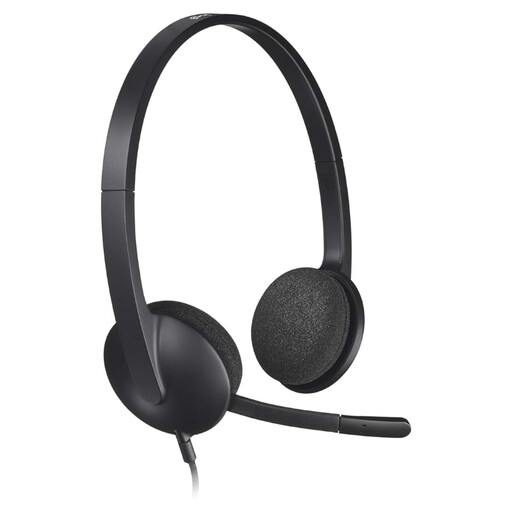
Logitech H340 USB headset, black
An option for computer recording via USB if you want to adjust the microphone position.
The description lists a USB connection and an adjustable microphone.
View at Joybuy
 No image available
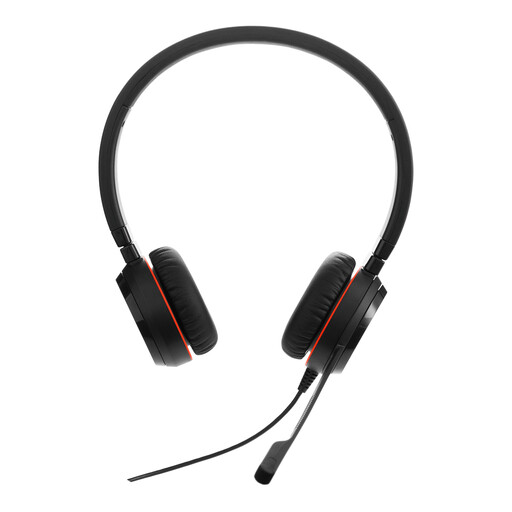
Jabra Evolve 30 II MS Stereo
An option to compare if you want to connect a wired headset with a microphone to a compatible computer setup.
The product description lists a 3.5 mm connection and a USB controller included in the box. Check which input your recording device uses.
View at Joybuy
 No image available
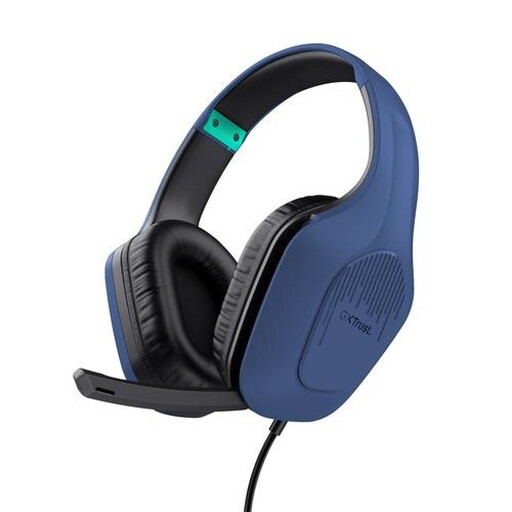
Trust GXT 415B Zirox wired headset
An option if your recording device has a compatible wired 3.5 mm connection and you want to be able to flip the microphone out of the way.
The description lists a flip-up microphone and volume and mute controls on the headset.
View at Joybuy
 No image available
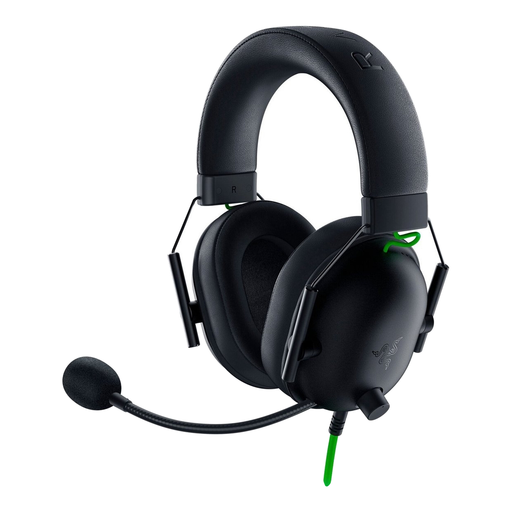
Razer BlackShark V2 X 7.1 wired headset, black
An option to compare for a wired recording setup with a 3.5 mm connection and microphone.
The description lists a cardioid microphone. For a computer with separate audio inputs, the product description says you’ll need the splitter cable supplied.
View at Joybuy
Frequently asked questions
How should you set up a headset before recording Dutch examples?
Select the microphone you want to use in your recording software, then make a test recording with softer words and a louder introduction. The Audacity Manual recommends checking the meter and avoiding clipping; around −6 dB is a guide for the highest peaks, not a requirement for a headset.
Can you connect any headset with a 3.5 mm plug to a recorder?
No. Check whether the connection also supports microphone input. The RØDE NTH-100M uses the supplied TRRS cable for the microphone, while the Audio-Technica BPHS1 with BPCB1 cable has separate XLR and 6.3 mm connections.
Should you buy an additional warranty in case the headset breaks?
Not automatically. According to the Dutch government, you’re entitled to a legal guarantee in the Netherlands if a product is faulty, and the seller must then offer a solution. There’s no fixed legal guarantee period for all products. Compare any extra cover with the rights you already have.
Can you publish someone else’s recognisable voice in your word samples?
A recording in which someone can be recognised may contain personal data. The Dutch Data Protection Authority states that in most cases you need permission to publish other people’s personal data online. Before processing the recording, assess which GDPR legal basis applies to your situation; this doesn’t mean you generally need to ask someone else for permission to use your own voice.
When buying online, do you always have exactly 14 days to return the headset?
No, this period doesn’t apply to every purchase. The Dutch government states that a 14-day cooling-off period applies in many cases when buying remotely from a business. Before ordering, check whether the rules apply to your purchase and who the seller is.


