The right choice depends mainly on the connections available on your recording device and whether you want to monitor your audio while recording. A USB headset is a straightforward option for a computer, while broadcast headsets often use separate microphone and headphone inputs. Position the microphone beside the corner of your mouth rather than directly in front of it; Shure recommends this position for the SM35 to reduce plosives.
Who is this guide for?
Quiz makers who want to reduce plosives
You’re recording an intro close to the microphone and want to remain clear without distracting bursts of breath. Shure recommends positioning the SM35 beside the corner of your mouth, rather than directly in front of it.
Quiz makers recording directly to a computer
You want to connect a microphone and headphones without using a separate microphone input. Logitech describes the H390 as a USB-A headset for connecting to a computer; check that your computer has the right port.
Quiz makers who want to monitor their audio while recording
You want to hear cues or your recording through headphones and can use separate recording connections if needed. According to Audio-Technica Europe, the Audio-Technica BPHS1 combines a microphone with closed-back headphones.
What should you look for?
USB headset with boom microphone
Suitable for: recording directly to a computer, provided it has a compatible USB connection.
Trade-off: Logitech positions the H390 for calls; this is no proof that its recording quality matches that of a broadcast headset.
Broadcast headset with headphones
Suitable for: recording and monitoring audio with equipment that has the necessary connections.
Trade-off: the BPHS1 has separate XLR and 6.3 mm connections; the RØDE NTH-100M requires the supplied TRRS cable to use its microphone.
Separate headworn microphone
Suitable for: a setup with a compatible microphone input or transmitter, with separate headphones if required.
Trade-off: connections and power requirements vary by model; with a wireless system, you’ll also need to check the frequency at your location.
First, check which connections your recording device supports. Then decide whether built-in headphones and room to move are important for your recording.
| What to consider |
What to look for |
Who is this important to? |
| Speech without plosives |
Check that you can position the boom beside your mouth, and make a test recording using words with hard ‘p’ and ‘b’ sounds. |
I want to position the microphone beside my mouth for a close-up intro without bursts of breath disrupting my speech. Around 36% of consumers give speech without plosives top priority. |
| Connection |
Compare the plug and any power requirements with the inputs on your computer, recorder or interface. |
I want to record directly to my existing device and know in advance whether the plug and power supply are compatible. For around 29% of consumers, direct connection is the top priority. |
| Monitoring |
Check whether headphones are included, whether the output is compatible and whether your recording software supports monitoring. |
I want to hear cues or my recording while speaking, so I need a compatible headphone output. Around 21% of consumers put monitoring first. |
| Freedom of movement |
Check the fit and cable length; if you’re using a wireless radio system, also check the frequency permitted at your location. |
I want to move around while speaking and can use a transmitter and receiver if needed. Freedom of movement is the top priority for around 14% of consumers. |
Common buying mistakes
-
Positioning the microphone directly in front of your mouth because closer always seems better
Shure warns that positioning the SM35 directly in front of your mouth can make plosives more pronounced.
Start with the microphone beside the corner of your mouth, fit the appropriate windscreen and test the loudest words in your intro too.
If plosives or breath noise are audible, you may need to record the intro again.
-
Assuming a separate headworn microphone is a complete computer headset
A separate microphone may need a powered 3.5 mm microphone input or a compatible transmitter. Other models use separate XLR and headphone connections.
Before buying, compare the connections and power requirements of the exact model variant with those of your recording device.
Depending on your setup, you may need a compatible transmitter, powered input or separate headphones.
Brands to compare
Logitech
The H390 is a wired USB computer headset for anyone who wants to connect directly to a computer.
- Logitech lists USB-A, a rotating microphone boom and volume and mute controls.
- The manufacturer positions the H390 for calls; that doesn’t make its recording quality comparable with broadcast models.
Audio-Technica
The BPHS1 is a broadcast headset with built-in headphones and a cardioid dynamic microphone.
- Audio-Technica Europe lists a replaceable cable with an XLR microphone plug and a separate 6.3 mm headphone plug.
- Check that both inputs are available; the BPHS1-XF4 has a different cable termination.
RØDE
The NTH-100M combines headphones with a microphone; the HS2 is a separate headworn microphone for a different recording setup.
- According to RØDE, the NTH-100M microphone works with the supplied TRRS cable. The HS2 uses 3.5 mm TRS.
- The HS2 requires a microphone input with plug-in power or a compatible transmitter. The two models have different connection requirements.
Shure
The SM35 is a cardioid headworn microphone for use with a compatible bodypack or XLR version.
- Shure recommends positioning the microphone beside the corner of your mouth, rather than directly in front of it.
- The TA4F and XLR versions differ in their connections and power requirements; check the exact version and your recording device.
Sennheiser
The HSP 4 is an adjustable cardioid headworn microphone for professional hands-free speech applications.
- Sennheiser lists an adjustable boom, integrated wind and plosive protection, and several connection options.
- Check the full model variant and the required transmitter or input; this isn’t automatically a complete USB headset.
Headsets at Joybuy
These headsets with microphones are options to compare for recording a quiz intro. Consider their connections, monitoring options and the microphone setup specified.
 No image available
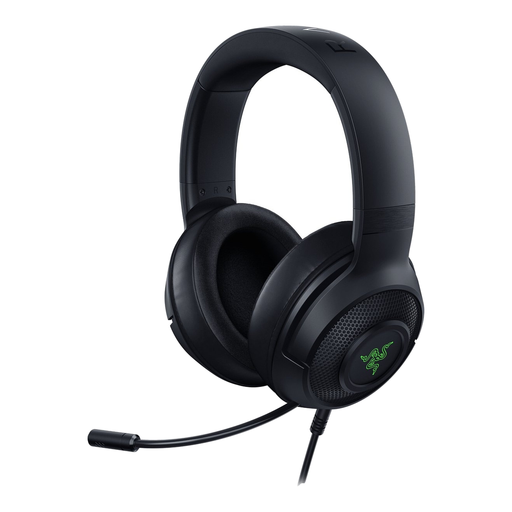
Razer Kraken V3 X, black
A wired USB gaming headset with a microphone, so you can also listen through the headset while recording.
The microphone is described as cardioid, with a recommended position around 1–2 inches from your mouth.
Joybuy
 No image available
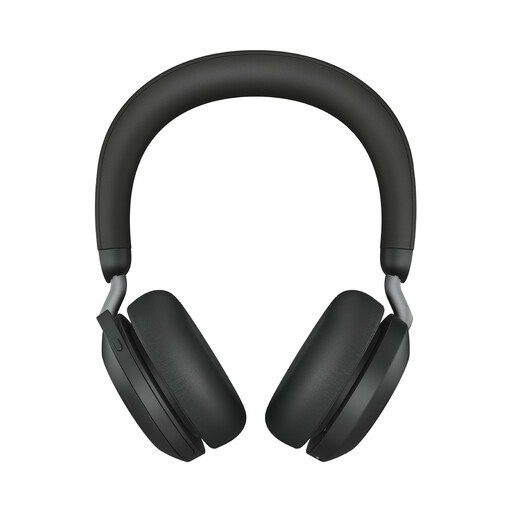
Jabra Evolve2 75 USB-A MS Teams, black
A wireless headset for monitoring audio while recording; check that the USB-A MS Teams version suits your recording setup.
Bluetooth; the description lists connection to two devices, a range of up to 30 m and eight beamforming microphones for voice communications.
Joybuy
 No image available
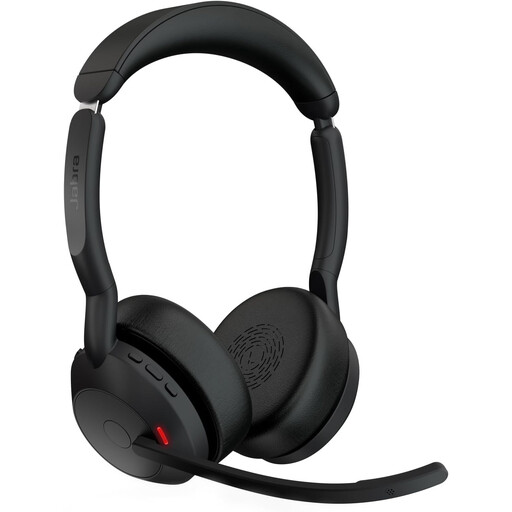
Jabra Evolve2 55 Wireless Stereo
A wireless stereo headset with an adjustable microphone boom for monitoring audio while recording.
The description lists two noise-cancelling microphones and a supplied Link 380 Bluetooth adapter.
Joybuy
 No image available
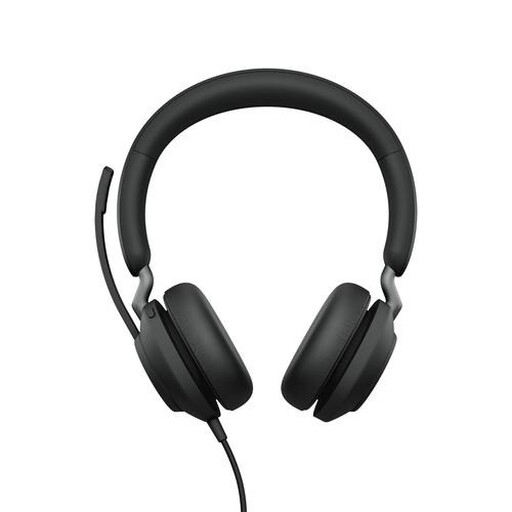
Jabra Evolve2 65 USB-A MS Mono, black
A mono headset for a computer setup with a compatible USB-A Bluetooth adapter.
Bluetooth 5.0; the description lists a supplied USB-A Bluetooth adapter and a three-microphone system for calls.
Joybuy
 No image available
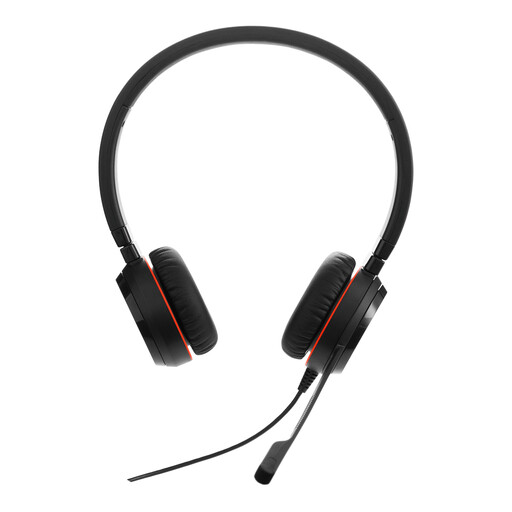
Jabra Evolve 30 II MS Stereo
A wired stereo headset with a microphone for monitoring audio; check which connection option suits your recording device first.
Connection options include 3.5 mm and a LINK MS controller for USB. The stated cable length is 0.95 m.
Joybuy
Frequently asked questions
Where should you position the microphone for a close-up quiz intro?
Start beside the corner of your mouth, not directly in front of it. Shure recommends this position for the SM35 to reduce plosives; then test it with your own voice and recording device.
Do I always need USB for a broadcast headset?
No. According to Audio-Technica Europe, the Audio-Technica BPHS1 uses a separate 3-pin XLR microphone plug and a 6.3 mm headphone plug. Check that your recorder or interface supports both connections.
Can I connect a separate headworn microphone to any computer?
Not without the right input or additional equipment. The RØDE HS2 requires a 3.5 mm microphone input with plug-in power or a compatible transmitter; also check the connection on the exact model variant.
What should I check when using a wireless headworn microphone in the Netherlands?
Check the frequency of the specific radio system and where you’ll be using it. The Netherlands Radiocommunications Agency says a licence is generally not required for wireless microphone use, but some frequency bands do require one, and you must use the correct frequency band.
How should I store a Shure SM35 after use?
Shure advises letting the microphone dry completely before storing it and keeping it out of damp, enclosed spaces. For other models, follow the manufacturer’s care instructions.


