
Quiet-voiced laptop user
You want to record your presentation or get feedback online without having to speak louder. Microphone placement and making a test recording are important considerations.


For recording or practising online, a computer headset with an adjustable boom microphone and the right connection is a sensible choice. Make a test recording at your usual speaking volume. If you want your voice to come through the classroom speakers, check that the microphone is compatible with the transmitter, mixer or amplifier available: a USB headset won’t necessarily work for this. Noise cancellation doesn’t prove that a quiet voice will be easy to understand, so listen back to the recording yourself.
You want to record your presentation or get feedback online without having to speak louder. Microphone placement and making a test recording are important considerations.
You want to move around while practising and have your voice come through the speakers already in the room. The connection to the sound system will determine which microphone set-up is suitable.
You want to reduce distracting background noise and practise in comfort. A noise-cancellation claim alone won’t tell you how easy your voice will be to understand.
Choose this if: you’re recording while seated or practising online, and your computer has a compatible USB port.
Bear in mind: the cable may limit how freely you can move.
Choose this if: you want to walk around while practising online and your computer supports the required Bluetooth connection.
Bear in mind: pairing and charging are part of using a wireless headset. A Bluetooth headset won’t automatically work with classroom speakers.
Choose this if: your voice needs to come through the classroom sound system and you know what equipment is available.
Bear in mind: a standalone headset microphone isn’t a complete system on its own. Check that you have a compatible transmitter and connection.
| What to consider | What should you check? | Who is this important for? |
|---|---|---|
| How easy a quiet voice is to understand | Choose a headset with an adjustable boom microphone and make a test recording at your usual speaking volume. Listen back and, if necessary, adjust the microphone position or input level. | If I speak quietly, I want to hear how my voice is actually recorded before I carry on practising. Around 36% of consumers put the clarity of a quiet voice first. |
| Connection to your practice set-up | Check whether your computer uses USB-A, USB-C or Bluetooth. For a room sound system, check the input and whether a transmitter is required. | If I’m practising on my laptop or want to use a classroom sound system, the microphone needs to connect to that set-up. Around 29% of consumers give the right device connection top priority. |
| Freedom of movement | Think about whether you’ll be walking around while practising. For wireless equipment, also check compatibility and, for a wireless room system, the frequency requirements at the location where you’ll use it. | If I’m presenting while standing and moving around the room, I want to know whether a cable will get in my way and what using wireless equipment involves. Around 21% of consumers put freedom of movement first. |
| Comfort and controls | Compare the fit, adjustability and position of the mute control. Before making another recording, check that the microphone isn’t muted. | If I’m practising several times in a row, I want a comfortable headset that’s easy to use. Around 14% of consumers put comfort and controls first. |
USB computer headsets and microphones for a wireless bodypack transmitter are different set-ups. A computer headset therefore won’t automatically work with a classroom’s amplification system.
Before you buy, ask what audio input and equipment are available, then check that the microphone is compatible.
For a room sound system, you may need additional compatible equipment, such as a transmitter or receiver.
A noise-cancellation claim doesn’t tell you how easy your voice will be to understand in your practice space.
Make a test recording at your usual speaking volume, try the microphone in different positions and listen back to the result.
According to the Dutch Authority for Digital Infrastructure, the available frequency spectrum varies by location; some bands require a licence.
Check the frequency band of the complete system against the latest information from the Dutch Authority for Digital Infrastructure for the place where you’ll use it.
The H390 is a wired computer headset, while the Zone 300 is a Bluetooth headset for wireless practice.
The Ayda USB-ENC is described as an on-ear computer headset with a USB connection and an adjustable fit.
The PC 8 USB is a wired on-ear stereo headset for PC or Mac.
The SM35 is a headset microphone designed for use with a compatible wireless bodypack transmitter, not a complete computer headset.
The Blackwire 3200 series includes wired computer headsets with different fits and connections.
These Joybuy products are computer headsets with microphones for practising on a laptop or PC, with both wired and wireless options.
 No image available
A wired option for computer use if you want an adjustable boom microphone and in-line controls.
USB connection; adjustable boom microphone; in-line volume and mute controls.
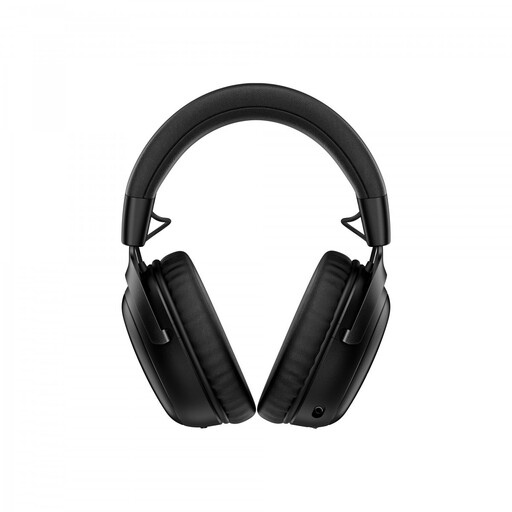 No image available
A wireless computer headset for practising if you want PC compatibility and a detachable microphone.
The description lists 2.4 GHz and Bluetooth, a detachable boom microphone and a mute control.
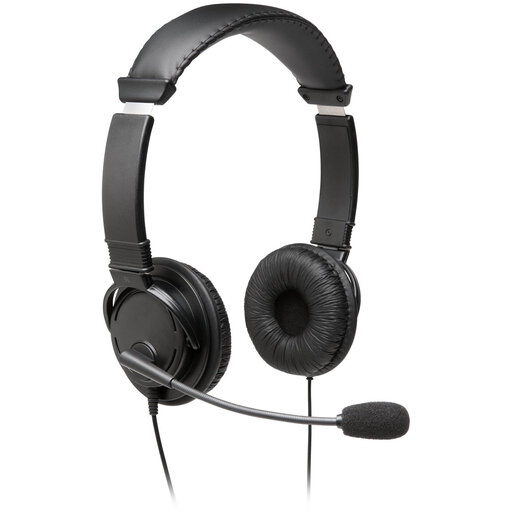 No image available
A wired computer option if you want to swivel the boom microphone to adjust its position.
USB connection; swivel boom microphone; compatible with Windows, Mac and Chromebooks according to the description.
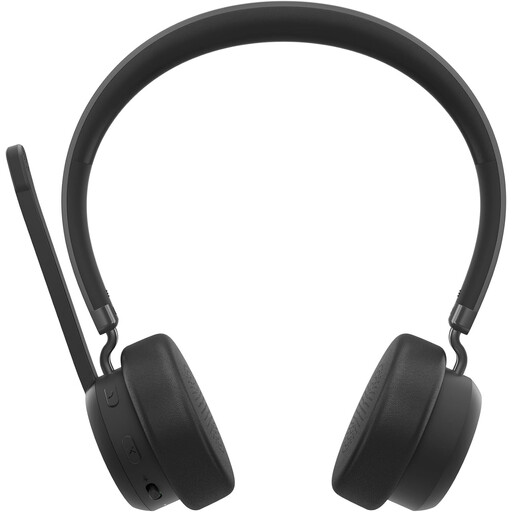 No image available
A wireless headset option if you want to move around while practising and your computer supports Bluetooth.
Bluetooth 5.3; folding microphone; the description gives talk time of up to 31 hours. Wireless use requires pairing and charging.
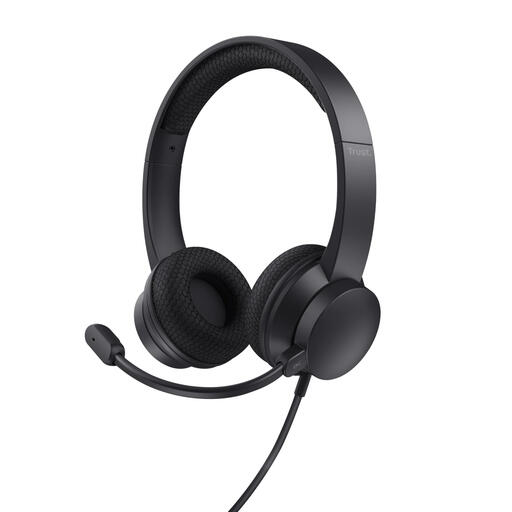 No image available
A wired computer headset if you want to mute the microphone quickly by flipping it up.
USB Type-A; adjustable headband; volume and microphone mute controls.
In Windows, select the microphone you want to use, start the microphone test and speak at your usual volume. Play back the recording and, if necessary, adjust the input level or the position of the boom microphone. This follows Microsoft’s set-up advice and doesn’t guarantee that every listener will be able to understand you.
For the SM35, Shure recommends positioning the microphone beside the corner of your mouth, rather than directly in front of it, to reduce plosive sounds. This advice applies to this model; check the manufacturer’s guidance for other headsets.
It depends on the frequency band and the requirements for the location where you’ll use it. The Dutch Authority for Digital Infrastructure says that the available frequency spectrum varies by location and that some frequency bands require a licence. Check the requirements for the complete system and the place where you’ll use it.
Check your education provider’s rules before recording other people in an identifiable way or sharing the recording. The Dutch Data Protection Authority highlights policies on making and storing recordings in online education. This doesn’t mean that every private practice recording is prohibited or that one rule applies to every situation.
For many purchases made online from a business, you have 14 days to change your mind; check which terms apply to your purchase. The Dutch government says that statutory warranty in the Netherlands has no fixed duration, and that the retailer is your point of contact if a product is faulty. A statement offering a two-year warranty doesn’t limit your statutory rights.