
Recording at a fixed desk
You record your own summaries and want to connect and mute the microphone easily. Logitech describes microphone controls and a mute function on the H390 and H151, among other features.


For recording spoken summaries at a desktop computer, choose a wired headset with a microphone boom, a mute button and a connection that works with your computer. Go wireless if freedom of movement or switching between devices matters more. If you’re using a mixer, check the microphone and headphone connections separately. A headset microphone won’t automatically record other participants: Microsoft and Zoom describe recording features for this in their meeting software.
You record your own summaries and want to connect and mute the microphone easily. Logitech describes microphone controls and a mute function on the H390 and H151, among other features.
You record your own voice using studio equipment and match the microphone input and headphone monitoring to the connections you already have. Audio-Technica and RØDE describe different connection setups for this.
You switch between a laptop and phone, or want to move around during a call, and need to consider battery management. JLab lists Bluetooth multipoint for the GO Work; Jabra describes wireless models in the Evolve2 range.
| What to consider | What to check | Who it’s for |
|---|---|---|
| Recording your own voice | Check the position of the microphone boom, the mute control and a test recording using your chosen software. | When I record my own summary, I want to position the microphone properly and hear in advance what the software will capture. Around 36% of consumers prioritise clear recordings of their own voice. |
| Connection | Compare the headset plugs with the ports on your computer or mixer, and check whether you need an adapter. | If I want to connect the headset to my existing computer or mixer, I want to know in advance which microphone and headphone inputs I need. Around 29% of consumers give connection compatibility their top priority. |
| Comfort | Look for adjustability and ear cushions. If possible, try the headset on before planning long sessions. | For longer meetings, I want a headset that feels comfortable and is easy to adjust. Around 21% of consumers rank comfort above the other considerations listed. |
| Freedom of movement | For wireless use, check the connection and battery requirements. For a wired model, make sure the cable suits your workspace. | If I want to move around during meetings or switch between devices, I want to know which connection and controls I’ll need. Around 14% of consumers prioritise freedom of movement. |
The headset microphone records your voice as an input; recording the whole meeting is a separate feature in the meeting app.
Check the app’s recording feature and access permissions, and make a test recording in advance that you can play back.
Transcription may also require a suitable feature in your meeting app.
The Audio-Technica BPHS1 has separate XLR and 6.3mm plugs. For connecting the RØDE NTH-100M to a specific XLR microphone input, RØDE recommends a suitable adapter with plug-in power.
Compare both the microphone and headphone plugs with your mixer, and check the power requirements for the exact model.
Depending on your setup, you may also need a suitable adapter or audio interface.
Microphone noise reduction, earcup isolation and stated battery life describe different features. JLab lists playback time for the GO Work; this isn’t the same as talk time.
Choose a headset to suit how you’ll use it, and test the voice recording and connection in your own space.
The H390 and H151 are wired computer headsets. The Zone Wired is a different model, with USB-C and a USB-A adapter, according to Logitech.
The Evolve2 40 SE is a wired range for UC calls; the Evolve2 65 is a separate wireless range.
According to JLab, the GO Work is an office headset with Bluetooth multipoint and wired connectivity.
The BPHS1 is a broadcast headset designed for use with a suitable mixer or audio interface setup.
The NTH-100M combines headphones with a detachable headset microphone.
The Blackwire 5200 series includes wired office headsets; HP distinguishes the stereo 5220 from the mono 5210.
This selection mainly includes wired headsets for use with a computer, plus Bluetooth headphones with microphones for calls. Check that each model’s connection and microphone suit your recording setup.
 No image available
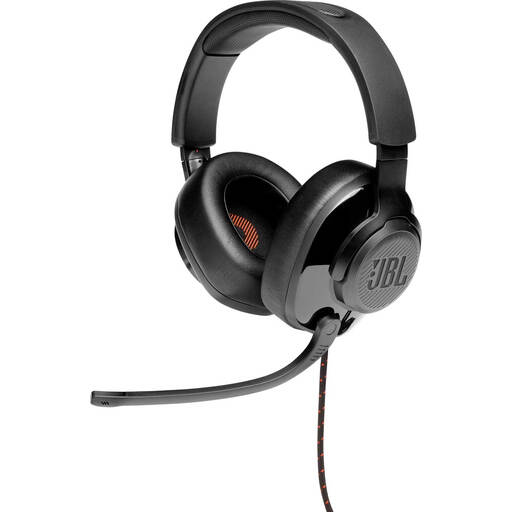
The fold-up microphone with mute mode may suit recording spoken summaries at a computer.
The product description lists a 3.5mm connection and a USB audio adapter included in the box.
The description mentions memory foam ear cushions and use with devices including PCs and Macs.
 No image available
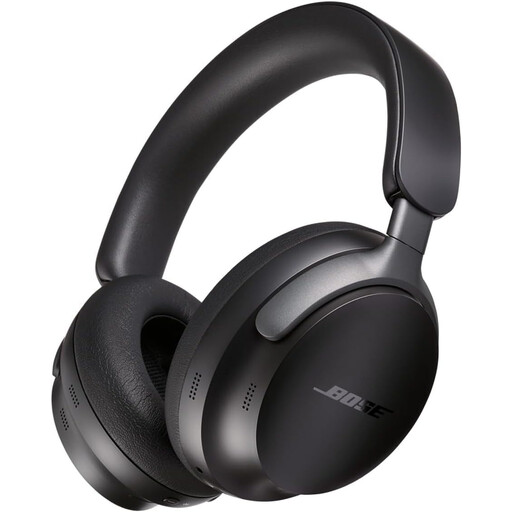
The product description lists built-in microphones for hands-free calls. Check whether your recording app can use these microphones as an input.
Bluetooth and an audio cable are listed as listening connections.
The description mentions leather ear cushions and a headband.
 No image available
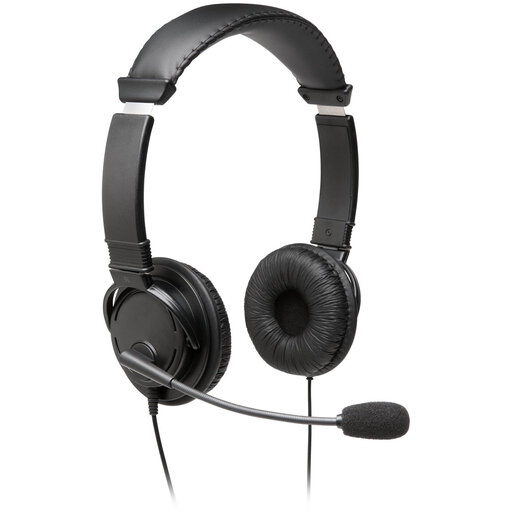
The product description lists a USB connection and flexible microphone boom for speaking at a computer.
According to the description, the microphone boom rotates through 270 degrees.
The description lists a 1.8-metre USB cable and compatibility with Windows, Mac and Chromebooks.
 No image available
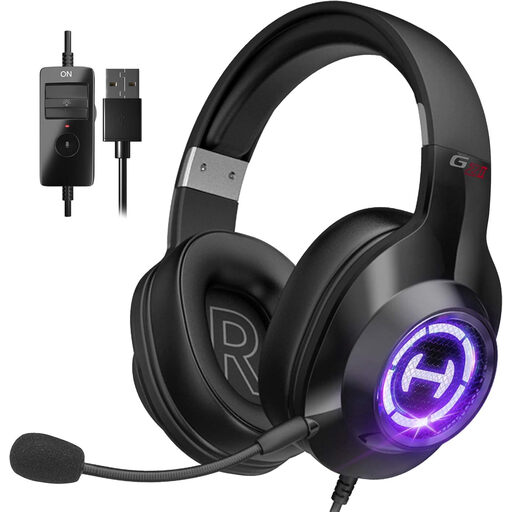
According to the product description, this wired headset has a USB connection and a microphone for communication.
The in-line controls are described as including a microphone mute function.
The description mentions soft ear cushions and an adjustable headband.
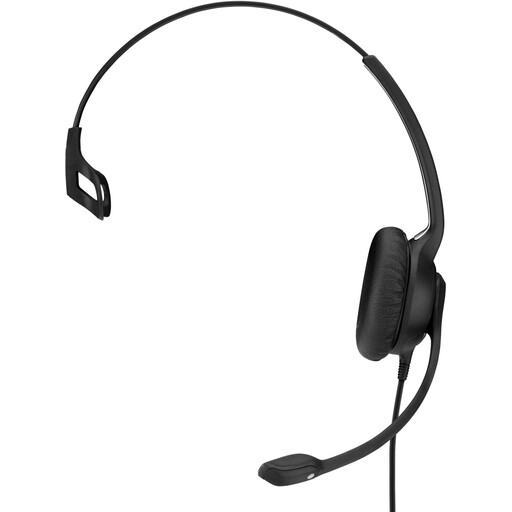 No image available
According to the product description, this wired USB headset has a microphone boom and is designed for use with a computer.
The description mentions in-line controls, an adjustable headband and a single-sided design.
Additional ear cushions are listed in the product description.
No. The headset is the microphone input for your own voice; you need the meeting app’s recording feature to record other participants. Microsoft explains that Teams recordings can capture audio, video and screen sharing; Zoom describes a separate computer recording feature. Make an authorised test recording in advance.
Follow the connection requirements for the exact model. Audio-Technica specifies an XLR plug for the microphone and a 6.3mm plug for the headphones on the BPHS1. For the NTH-100M, RØDE describes a splitter with separate 3.5mm plugs and recommends an adapter that supplies plug-in power for an XLR microphone input.
Check the physical connection, the mute setting and the selected input in both your operating system and recording software. Logitech lists these checks in its support information for the H390.
When you buy as a consumer, you’re entitled to a product that meets the terms of the agreement; according to the Dutch government, there is no fixed statutory warranty period in the Netherlands. A manufacturer’s warranty or extended warranty is separate. Check which cables and adapters are included with the specific version, and what else your setup requires.
This depends on the circumstances and the personal data you process. The Dutch Data Protection Authority says processing requires an appropriate legal basis under the GDPR; consent is one possible basis, but it isn’t automatically required or valid in every case. For recording conversations involving employees and the people they speak to, the Authority says you must inform them in advance. Don’t keep personal data for longer than necessary. Recording your own summary without information that can identify others is different from recording participants.