Choose a headset with a boom arm you can position comfortably beside your mouth, and make sure it connects to your recording device. Check the result with a test recording at your usual, quiet speaking volume. A wired USB headset is a straightforward choice for a computer, while extra connections or wireless use matter mainly if your setup requires them. Noise cancellation is no substitute for a quiet room or checking your recording level.
Who is this guide for?
Softly spoken course creator
If you speak softly when recording an introduction, you want your words to remain clear and the microphone to be easy to position. Shure gives specific guidance on positioning the microphone on the WCM16; also make a test recording and check the level.
Recording in a shared space
If conversations or room noise might be picked up, assess the recording in the space where you plan to make it. Soofos recommends a quiet room for course recordings; a claim about microphone noise cancellation is no substitute for listening to the recording.
Course creator using different devices
If you record using different devices, check the connection, selected microphone source and mute setting for each setup. Connections vary between headsets and versions; HP lists USB and 3.5 mm among the options for the Blackwire 5200 series.
What should you look for when buying?
Wired USB headset
A good fit if: you record at a computer while seated and want a direct connection.
Bear in mind: the cable limits your freedom of movement, and noise cancellation for calls does not guarantee a natural-sounding course recording.
Headset with multiple connections
A good fit if: you use a computer as well as a compatible device with a 3.5 mm connection.
Bear in mind: having an extra connection does not automatically mean the microphone will work with every device.
Wireless or headworn microphone
A good fit if: you want to move around while recording and can connect the necessary equipment to your recorder.
Bear in mind: the Shure WCM16 is designed for use with a wireless bodypack transmitter. For Bluetooth recording with simultaneous stereo playback, Microsoft specifies that the computer and headset must offer particular support.
| What to consider |
What to check |
Who is this most important for? |
| Clarity when speaking softly |
Check that you can position the boom beside your mouth, then make a test recording at your usual speaking volume. |
If I speak softly, I want to be able to hear my words clearly on playback. Around 36% of consumers rank voice clarity as their top priority. |
| Background noise and room echo |
Record a quiet moment and a spoken passage in the intended space, then listen to see whether conversations, equipment or echo are picked up. |
In a shared or echoey space, I want to be able to judge which sounds make it into the recording. Around 29% of consumers prioritise reducing ambient noise. |
| Connection and recording controls |
Check whether the USB-A, USB-C or 3.5 mm connection is compatible with your device; check the selected input source and mute setting. |
If I record using different devices, I want to know whether the headset is recognised and the correct microphone is active. Around 21% of consumers prioritise a working connection and straightforward controls. |
| Freedom of movement |
Decide whether you move away from your computer while recording and, if necessary, check that the complete wireless connection to your recorder works. |
If I move around while recording the introduction, I don't want a cable to restrict me, and the recording connection needs to keep working. Around 14% of consumers prioritise freedom of movement. |
Common pitfalls
-
Assuming noise cancellation means a clean course recording
Manufacturers mainly describe noise cancellation in relation to calls. A microphone cannot fix echo or a noisy room on its own.
Record a short quiet moment and a spoken passage in the room where you plan to record, then listen back to both.
If the room or recording is unsuitable, you may need to spend extra time recording again or adapting the recording space.
-
Assuming the headset microphone is selected automatically
A compatible plug does not mean your recording software will use the headset as its input. A mute setting that is switched on can also affect the recording.
Select the headset as the input source, check the mute setting and play back a short test recording.
If you only discover after recording that you used the wrong input or mute setting, you could lose the time spent recording.
-
Mistaking a headworn microphone for a complete computer headset
Shure describes the WCM16 as being for use with a wireless bodypack transmitter; it is not a standalone USB headset.
Before buying, check which transmitter, receiver and connection you need to make sure the complete signal path to your recorder works.
You may need additional compatible transmitting, receiving or recording equipment to use it.
Brands to compare
Logitech
The H390 and H540 are wired USB headsets for use with a computer.
- Logitech describes both models as having a positionable microphone boom and a noise-cancelling microphone for calls.
- The H540 has on-earcup controls.
- The versions described use USB-A. Noise cancellation for calls is not an independent assessment of how well it records a softly spoken course.
HP Poly
The Blackwire 5200 series is designed for people who want to use a computer and a compatible device with a 3.5 mm connection.
- HP describes the series as having a noise-cancelling microphone and mute controls.
- HP lists USB-C with a USB-A adapter and 3.5 mm for the series described; the Blackwire 5220 is the stereo version.
- Check that the connection you choose supports the microphone for the specific version and device.
Jabra
The Evolve2 40 SE is a wired office headset for use in a shared workspace.
- Jabra lists three microphones and a flexible microphone boom.
- Jabra's description of reducing background conversations relates to call use and does not prove that it will deliver a similar result for course recordings.
Shure
The WCM16 is a headworn microphone for presenters who need freedom of movement.
- Shure provides positioning instructions for this model and describes it as being for use with a wireless bodypack transmitter.
- The WCM16 is not a complete USB headset with a microphone. Check what equipment you need and how to connect it to your recorder.
Joybuy products for recording courses
This selection includes wired USB headsets and wireless headsets with microphones. Check that each model's connection and microphone suit your recording device, and assess the voice playback with a test recording.
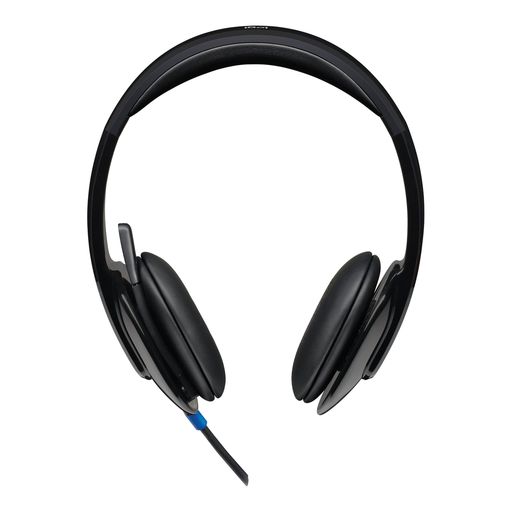 Image unavailable
Logitech H540 USB Headset, Wired
A wired headset for recording on a computer, with controls on the earcup.
USB Type-A; stereo sound, volume control and microphone mute on the earcup.
View at Joybuy
 Image unavailable
Logitech PC 960 USB Headset
A wired USB headset for anyone looking for an adjustable microphone boom and controls while recording.
The description lists in-line volume and mute controls, a mute indicator and an adjustable microphone boom.
View at Joybuy
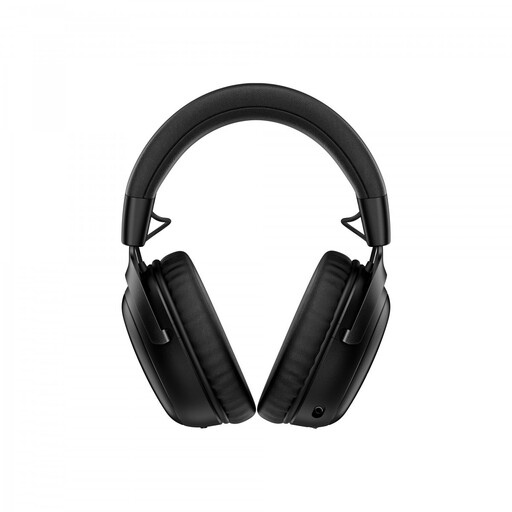 Image unavailable
HyperX Cloud III S Wireless Gaming Headset
A wireless headset with a detachable microphone boom; check that the connection you choose is compatible with your recording device.
The product name lists Bluetooth, 2.4 GHz and a detachable boom microphone.
View at Joybuy
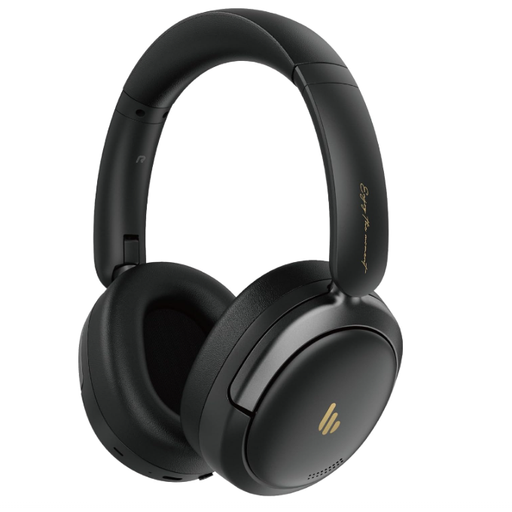 Image unavailable
Edifier Atom Max Foldable Over-Ear Headset
An over-ear headset with an integrated microphone for a wireless setup; check the recording with your own device.
The product name lists Bluetooth 5.4, a foldable design and 45H Playback.
View at Joybuy
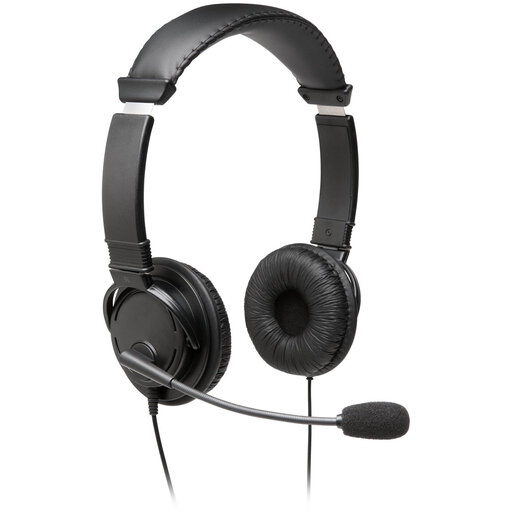 Image unavailable
Kingston USB Hi-Fi Headphones with Microphone
Wired USB headphones with a microphone boom, so you can position the microphone towards your recording.
The description lists stereo sound, a 1.8 m USB cable and a microphone boom that rotates 270 degrees.
View at Joybuy
Frequently asked questions
Should I set the microphone gain to maximum for a soft voice?
No. First make a test recording at your usual speaking volume and check that quiet words are audible and louder words are not distorted. For the test recording described, Audacity suggests peaks of around −6 dB as a guide; this is not a product specification or legal standard.
Where should I position the microphone boom?
Start beside your mouth and listen to a test recording to check whether breathing or plosive sounds are distracting. Shure's instruction to position the WCM16 within 40 mm of the left corner of your mouth applies to that model; don't treat that distance as a fixed requirement for other headsets.
What if the recording is still using my laptop's microphone?
Select the headset as the input source in your recording software, check that it isn't muted and play back a short test recording before recording your introduction.
What are my rights if a headset I bought online doesn't work properly?
In many cases, online purchases from a business come with a 14-day cooling-off period, although there are exceptions. The Dutch government states that if a product is faulty, you can contact the seller to find a solution; the manufacturer's guarantee does not replace your statutory rights. Also check the terms and conditions for your specific purchase.


