
Short voice-take creator
This user wants to re-record sentences and listen back straight away to check that the words are clear and the recording level is right. Audacity Support explains how to select a microphone and re-record a section.


If you mainly record on one computer, a wired headset with a suitable USB connection and an adjustable microphone boom is a practical place to start. Make a test recording and listen back: features designed for video calls don’t prove how your book review will sound. If you switch between devices or want to move around while practising, also check that the microphone audio is compatible, along with the connections you’ll need and whether the headset needs charging.
This user wants to re-record sentences and listen back straight away to check that the words are clear and the recording level is right. Audacity Support explains how to select a microphone and re-record a section.
This user might switch between a computer and a mobile device, so checks both the connection and whether microphone audio is supported. Audio-Technica, HP Netherlands and Jabra describe different connections and compatibility requirements.
This user also wears the headset while comparing takes, so fit and ear cushions are part of the decision. Logitech and Audio-Technica describe adjustment or cushion options for specific versions; comfort is a personal matter.
First, check that your recording device supports the microphone through the connection you’ve chosen. Then select the headset as your input device and assess a test recording. Audacity Support explains how to select a microphone, while Microsoft Support explains how to test one in Windows.
| What to consider | What should you check? | Who is this important for? |
|---|---|---|
| Voice clarity and recording level | Check whether the microphone boom is adjustable. Test the input with an ordinary sentence and a louder one, then listen back. | I want to hear after each take whether my words are clear and the level is right. Around 36% of consumers say clear voice recordings and checking the recording level are their main reasons for buying. |
| Connection and device recognition | Check the port, the full headset model and whether your device and recording software support microphone audio through that connection. | When I switch between devices, I want the microphone to work as an input on the device I’m using. Around 29% of consumers give compatibility with their recording device top priority. |
| Fit when listening back | Check the design and adjustability. If the ear cushions are replaceable, check which cushions come with that version. | I wear the headset for several takes and while listening back, so fit matters when I choose. Around 21% of consumers prioritise comfort during repeated practice. |
| Controls and freedom to move | Check how the version mutes and whether wireless use is compatible with your recording device; remember that it may need charging. | If I take breaks or want to move around while practising, I want to be able to mute easily or avoid being tied to a cable. Around 14% of consumers prioritise controls between takes or freedom of movement. |
A claim about voice calls doesn’t tell you how your spoken text will sound when recorded in your room.
Make a test recording, check the microphone position and listen back to the take before you decide.
A plug that fits doesn’t automatically mean your device or recording software supports the microphone through that connection. XLR and USB versions may also require different equipment.
You may need a suitable adapter or a different headset version.
Check the full model, your device’s microphone input and which accessories are included with that version.
Muting or turning up playback doesn’t adjust the recorded signal. An input level that’s too high can distort the recording. Audacity Support also distinguishes between playback volume and recording level.
Watch the input meter while recording a test sentence, then listen to the file at a normal volume.
The H390 is a wired computer headset for anyone looking for a USB-A connection, a microphone boom and controls on the cable.
The StreamSet range includes versions with different connection options, including 3.5 mm TRRS with USB adapters, and USB or XLR microphone connections.
The Poly Blackwire 3225 version described combines USB-C, a USB-A adapter and a 3.5 mm connection.
The Evolve2 30 SE range has mono and stereo versions, along with different USB and UC/Teams variants.
These wired headsets with microphones offer different connection options for practising and listening back. Check that each model’s microphone input is supported by your recording device.
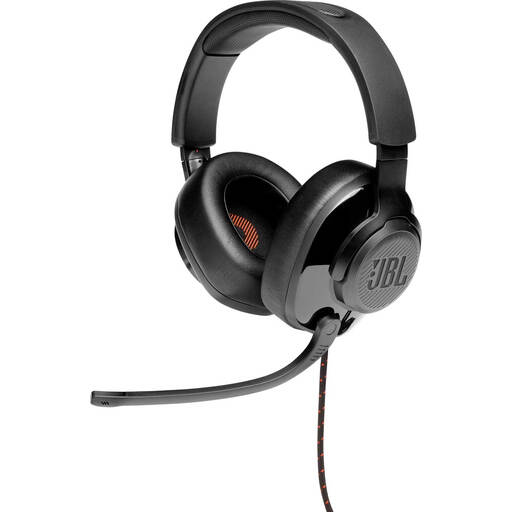 Image unavailable
The flip-up microphone mentioned in the product details may suit practising short takes with breaks in between.
The product description lists a 3.5 mm connection and a USB audio adapter. Check which connection works with your recording device.
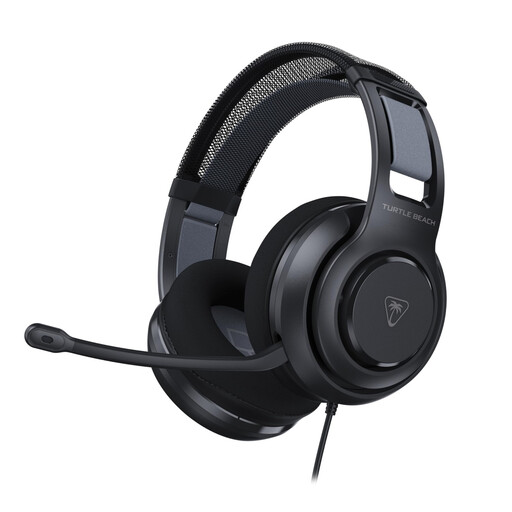 Image unavailable
The flip-to-mute microphone mentioned may be handy if you want to mute between short takes.
The description lists a 3.5 mm connection and a USB adapter in the box. Check that your device supports the microphone.
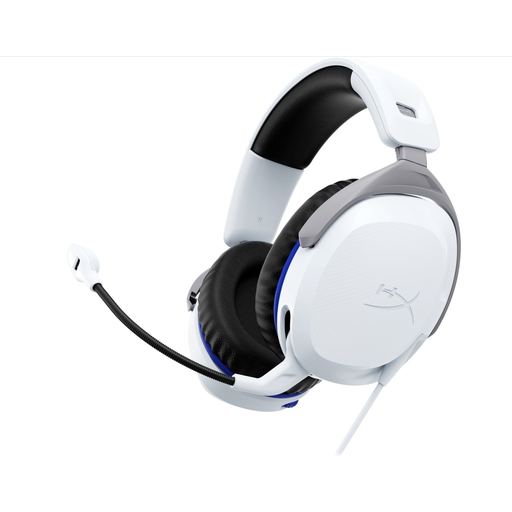 Image unavailable
The positionable microphone described may be useful if you want to adjust its position between takes.
The product information lists a wired 3.5 mm CTIA connection and an adjustable headband. Check that your device supports microphone audio via CTIA.
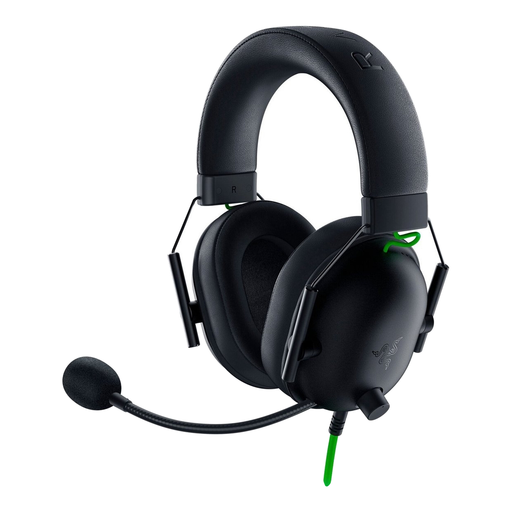 Image unavailable
The microphone boom described can be positioned close to your mouth for short takes; check its position during a test recording.
The product description lists a 3.5 mm connection, a cardioid microphone and a weight of 240 g. Check that your device supports microphone audio through the connection you’ve chosen.
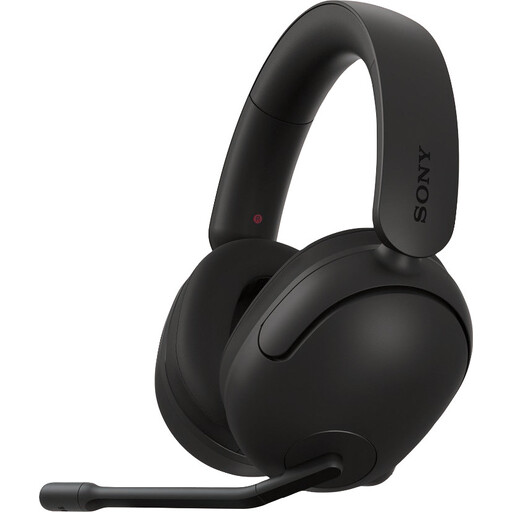 Image unavailable
The microphone boom described can be flipped up to mute, which may suit practice sessions with breaks between takes.
The product information lists a USB audio box and an alternative 3.5 mm connection. Check which option your recording device supports.
In your recording software, select the connected headset as the recording device, make a short test recording and listen back. If needed, check under Sound and Input in Windows to see which device is selected, then test the microphone.
Listen back first to work out whether it’s a pronunciation mistake or distortion. Audacity Support explains how to re-record a short section on a new track. If the sound is distorted, adjust the input level or microphone distance before your next take.
According to Audacity Support, software monitoring can cause an audible delay. Turn off monitoring if the delay is distracting. To listen in real time without that delay, your audio equipment needs to support hardware monitoring.
For an online purchase as a consumer, ACM ConsuWijzer says you generally have up to 14 days after delivery to change your mind, with some exceptions; check the terms for your purchase. In addition, under statutory guarantee rules, the seller must put right a product that, under normal use, doesn’t meet what you were entitled to expect.