If you only want to record your own voice, a headset will do the job as long as its microphone and connection work with your computer and recording software. If you also want to save your conversation partner’s voice, you’ll need to record your computer’s audio output separately. The Audacity guide explains how to use WASAPI loopback on Windows, but you’ll also need to test the microphone input. A wired USB headset suits a permanent desk setup, while Bluetooth gives you more freedom to move around but requires pairing and charging. Before a long session, make a short test recording and export it as a local audio file.
Who is this guide for?
Speakers who want to listen back to their own pronunciation
You practise Dutch sentences at a computer and want to listen to your voice in a local audio file. Check the microphone input and, after making a test recording, export an audio file. The Audacity guide explains how to export files including WAV and MP3.
Learners who want to record both sides of a conversation
You want to capture the other person’s side of an online practice conversation as well as your own voice. Test both audio sources separately: the headset microphone alone won’t automatically record your computer’s audio output. The Audacity guide explains different methods for recording computer audio and overdubbing.
Learners who use different devices
You use different computers or want to move around while speaking. Check that the exact headset model and connection are compatible with your device, and make sure the right microphone is selected as the input. Bluetooth is an option if your device supports it.
What should you look for?
First, decide whether you want to record just your own voice or both sides of the conversation. Then check that the connection and fit suit your device and practice sessions.
| What to consider |
What to look for |
Who it matters to |
| Recording your own voice |
Check that you can position and mute the microphone, then make a test recording at your usual speaking volume. |
If you want to listen back to Dutch sentences, you’ll want to check what the microphone actually captures. Around 29% of consumers prioritise recording their own voice for this type of practice. |
| Recording both voices |
Test the microphone and computer audio output separately, then listen back to both in the local file. |
If your online conversation partner’s responses need to be included in the file, you’ll need to check both audio sources. Around 29% of consumers prioritise recording both sides of the conversation. |
| Connection and input |
Check the exact model and connection against your device, select the headset as the input and test the microphone. |
To avoid choosing a model that won’t connect to your recording device, check the exact version. Around 24% of consumers prioritise device compatibility. |
| Fit and freedom to move |
Compare mono and stereo options, adjustability and ear cushions. Weigh up a cable against the need to pair and charge a Bluetooth headset. |
Fit can be especially important for longer sessions, while anyone who moves around during practice should consider the cable. Around 18% of consumers prioritise comfort or freedom to move. |
Things to watch out for when buying
-
Assuming a headset automatically records both voices
The headset microphone and your computer’s audio output are separate audio sources. A recording of the microphone alone may not capture your online conversation partner’s voice.
Before a long practice session, make a short local test recording and check that it includes both voices.
The wrong recording settings could cost you extra time if you have to repeat the practice or set up the audio sources afterwards.
-
Mistaking a product series name for the exact model
Models in the same series can differ in connection, fit and included accessories. A similar product name doesn’t necessarily tell you which version you’ll receive.
Check the full model name and connection against your device, and confirm which accessories are included with that version.
If the connection is different, you may need a suitable adapter.
-
Confusing microphone noise reduction with proven recording quality
Manufacturers’ claims about noise reduction don’t tell you how a Dutch practice recording will sound in your room.
Listen to a test recording made where you usually practise.
-
Assuming the manufacturer’s warranty covers all your statutory rights
ACM ConsuWijzer explains that your statutory rights exist alongside any manufacturer’s warranty. If a product doesn’t meet what you could reasonably expect during normal use, contact the seller.
Check what an additional warranty covers and keep your proof of purchase.
Brands to consider
Logitech
The wired H390 and Bluetooth Zone 300 offer different connection options for a fixed setup or more freedom to move around.
- For the H390 version described, Logitech lists USB-A, an adjustable microphone boom and on-cable controls.
- For the Zone 300, Logitech lists multipoint connectivity and up to 16 hours of talk time.
- These are manufacturer specifications, not an independent test of Dutch speech recordings. Check the exact model and test the recording yourself.
Trust
The wired Ayda USB-ENC is an on-ear option for computer use if microphone controls and an adjustable headband matter to you.
- For the Ayda USB-ENC, Trust lists mute by flipping up the microphone and a USB or USB-C connection.
- The claim that the microphone eliminates background noise doesn’t prove that every background voice will be removed from a practice recording. Check the full model details too.
HP Poly
The Blackwire 3200 series includes wired options for comparing fit and connection types.
- HP describes adjustable headbands and a range of connection and wearing options across the series.
- A series description doesn’t confirm that every Blackwire 3220 version has the same plug or accessories. Check the full model details.
Jabra
The Evolve2 30 SE series offers wired on-ear models in mono and stereo, with USB-A and USB-C options.
- Jabra lists two built-in microphones for the series described, which comes in several versions.
- The noise reduction claim isn’t an independent test of Dutch speech recordings. Choose based on the exact model details.
Joybuy product picks
These picks include wired headsets and earphones with a microphone, as well as a Bluetooth model. Check that the connection and microphone input for the exact version work with your device and recording software.
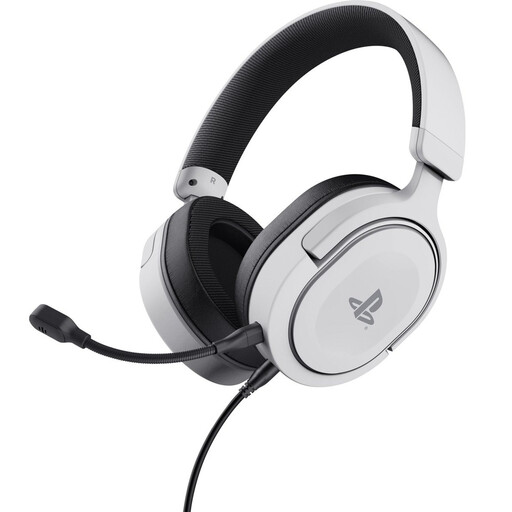 Image unavailable
Trust GXT 498W Forta wired gaming headset, white
A wired option if you use a PC with a compatible 3.5 mm connection and want to position the microphone.
Over-ear; flexible, detachable microphone; volume and mute controls on the ear cup; 3.5 mm connection for PC use.
View at Joybuy
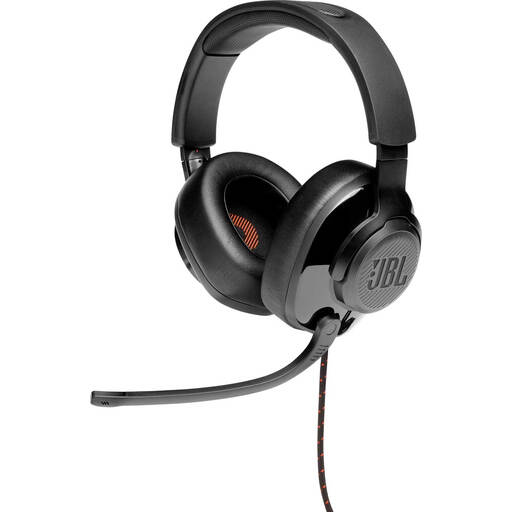 Image unavailable
JBL Quantum 300 wired over-ear gaming headset
This wired headset may suit PC use if you want to flip the microphone out of the way when you’ve finished speaking.
Over-ear; flip-up microphone; PC compatibility and included USB audio adapter, according to the product description.
View at Joybuy
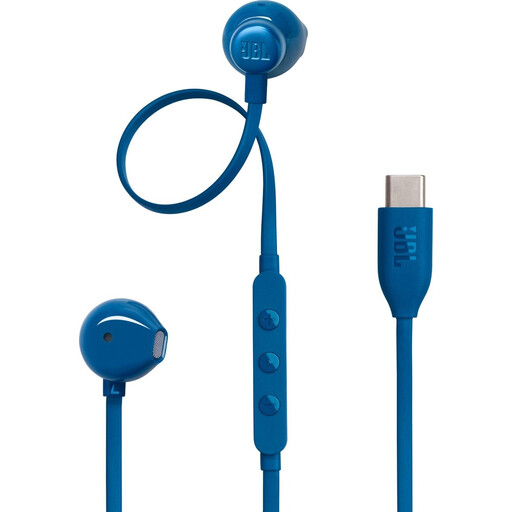 Image unavailable
JBL Tune 305C wired USB-C earphones, blue
A compact wired option if your recording device supports USB-C and you want to use earphones with a built-in microphone.
USB-C connection; built-in microphone; three-button controls. Check that the connection works with your computer and recording software.
View at Joybuy
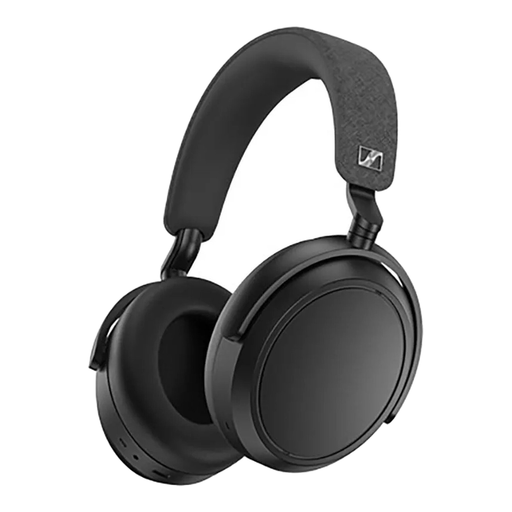 Image unavailable
Sennheiser MOMENTUM 4 Wireless, black
Bluetooth makes this model a good option if you want to move around without an audio cable while practising. Check that your recording device uses the headset as its microphone.
Over-ear; Bluetooth; four microphones according to the product title; 3.5 mm audio cable included; stated battery life of 60 hours.
View at Joybuy
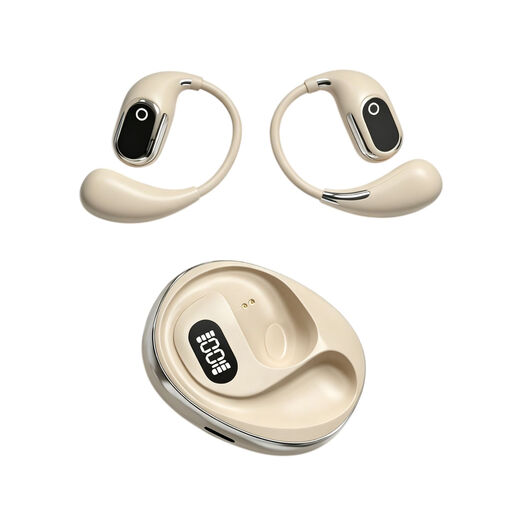 Image unavailable
OWS on-ear headphones with recording function and Type-C charging case
The product title mentions an on-device recording function. Before buying, check how it works and whether the file can be saved locally.
On-ear; built-in condenser microphone; Type-C charging case; the product title mentions simultaneous interpretation in 144 languages.
View at Joybuy
Frequently asked questions
Does a headset save your Dutch conversation practice as a local file?
No. You’ll need recording software, and you should check which microphone is selected. Make a test recording and export it as an audio file. The Audacity guide distinguishes between a saved project and an exported WAV or MP3 file.
Why is your online conversation partner’s voice missing from the recording?
The software is probably recording only the microphone, not your computer’s audio output. The Audacity guide explains how to use WASAPI loopback to record computer audio on Windows. Then check that both voices are in the final file. The headset alone won’t guarantee this.
How can you reduce echo in a test recording?
Listen through your headset rather than room speakers, and check the monitoring settings. The Audacity guide warns that audible input monitoring while recording computer audio can cause echo or distortion.
Does the GDPR apply to a privately stored practice recording, and can you share it?
The consolidated text of Article 2 of the GDPR on EUR-Lex describes an exception for processing by an individual as part of a purely personal or household activity. This doesn’t automatically give you permission for every other use or to share a recording that identifies other people. Discuss recording and sharing with your conversation partner beforehand. The Dutch Data Protection Authority lists consent as one possible legal basis when the GDPR applies.
Can you record a conversation in the Netherlands if you’re taking part in it?
A current local authority policy of the Municipality of Enschede, published via Overheid.nl and dated 24 November 2017, states that recording a conversation you’re taking part in is not a criminal offence in the context described. The policy concerns conversations with that municipality; it doesn’t give general permission for every use or for sharing a recording.


