
Version manager
You regularly edit transcripts or scan projects and want to be able to retrieve an earlier version. Microsoft Support explains how to restore versions using File History; Apple describes automatic backups with Time Machine.


Choose a portable HDD if you’re mainly looking for storage space for a growing archive that usually stays in one place; an SSD is a better fit if you regularly move files between computers. An external drive won’t automatically keep earlier project versions: set up a backup method, test that you can restore files and keep important files in a separate location too.
You regularly edit transcripts or scan projects and want to be able to retrieve an earlier version. Microsoft Support explains how to restore versions using File History; Apple describes automatic backups with Time Machine.
Your collection of scans is growing and is usually stored in one place. Choose enough space for your scans and the project versions you want to keep, without overlooking the need for a separate backup.
You regularly move files between computers, so you’ll need to check which connections are available. If your letters contain personal information, it’s also important to consider who can access the files.
First decide which need matters most for your archive, then check that the drive and your backup method are suitable.
| What to consider | What should you check? | Who is this important for? |
|---|---|---|
| Restoring earlier versions | Check which folders and versions your backup method keeps, and test restoring an older file. | If I want to retrieve a changed or overwritten project file, I need saved versions, not just a copy of the latest files. Around 36% of consumers say version recovery is their top buying priority. |
| Space for your archive | Compare the current size of your scans and project files with the space you’ll need for the versions you want to keep. | If my collection of scans is growing, I want enough room for both the scans and the project files I’m keeping. Around 29% of consumers give archive space top priority. |
| Taking files with you | Check the connections, cables supplied and any file system or USB standard requirements. | When I regularly move projects between computers, I want to know whether the drive will connect to both. Around 21% of consumers prioritise transferring files on the go. |
| Protecting sensitive content | Check who needs access and whether any encryption has actually been set up. | If my letters contain identifiable personal information, I want to manage access carefully. Around 14% of consumers say protecting sensitive content is their top priority. |
A fault or incident where the drive is stored could affect that copy too.
Keep important scans in a separate location and check that you can restore your files.
Version recovery depends on what your chosen backup method saves. Apple notes that Time Machine may delete older backups when the drive fills up.
Check which folders and recovery periods are set up, and test restoring an older project version.
Toshiba states that the Canvio Basics model reviewed is formatted as NTFS and needs reformatting for Mac use. Reformatting can affect files already on the drive.
Check the file system before saving files, and make a separate copy of any data before reformatting.
The stated maximum speed won’t necessarily be achievable with your computer’s connection and setup. Kingston says the XS1000’s optimal speed requires a USB 3.2 Gen 2 host.
Check your computer’s USB port and consider how often you copy large files.
The Canvio Basics range is a portable HDD option for an archive used mainly with a Windows computer. Toshiba lists a capacity of 2 TB for the model reviewed, HDTB520EK3AA.
Expansion Portable is a range of portable HDDs. Seagate lists a capacity of 2 TB for the model reviewed, STKM2000400.
The Portable SSD T7 is a range of portable SSDs for people who regularly move files. The 1 TB grey model reviewed is MU-PC1T0T/WW.
The XS1000 is a compact range of external SSDs, available in 1 TB and 2 TB models. The data sheet also lists a red 1 TB model, SXS1000R/1000G.
This selection includes portable SSDs and HDDs for storing and moving scans and project files. Choose the capacity and connection to suit your archive and computers; set up version recovery separately.
 No image available
A portable SSD for taking scan files and project files with you.
Capacity: 1 TB. The product description lists a maximum read speed of 800 MB/s, drop protection from heights of up to 2 metres and a fastening loop.
A drive won’t automatically keep earlier project versions; set up a backup method and test that you can restore files.
 No image available
A portable HDD for anyone looking for space for a growing archive of scans and project files.
Capacity: 6 TB. The product description mentions AES 256-bit encryption, password protection and backup software; the security features and automatic backups need to be set up.
The product description lists a weight of 210 grams and a USB connection. Backup software on the drive doesn’t, by itself, guarantee that you can restore earlier versions.
 No image available
A portable HDD for storing scans and project files. The product description mentions password protection and encryption.
Capacity: 2 TB. The product description lists AES 256-bit hardware encryption. You’ll need to install WD Discovery and activate the feature to use it.
The backup software mentioned doesn’t automatically guarantee version recovery; set up a suitable method and test that you can restore files.
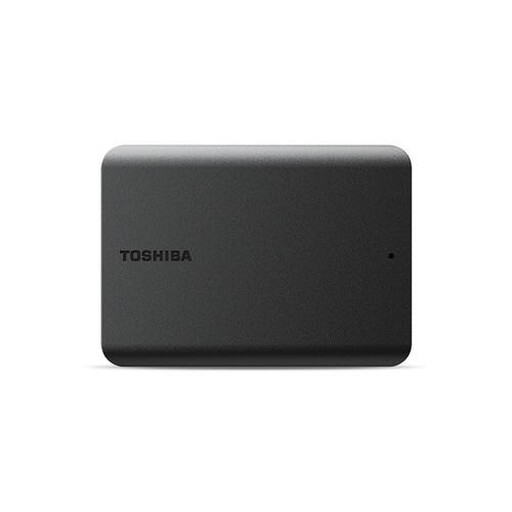 No image available
A portable HDD for storing scan files and project files.
Capacity: 1 TB. The product description lists USB 3.2 Gen 1 and USB 2.0 compatibility, as well as drag-and-drop file transfers on Windows.
The product description says the drive needs reformatting for Mac use; make a separate copy of any files on the drive first.
 No image available
A portable HDD for an archive of scans and project files that needs more storage space.
Capacity: 4 TB. The product description lists USB 3.2 Gen 1, USB 2.0 compatibility and a connection using a single USB cable.
The product description says the drive needs reformatting for macOS; make a separate copy of any files on the drive first.
No. You’ll need to set up a suitable backup method. Microsoft Support explains version recovery using File History, while Apple describes automatic backups with Time Machine. Check which project folders are actually included.
Test a restore and open a few restored scans and project files. The National Cyber Security Centre advises checking that you can restore files as well as making backups.
A manufacturer’s warranty doesn’t replace your statutory rights under Dutch law. According to ACM ConsuWijzer, these rights depend on what you could reasonably expect from the product; there’s no fixed time limit.
According to the Dutch Data Protection Authority, personal data processed solely for personal or household purposes is covered by the household exemption. If an organisation processes personal data, it must protect it appropriately and keep it for no longer than necessary.