An external HDD is a good fit for a receipts archive that is mainly managed in one place, where storage space for the collection and room to grow are the priorities. A portable SSD may be a better choice if volunteers regularly transfer scans between computers, provided the collection fits within the capacity you choose. Whichever drive you opt for, arrange separate backups, test that you can restore files, and check the connections, formatting and any access protection.
Who is this relevant to?
Manager of a growing receipts archive
You want to keep scans organised and choose a capacity that suits your existing collection and expected growth. The Netherlands National Archives highlights that digital archiving also requires careful attention to the processes around it.
Volunteer who transfers scans
You move files between locations or computers. Check which connections are available and which cables or adapters come with your chosen drive. Product information from Samsung, Kingston and Crucial lists different connection options and compatibility requirements.
Manager responsible for recovery and access
You want to be able to restore copies and may need to restrict access to scans. The Netherlands National Cyber Security Centre advises keeping important data in multiple versions; the Dutch Data Protection Authority recommends appropriate security measures based on risk.
What should you consider when choosing?
External HDD
A good fit for: a collection that is mainly updated in one place, when space for existing scans and expected growth is the priority.
Bear in mind: according to the Consumers’ Association, an HDD is more vulnerable to knocks than an SSD. Also check the connection and formatting of the specific model you choose.
Portable external SSD
A good fit for: volunteers who regularly transfer scans between workstations, provided the measured archive size fits within the capacity you choose.
Bear in mind: stated maximum speeds do not guarantee the transfer speed you’ll get on the computer you use.
First, measure your existing archive folder and estimate its growth. Then check that you can restore your copies, that the drive connects to the computers you use, and that access to the scans is appropriately managed.
| What to consider |
What should you check? |
Who should pay particular attention? |
| Capacity and growth |
Measure the current archive folder, estimate future growth using the same file basis, and compare it with the capacity of the exact model. |
If I need room for existing scans as well as new ones, I want to choose a capacity that suits my collection. Around 36% of consumers rank capacity as their top priority. |
| Backup and recovery |
Decide whether the drive is part of a plan that includes separate copies, then restore a few files to check that they open. |
If I don’t want to lose scans because a drive fails or a copy can’t be used, I want to test recovery in advance. Around 29% of consumers rank recoverability as their top priority. |
| Transfer and connection |
Note the ports and operating systems on the computers involved, and check the cables, any adapters and the formatting. |
When I transfer scans between workstations, I want to know whether the drive connects directly to the computers I use. Around 21% of consumers make transfer their top priority. |
| Access to scans |
Identify what personal data the scans contain and who needs access; then assess which security measures are appropriate for the situation. |
If receipts contain information that isn’t meant for everyone, I want to manage access carefully. Around 14% of consumers rank restricting access as their top priority. |
Common pitfalls
-
Assuming a new drive is a complete archiving plan
Having a copy on a single external drive doesn’t prove you can recover your scans if they’re lost or damaged.
Agree who will make the copies and where a separate copy will be kept. The Netherlands National Cyber Security Centre advises keeping important data in three versions: the original files and two backups. Regularly restore a few scans and open them.
Keeping a separate copy and allowing time for recovery tests require ongoing organisation.
-
Assuming an SSD’s stated speed guarantees scan transfer speeds
Manufacturers quote maximum speeds, but actual transfer speeds also depend on the computer, cable and conditions of use.
First, check the ports and cables on your workstations. Don’t choose a drive solely because it has a higher stated maximum speed.
-
Reformatting without securing existing files first
Toshiba states that the Canvio Basics model reviewed needs to be reformatted for the specified macOS use. Reformatting can erase existing data.
Decide in advance which computers need to be able to read the drive, and make a copy elsewhere of any files already stored on it.
Without that copy, scans already saved on the drive could be lost.
-
Leaving all scans accessible without restriction just because it’s an archive
If scans contain personal data, the purpose and retention period, as well as appropriate security, all need separate consideration. Rules for government archives do not automatically apply to every community archive.
Review the contents, decide who needs access, and record which retention periods apply to your organisation and documents.
Relevant brands to consider
Toshiba
The Canvio Basics HDTB520EK3AA model reviewed is a 2 TB portable HDD.
- Toshiba states that this model is powered via USB.
- According to Toshiba, the drive is formatted as NTFS for Windows by default; it needs to be reformatted for the specified macOS use. Make a copy of any existing files first.
Seagate
The Expansion Portable STKM2000400 is a 2 TB portable HDD.
- Seagate describes file transfer via USB.
- The product description is not an independent test of recoverability or durability; plan for separate backups.
Samsung
The Portable SSD T7 MU-PC1T0T/WW model reviewed is a 1 TB portable SSD.
- Samsung lists USB-C-to-C and USB-C-to-A cables, plus an adjustable password feature with AES 256-bit encryption.
- The stated transfer speed is a manufacturer specification. Make sure you actually enable the security feature if you need it.
Kingston
The XS1000 SXS1000R/1000G model reviewed is the red 1 TB SSD.
- Kingston lists a USB-C-to-USB-A cable and a USB-A-to-USB-C adapter for this model.
- Stated speeds are maximums; the product specification does not confirm that access protection is enabled by default.
Crucial
The X9 CT1000X9SSD9 is a 1 TB portable SSD with a USB-C connection.
- Crucial lists support for Windows File History and Apple Time Machine, among other features.
- Compatibility may depend on the device and formatting; the stated maximum read speed was measured under Crucial’s test conditions.
Joybuy products
These product choices are aimed at storing scans on an external HDD or portable SSD, with options for fixed storage, transferring files and connecting to different computers.
 No image available
SanDisk Portable SSD 1 TB
A good fit for carrying scans between locations, provided 1 TB is enough for your measured archive size.
The description lists read speeds of up to 800 MB/s and drop protection from heights of up to 2 metres.
View at Joybuy
 No image available
WD Elements Portable HDD 5 TB
A good fit for an archive that fits within the stated capacity and for which you want a portable HDD.
The description lists a 2.5-inch HDD, USB-C and plug-and-play use. Check that the connection and formatting are compatible with the computers you want to use the drive with. According to the Consumers’ Association, an HDD is more vulnerable to knocks than an SSD, so bear this in mind if you’ll be carrying the drive around often.
View at Joybuy
 No image available
Western Digital My Passport 2 TB Black
A good fit for storing scans on a portable 2 TB HDD, including when restricting access is part of your plan.
The description lists USB bus power and an included USB-A-to-Micro-B cable. Password protection and AES 256-bit encryption need to be set up; you’ll also need to decide how passwords and recovery access will be managed. According to the Consumers’ Association, an HDD is more vulnerable to knocks than an SSD.
View at Joybuy
 No image available
Toshiba Canvio Ready HDD 2 TB
A good fit for a collection that stays within 2 TB and for which you want a portable HDD with plug-and-play use.
The description lists Micro-USB B, USB 3.2 Gen 1 and USB bus power. Check that your computers support the connection and formatting. According to the Consumers’ Association, an HDD is more vulnerable to knocks than an SSD.
View at Joybuy
 No image available
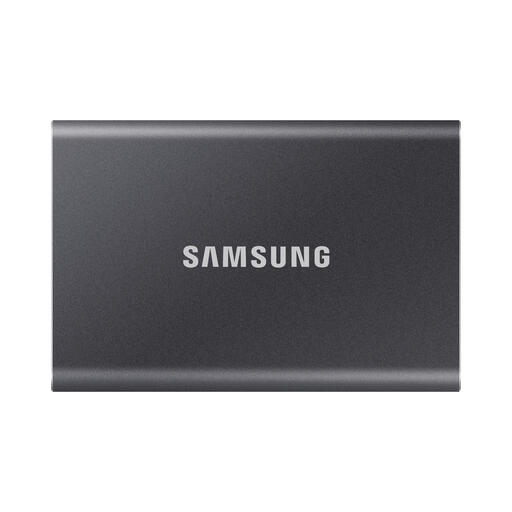
Samsung Portable SSD T7 2 TB USB Type-C 3.2 Gen 2 Grey
A good fit for storing and transferring scans, provided 2 TB is enough for your collection and expected growth.
The description lists USB-C-to-C and USB-C-to-A cables, as well as AES 256-bit encryption. Check which cable suits the computer you use and set up access protection if you need it.
View at Joybuy
Frequently asked questions
Is one external drive enough to store your scans?
Not as your only recovery measure. The Netherlands National Cyber Security Centre advises keeping important data in three versions: the original files and two backups. Also test that you can restore and open stored scans.
How do you back up an archive folder on a Windows computer?
Microsoft describes File History for an external drive or network location. If the archive folder isn’t in a standard library, follow Microsoft’s instructions to add it to a library. Then test a restore to check that the right scans are included.
Can scanned receipts replace the paper originals?
For invoices and receipts covered by tax record-keeping requirements, the Dutch Tax and Customs Administration allows digital storage after scanning, subject to certain conditions. The scan must be an accurate and complete representation, and authenticity features must be retained. An external drive alone does not meet these conditions; this does not establish a general rule that originals can be discarded for other archive material.
Does a community archive have to keep receipts for seven years?
Not automatically for every scan. The Dutch Tax and Customs Administration states that the records of a foundation or association generally need to be kept for at least seven years; certain property-related records must be kept for ten years. For personal data, the appropriate retention period also depends on the purpose and applicable obligations, according to the Dutch Data Protection Authority.
Which privacy rules apply if scans contain personal data?
According to the Dutch Data Protection Authority, processing personal data requires an applicable GDPR legal basis, and organisations must determine appropriate security measures based on risk. So first identify what information the receipts contain, who needs it and how access will be managed. Rules for archiving by government organisations do not automatically apply to a private community archive.


